

How to use ReGen
Start with a video or an image. Choose any one of the methods below.
How to ReGen a video
Choose one of these three ways to start.
With hover pills
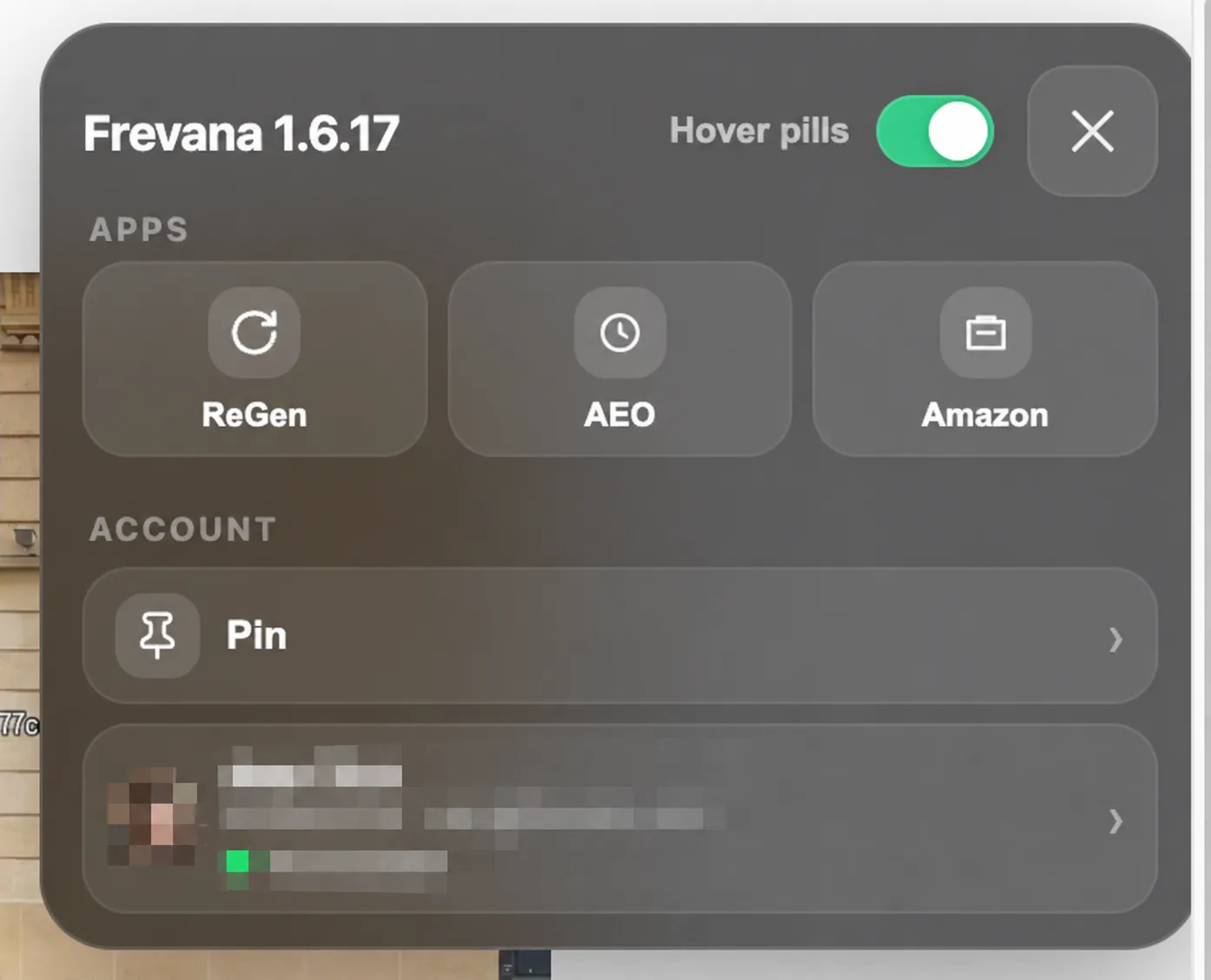
- On the website, open Frevana from Chrome’s extensions menu and turn on Hover pills.
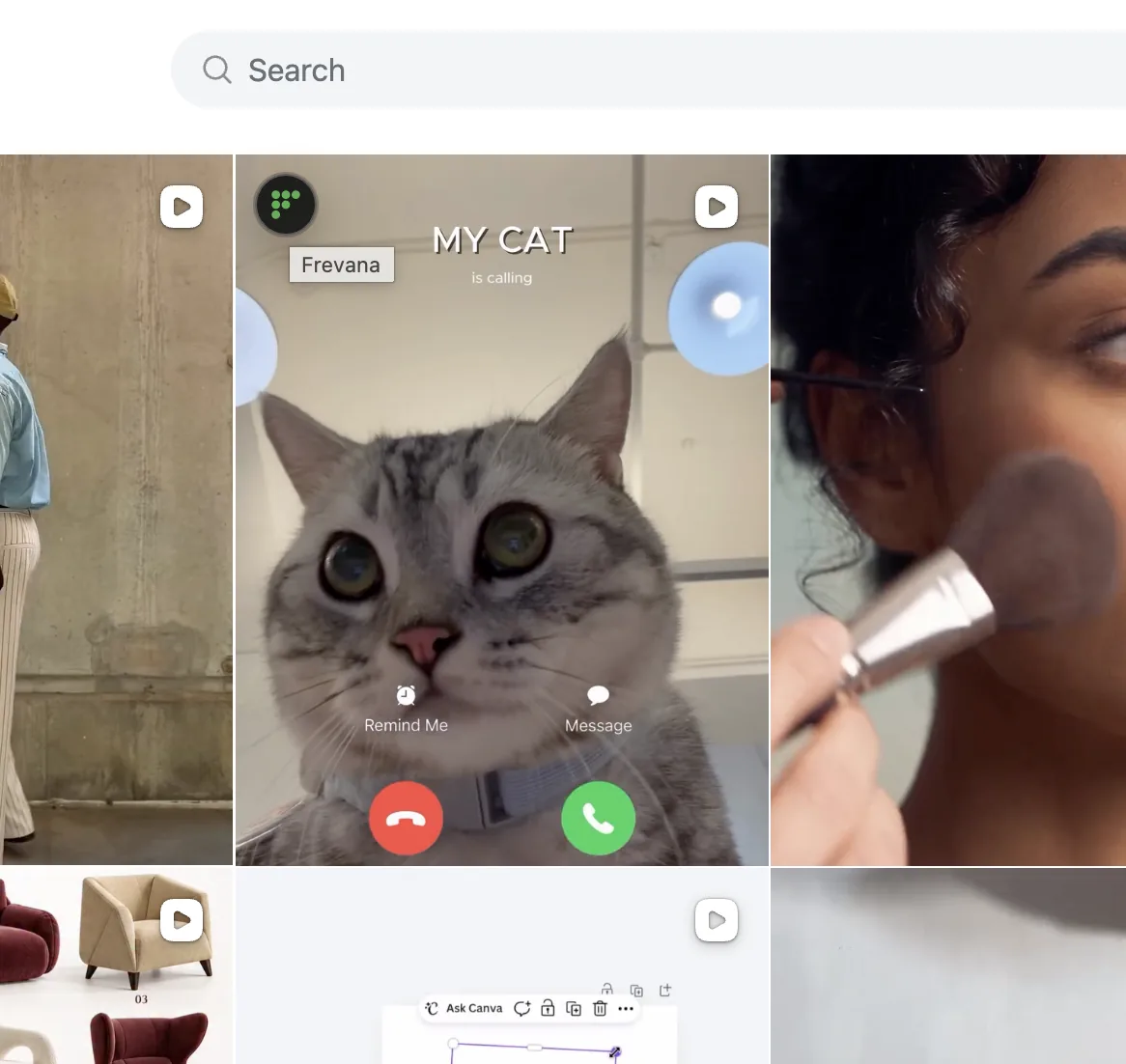
- Move your pointer over the video and click the ReGen pill.
- Follow the video capture instructions, then save and analyze the clip.
With right-click
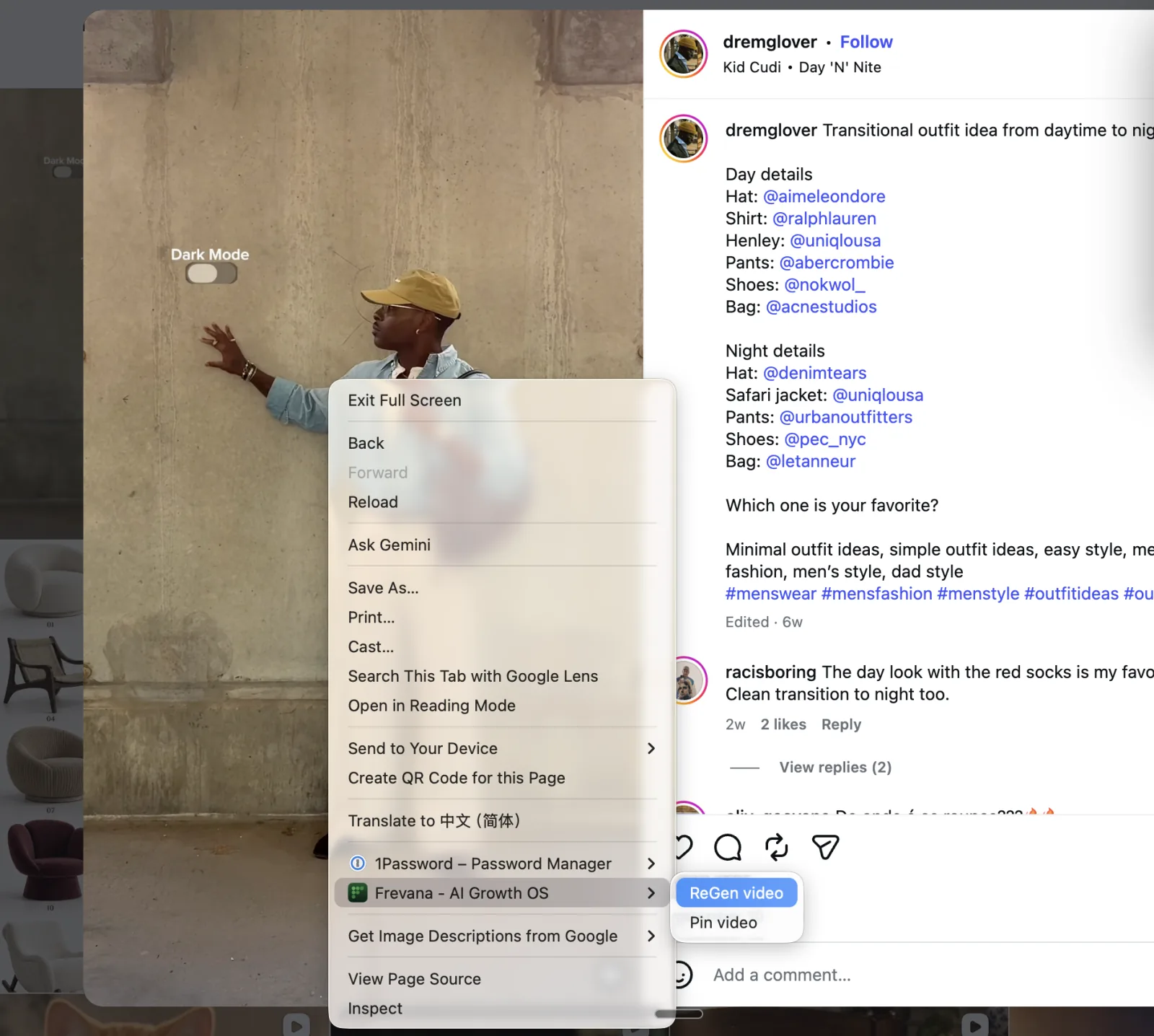
- Right-click the video and choose ReGen video. If needed, open the Frevana submenu first.
- Follow the video capture instructions, then save and analyze the clip.
With automatic detection
- Open the page containing the video, then open Frevana from Chrome’s extensions menu.
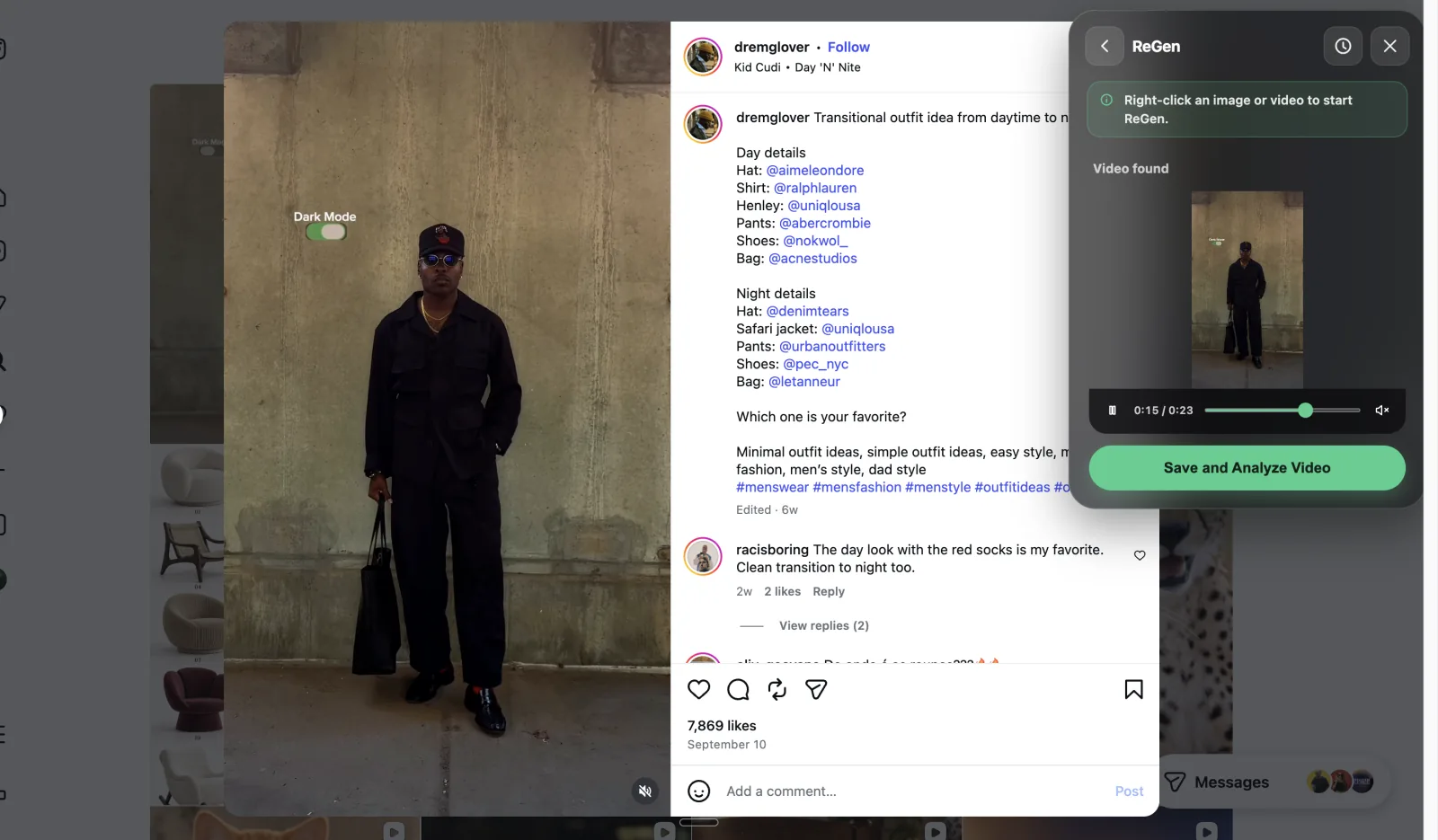
- Click the ReGen app tile. ReGen looks for a video on the page.
- When Video found appears, check the preview and click Save and Analyze Video. Follow any capture instructions shown.
If no video appears, play the video on the page or use hover pills or right-click to select it directly.
How to ReGen an image
Choose one of these two ways to start.
With hover pills
- On the website, open Frevana from Chrome’s extensions menu and turn on Hover pills.
- Move your pointer over the image and click the ReGen pill.
- Wait for ReGen to analyze the image and show its prompt.
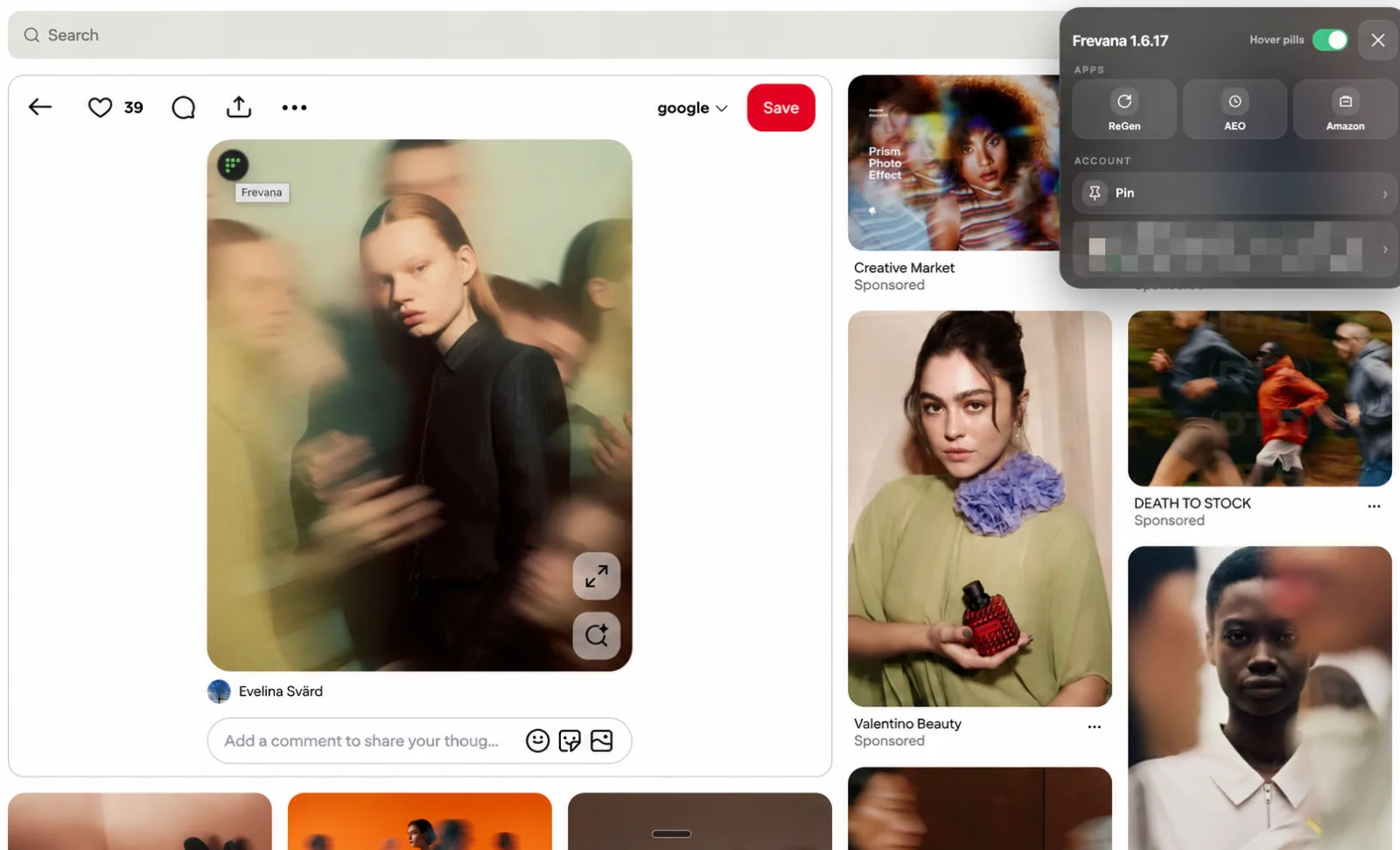
With right-click
- Right-click the image and choose ReGen image. If needed, open the Frevana submenu first.
- Wait for ReGen to analyze the image and show its prompt.
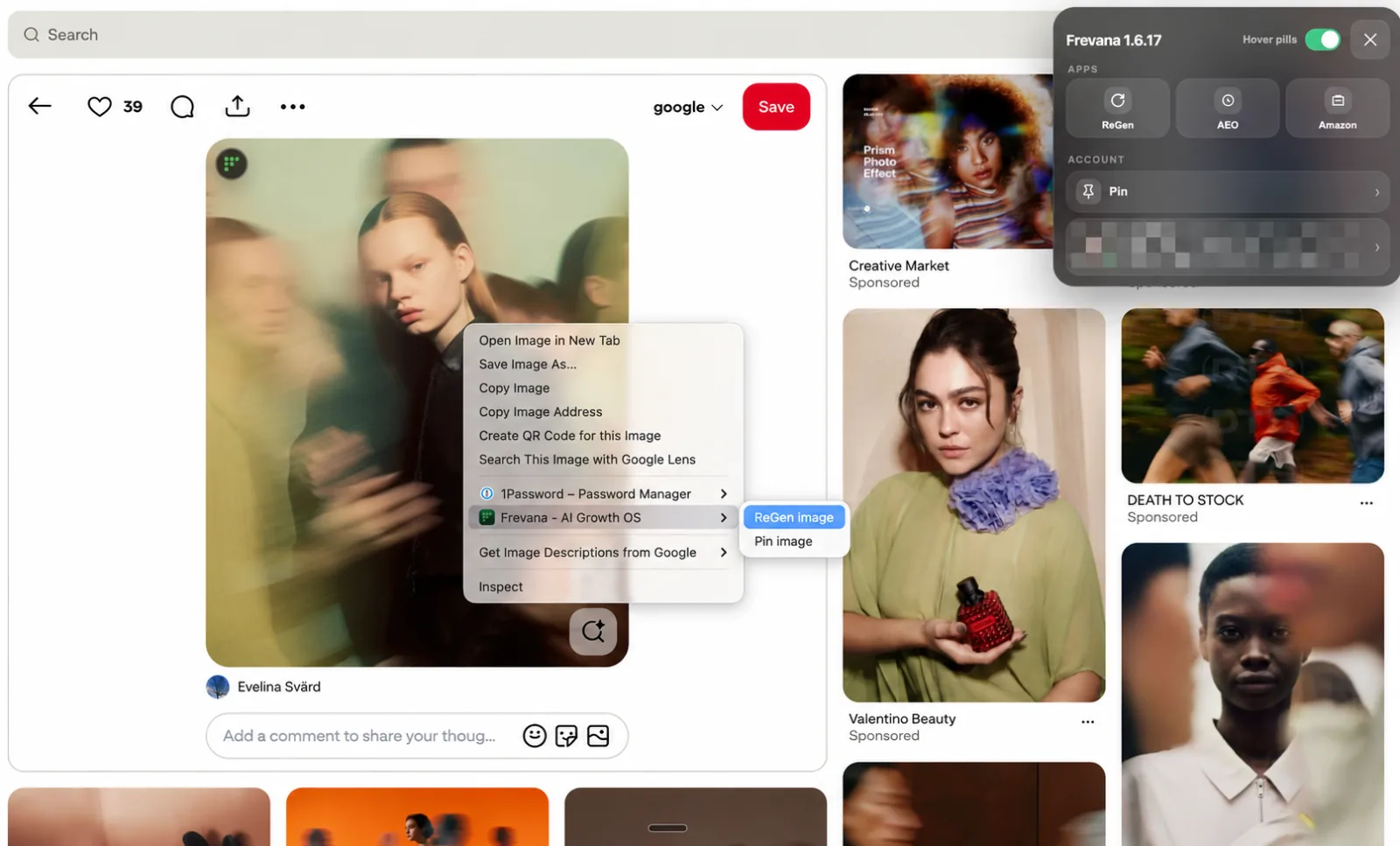
Once your prompt is ready
Review the prompt in the ReGen window. Click Copy to reuse it, or Regenerate to open the agent app with your reference and prompt. Describe the changes you want to make there.
Don’t see Frevana or the hover pills?
Open a regular website, refresh the page, and check that Frevana has permission to run on that site. In the Frevana pop-up, make sure Hover pills is turned on. Chrome settings, new-tab pages, and extension pages do not support the pop-up.