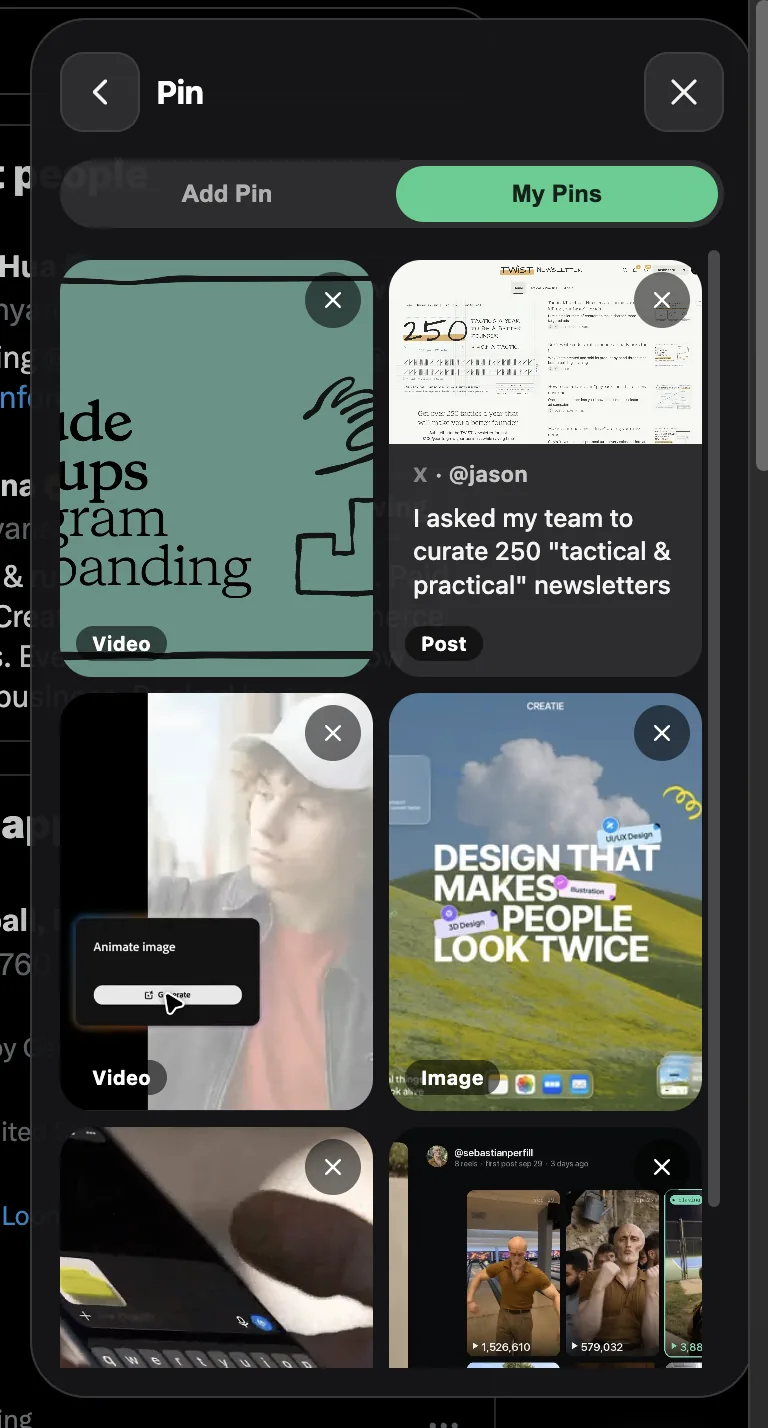
How to use My Pins
Save videos, images, posts, or selected text. Choose what you want to pin below.
How to pin a video
Choose hover pills, right-click, or automatic detection.
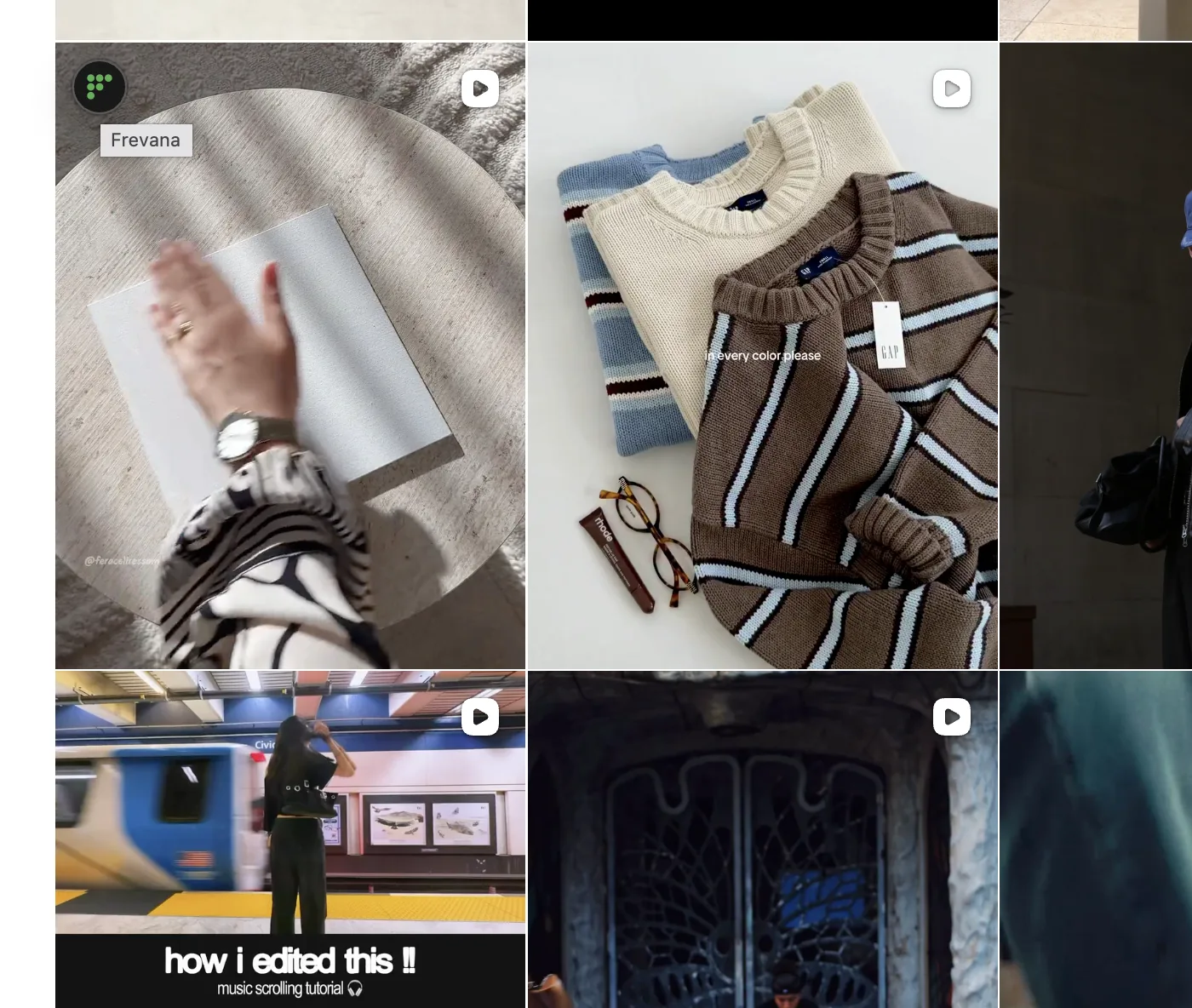
With hover pills
- Open Frevana on the website and turn on Hover pills.
- Move your pointer over the video to reveal the Frevana control, then choose Pin.
- Follow any capture instructions to save the video.
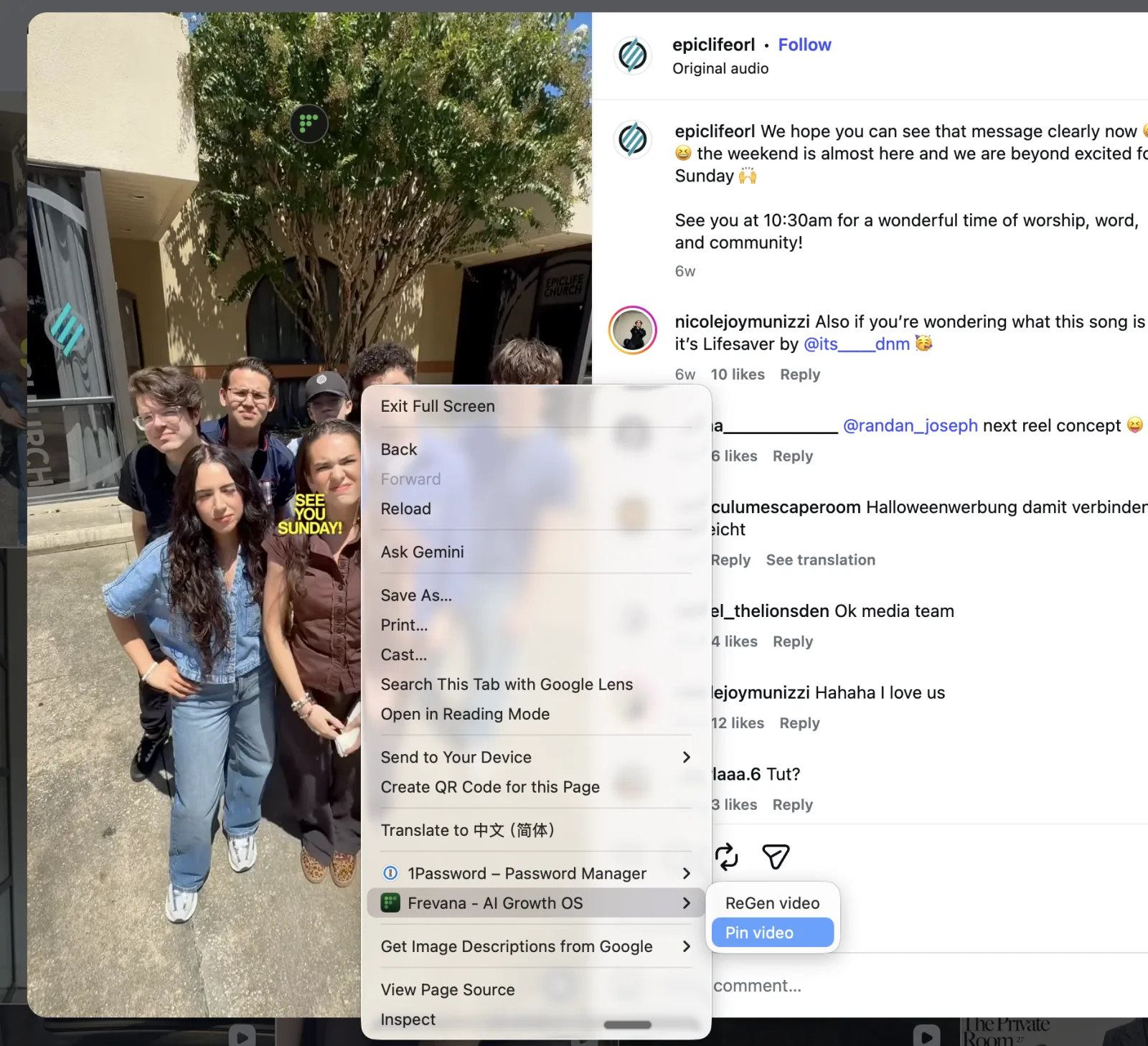
With right-click
- Right-click the video. Open the Frevana submenu if Chrome groups the extension actions.
- Choose Pin video and follow any capture instructions.
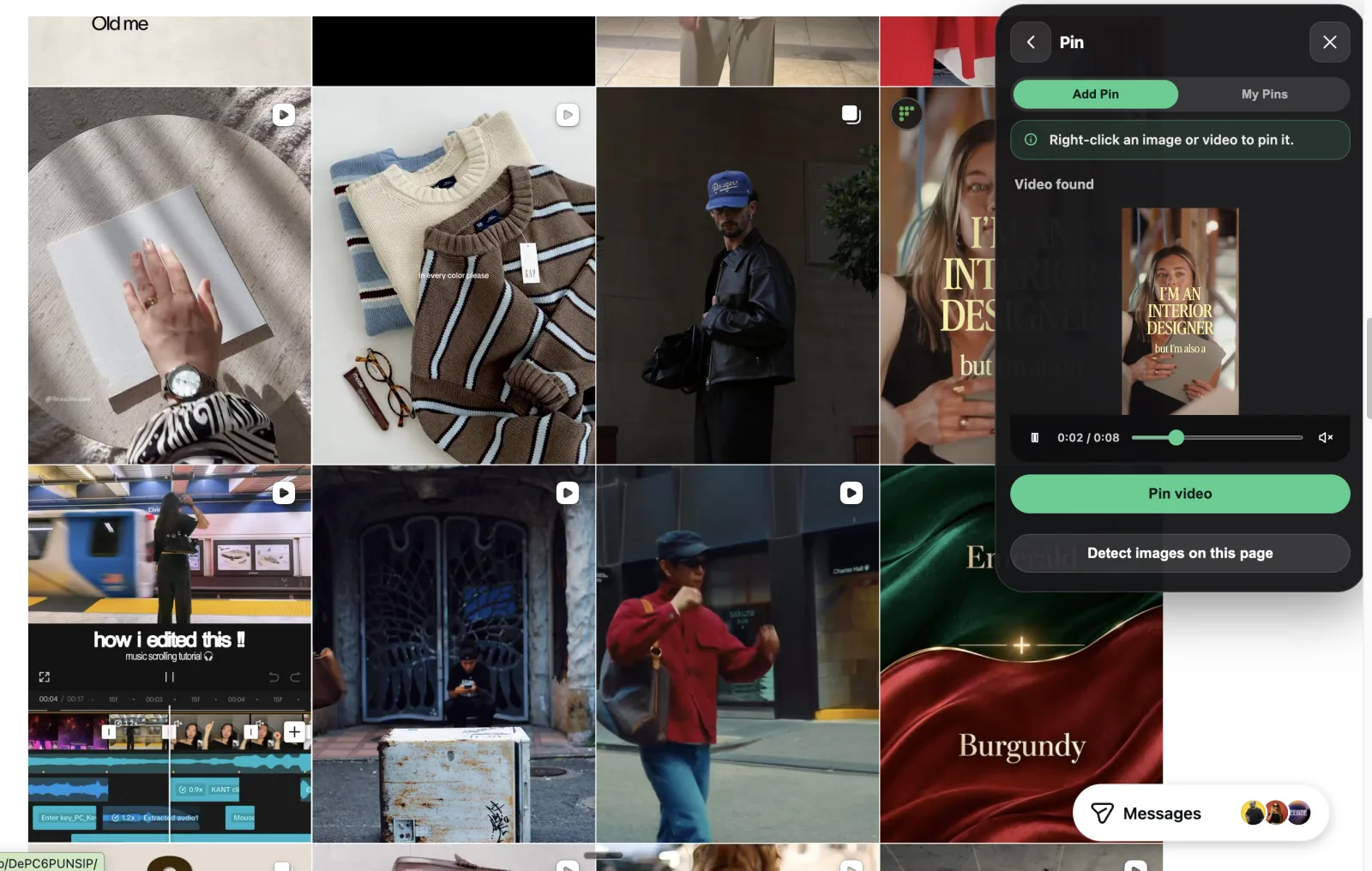
With automatic detection
- Open Frevana → Pin → Add Pin on the page containing the video.
- Under Video found, check the preview.
- Click Pin video and follow any capture instructions.
How to pin an image
Choose hover pills or right-click.
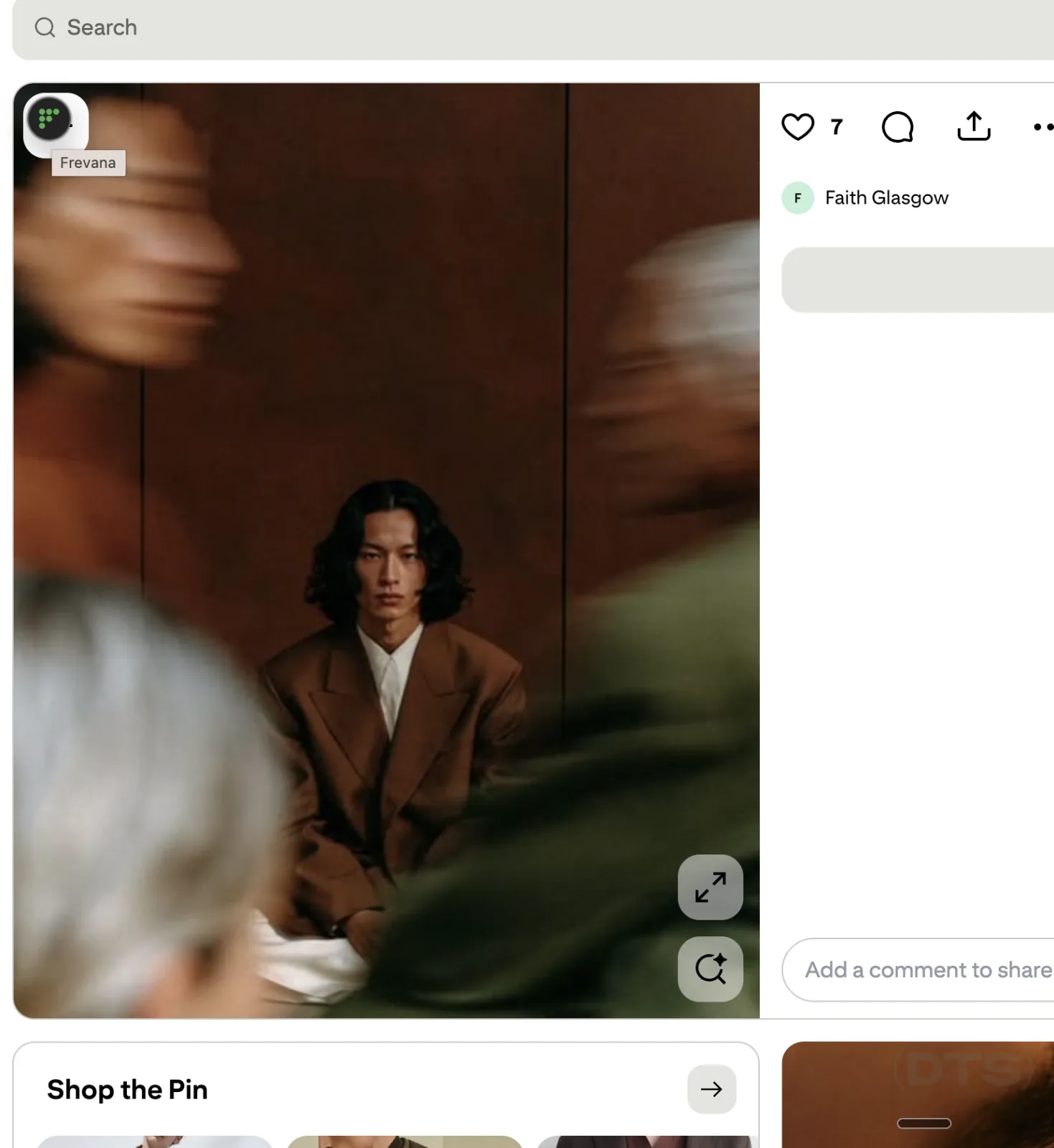
With hover pills
- Open Frevana on the website and turn on Hover pills.
- Hover over the image to reveal the Frevana control, then choose Pin.
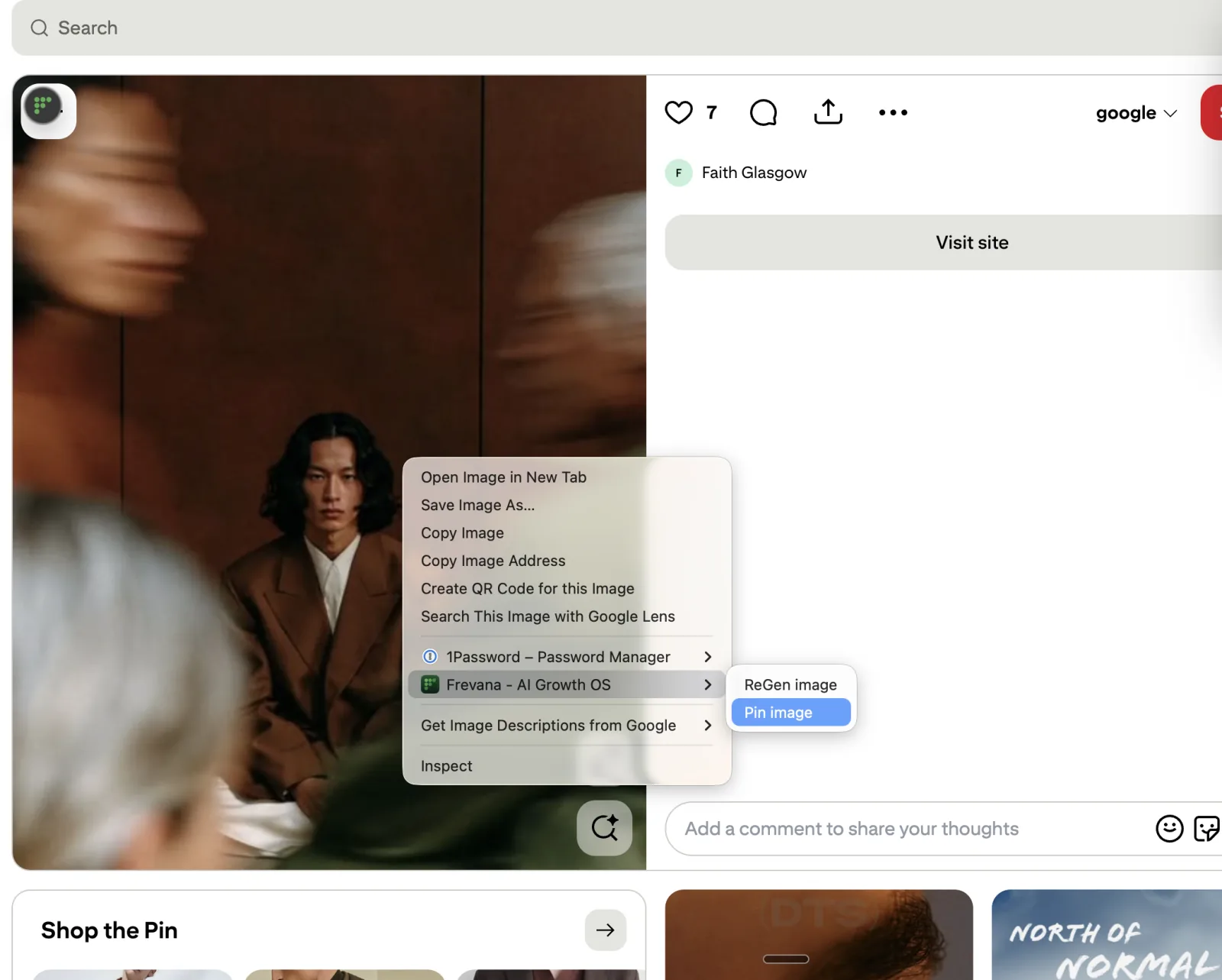
With right-click
- Right-click the image and open the Frevana submenu.
- Choose Pin image to save it.
Pin several images at once
In Pin → Add Pin, click Detect images on this page. Select the images you want, then click Pin Selected.
How to pin a post
Post detection currently supports X and LinkedIn.
Open the post’s link
- Open the individual post on X or LinkedIn, rather than staying on the feed.
- Open Frevana → Pin → Add Pin.
- Under Post found, check the preview and click Pin post.

How to pin selected text
Save only the passage you need.
Select text, then click Pin
- On the webpage, drag to highlight the text you want to save.
- Click the Pin pill beside the selection.
- You can also right-click the selected text and choose Frevana → Pin selection.

Find your saved pins
Open My Pins
- On a website, open Frevana from Chrome’s extensions menu and select Pin.
- Click the My Pins tab to see your saved videos, images, posts, and text.
- Scroll through the library to find your saved references. Switch to Add Pin to save more from the current page.