Notion Integration
Connect Notion to Frevana to search, create, and manage the pages and databases you share with your integration.
Go to notion.so/my-integrations
Sign in and select Create a new integration.
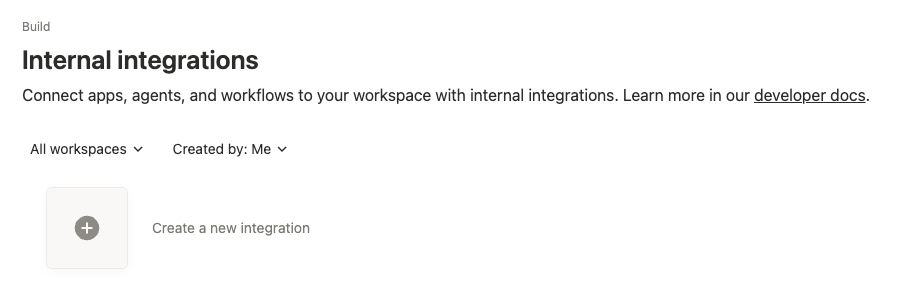
If your account belongs to an organization, you might not have sufficient permission to create integrations.
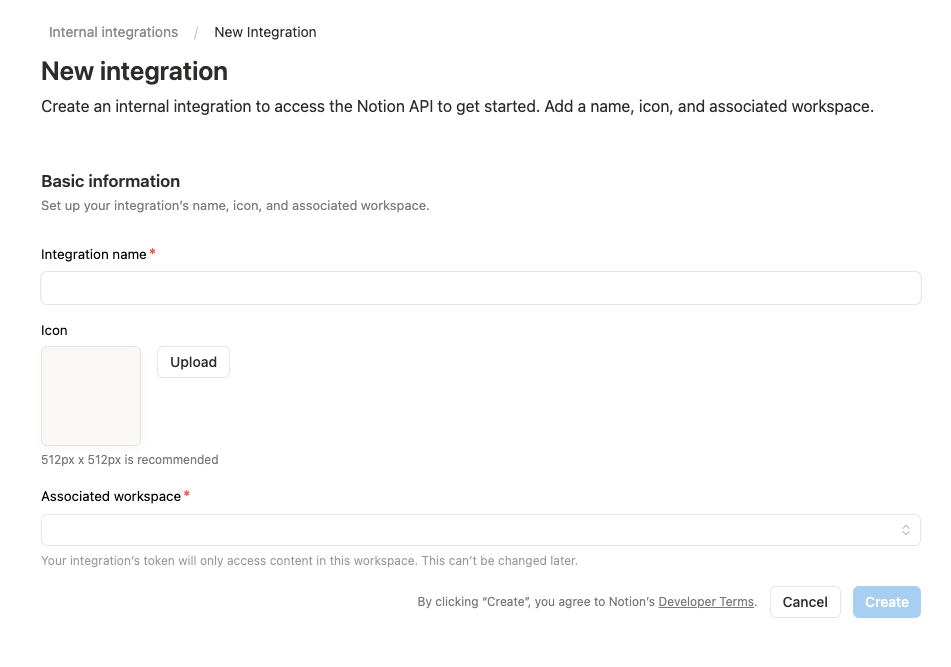
Enter the basic information
- Enter the Integration name, choose an Icon and Associated workspace, and click Create.
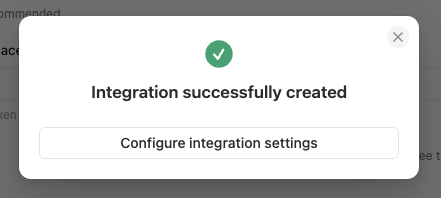
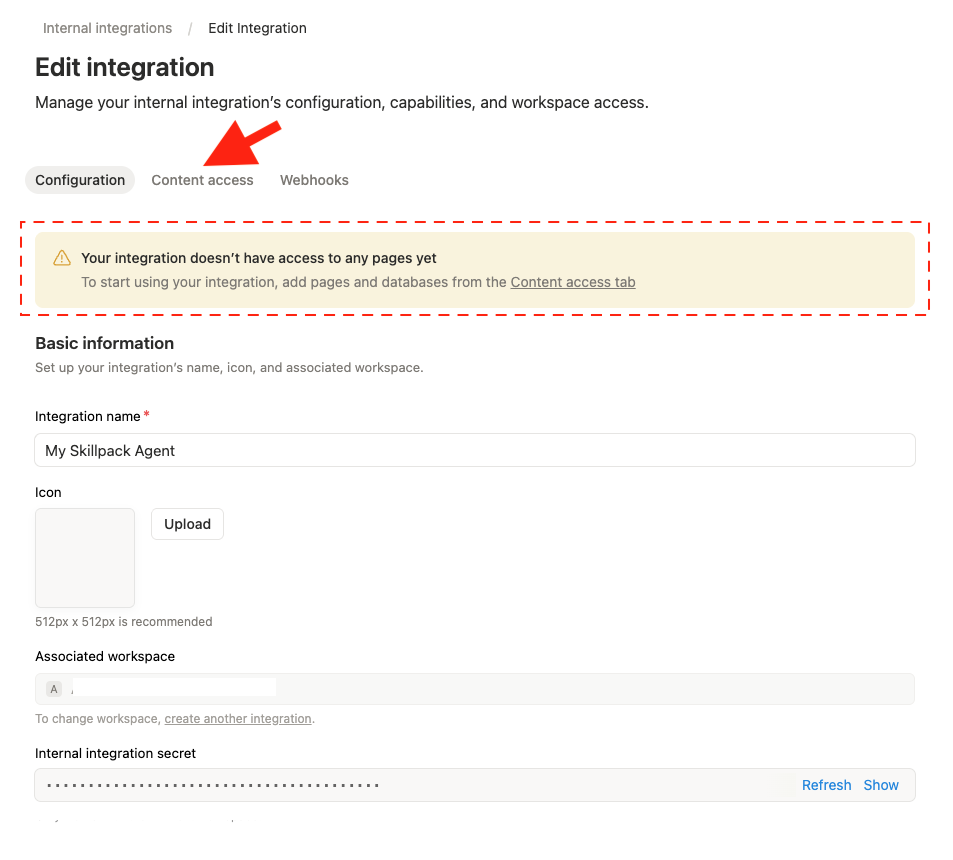
- Click Configure integration settings to open the Edit integration page.
Copy the "Notion Secret Token"
Find your Internal Integration Secret and click Show. Copy the token for your Frevana agent team; it typically starts with ntn_.
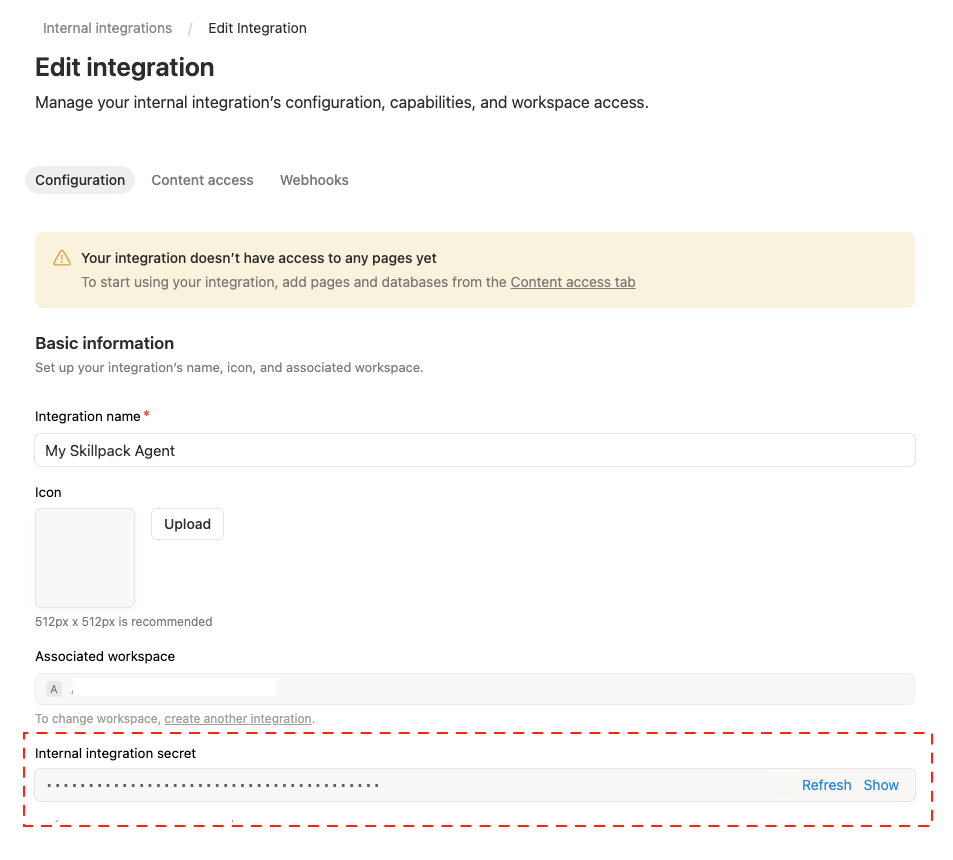
Keep this token safe. Anyone with this token can access the pages you share with the integration. If you lose it, you can always come back to this page to view or refresh it.
Edit Content Access
Choose the pages and databases the integration can access:
- Go to Content access tab
- Click "Edit access",
- Select the pages and databases you want the AI to access
- Click Save
Tip: If you want the AI to access your entire workspace, just select all pages. You can always come back and change this later.
Paste the Notion Secret Token into the Agent team Chat
Open the Notion agent team chat and try a request, for example:
List my Notion databases
If Notion is not connected yet, Frevana will ask for the Notion Secret Token you copied above.
Frevana can then verify your token and show you the connected workspace.
That's it — you're connected! 🎉
What You Can Do
| Action | Example |
|---|---|
| Search | "Find my pages about product roadmap" |
| Read | "Show me the content of my project brief" |
| Create | "Create a new page with today's meeting notes" |
| Update | "Rename that page to Q2 Review" |
| Append | "Add action items to yesterday's meeting page" |
| List databases | "Show me all my Notion databases" |
| Query database | "Show tasks due this week from my Tasks board" |
| Add entry | "Add a new task called 'Review PR' with status 'To Do'" |
| View schema | "What properties does my Projects database have?" |
Troubleshooting
"Not found" or "Object not found"
The page or database isn't shared with your integration.
Fix: Open the page in Notion → click ··· → Connections → add your integration name.
"Invalid token"
The token was copied incorrectly or has expired.
Fix: Go to notion.so/my-integrations, click on your integration, and copy the token again. It should start with ntn_.
"Can't see my databases" or search returns nothing
Databases and pages must be explicitly shared with the integration.
Fix: Open each top-level page in your sidebar → ··· → Connections → add your integration. Remember, sharing a parent page shares all its children too.
Query returns empty results
Property names in filters are case-sensitive and must match exactly.
Fix: Ask the AI "Show me the schema of my [database name] database" first to see the exact property names and types. Then try your query again using those exact names.
Want to disconnect or change workspaces?
Tell the AI "Reconnect my Notion" and paste a new token. The old token is replaced automatically.
Privacy & Security
- Your token is stored only on your computer (
~/.config/notion/config.json) - The AI accesses Notion through the official API — your data is not stored or sent anywhere else
- The integration can only see pages you've explicitly shared with it
- You can revoke access anytime by deleting the integration at notion.so/my-integrations