Meta Ads Manager Integration
Analyze campaign performance, compare ad creatives, export data, and get optimization recommendations for your Facebook and Instagram ads through natural conversation.
Time: ~10 minutes · Cost: Free · No coding required
What You'll Need
- A Facebook account with access to an ad account
Step 1: Create a Meta App
Go to developers.facebook.com and create an app that gives the AI permission to read your ad data. You only do this once.
- Click My Apps (top-right) → Create App
- Enter an app name — anything works, e.g.
My Ads Tool, then, hit next. - On the Use cases screen,
- First, click the Ads and monetization filter on the left, then check these two:
- ✅ Create & manage ads with Marketing API
- ✅ Measure ad performance data with Marketing API
- Then, go to Content management filter on the left, check:
- ✅ Manage everything on your Page
- Then, click next.
- First, click the Ads and monetization filter on the left, then check these two:
- On the Business portfolio screen, choose "I don't want to connect a business portfolio yet" and click on Next (This is the easiest setting to go with but enough for personal use).
- Finally, make sure everything looks correct and click Create App.
Keep the app in Development mode for now — do NOT publish it. Development mode is all you need to access your own ad data. No App Review required.
Step 2: Get Your App ID and App Secret
After creating the app, you'll land on the App Dashboard.
- In the left sidebar, click App settings → Basic
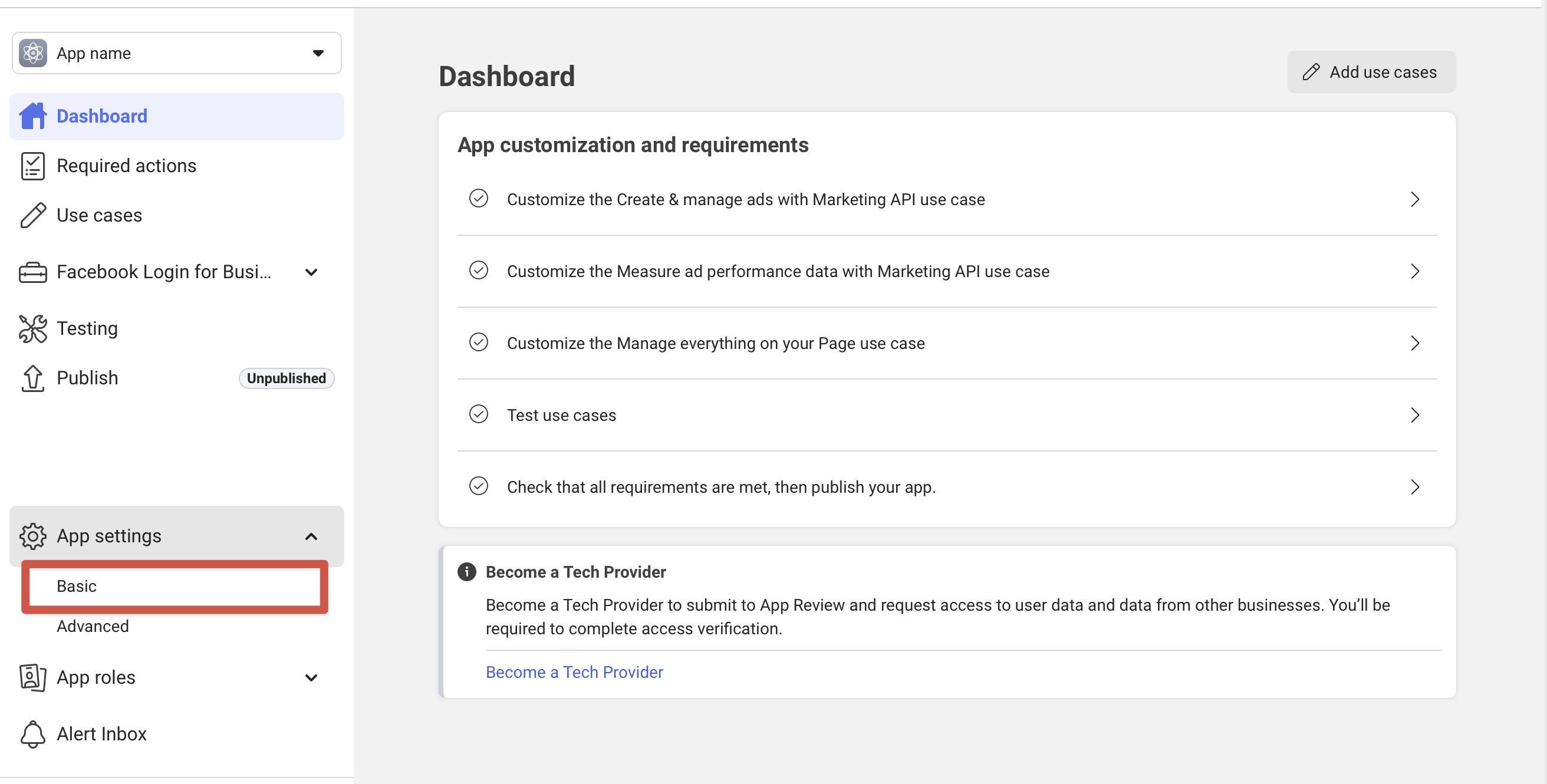
- Copy the App ID (shown at the top of the page)
- Next to App Secret, click Show, then copy the value
Save both values — you'll need them in Step 4.
Step 3: Find Your Ad Account ID
- Go to Meta Ads Manager
- In the top-left dropdown, make sure the correct ad account is selected
- Copy the full URL from your browser's address bar and paste the entire URL — AI will extract the ID automatically and confirm it with you.
Do you know? The Ad Account ID is the number after act= in the URL:
https://adsmanager.facebook.com/adsmanager/manage/campaigns?act=1234567890&...
                                                                ^^^^^^^^^^
                                                           This is your Ad Account ID
Step 4: Connect in the Chat
Open the Frevana chat and setup the agent team:
Help me set up Meta Ads
The AI will ask for your App ID, App Secret, and Ad Account ID. Paste them when prompted.
After saving your credentials, a browser window will open for you to sign in to Facebook and authorize access. Click Allow, then close the page and return to the chat.
The AI automatically converts your authorization into a long-lived token (valid for 60 days). You don't need to do anything special.
What You Should Have Now
| ✅ | What | Where to get it |
|---|---|---|
| true | Meta App created | developers.facebook.com → My Apps → Create App |
| true | App ID | App Dashboard → App settings → Basic |
| true | App Secret | App Dashboard → App settings → Basic → Show |
| true | Ad Account ID | Ads Manager URL → act= parameter |
Step 5: Change your App to Live Mode (Optional)
Why do you need it?
- Live Mode is required when the app must work for non-role users or when approved permissions/features need to be available outside the app's internal role-user group.
- Account connection, campaign creation, ad set creation, and media upload worked in Development Mode, while Page-based ad creative creation required Live Mode.
Live Mode alone does not remove other requirements, such as Advanced Access, App Review, Business Verification, Page permissions, or a valid payment method.
How to setup live mode?
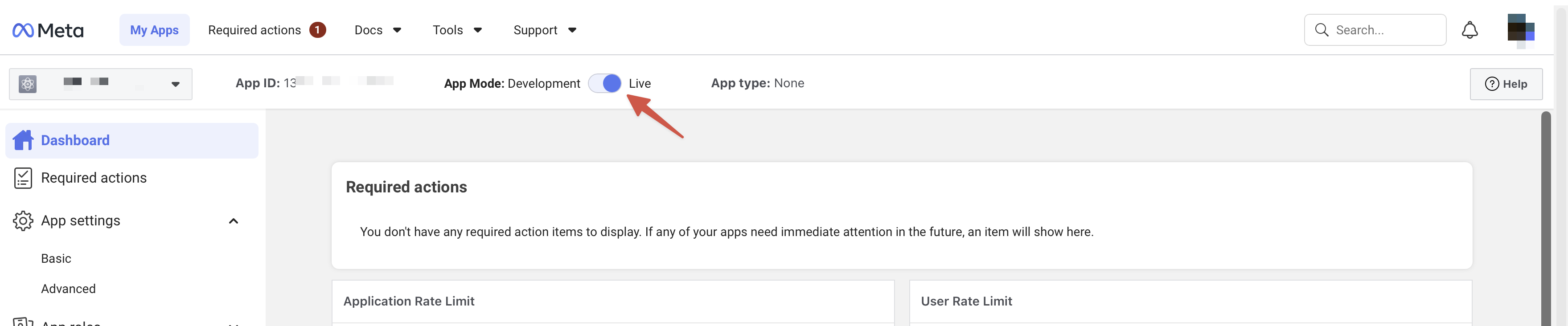
Within the app page, toggle the app mode switch on the top.
You will be asked to fill in a privacy policy URL. Go to App settings -> Basic and fill in the policy URL.
What You Can Do
| Category | Examples |
|---|---|
| Performance | Account overview, campaign breakdown, daily/weekly trends |
| Creative analysis | Compare ad creatives, identify top/bottom performers |
| Data export | Export campaign/adset/ad data to CSV or JSON |
| Optimization | Get recommendations based on spend, CPC, CTR, ROAS |
Sample Prompts
| What you want | Try saying |
|---|---|
| Review performance | "Show me my Meta Ads performance for the last 30 days" |
| Compare campaigns | "Which campaigns are spending the most with the lowest ROAS?" |
| Analyze creatives | "Compare creative performance across my ad sets" |
| Export data | "Export my Meta Ads data to CSV" |
| Spot trends | "Show me daily trends for my top campaign this month" |
| Optimize | "What should I optimize first?" |
Token Refresh
Unlike Google, Meta tokens expire after 60 days. Here's what to expect:
| Situation | What happens |
|---|---|
| Token is valid | Everything works normally |
| Token expires in < 7 days | The AI will proactively refresh it — no action needed |
| Token has expired | The AI will open a browser for you to re-authorize (takes 30 seconds) |
If a token can no longer be refreshed, follow the prompt to authorize the connection again.
Troubleshooting
"Invalid Scopes" error during authorization
One of the requested permissions is not valid for your app type. This is a bug on our side — tell the AI and it will retry with corrected permissions.
"Access denied" or "Permission error"
- Make sure your Facebook account has access to the ad account
- Verify the App ID and App Secret are correct (App settings → Basic)
- Check that your app has the Marketing API use cases enabled
"Ad Account not found"
- Double-check the Ad Account ID — it should be a long number (e.g.
1394512470723211) - Make sure you're looking at the right account in Ads Manager
- You can paste the full Ads Manager URL and the AI will extract the ID for you
Token expired and refresh failed
If more than 60 days have passed, the token cannot be refreshed. The AI will start a new authorization flow — just sign in again.
Browser doesn't open automatically
Tell the AI: "The browser didn't open." It will give you a clickable link.
Privacy & Security
- Your credentials are stored only on your computer (inside the agent team's
data/directory) - The AI never stores your personal data (ad performance, audience info, etc.)
- You can revoke access anytime at facebook.com/settings → Business Integrations
- The Meta App you created is yours — no third party has access
- The app stays in Development mode — only you can use it