LinkedIn Ads
Time: ~10 minutes · Cost: Free · No coding required
What You'll Need
- A LinkedIn account with access to a LinkedIn Ads account
- Access to the LinkedIn Campaign Manager account you want Frevana to analyze
- A LinkedIn Developer app with Ads API access enabled
Step 1: Create a LinkedIn Developer App
Go to developer.linkedin.com and create a small app that gives the AI permission to read your LinkedIn Ads data. You only do this once.
- Click My Apps → Create App
- Enter an app name — anything works, e.g.
My LinkedIn Ads Tool - Enter the Company LinkedIn Page link associated with your business
- Add your app logo
- Accept the API Terms of Use, then click Create App
Your LinkedIn app must be associated with a Company LinkedIn Page. If you do not manage the page, ask your company admin to grant access with the verification link.
Step 2: Enable Advertising API Access
After creating the app, open the app dashboard.
- Go to the Products tab
- Request or enable the Advertising API product available for your app
- You'll be required to fill in a survey to apply for API access.
- Wait for LinkedIn to approve and activate the Advertising API.
LinkedIn advertising API products require approval. If Ads or Marketing API permissions aren't available yet, complete the product request and return to Frevana once access is enabled.
Step 3: Get Your Client ID and Client Secret
In the LinkedIn Developer app dashboard:
- Click the Auth tab
- Copy the Client ID
- Copy the Primary Client Secret
Save both values securely — you'll need them when you connect in Step 6.
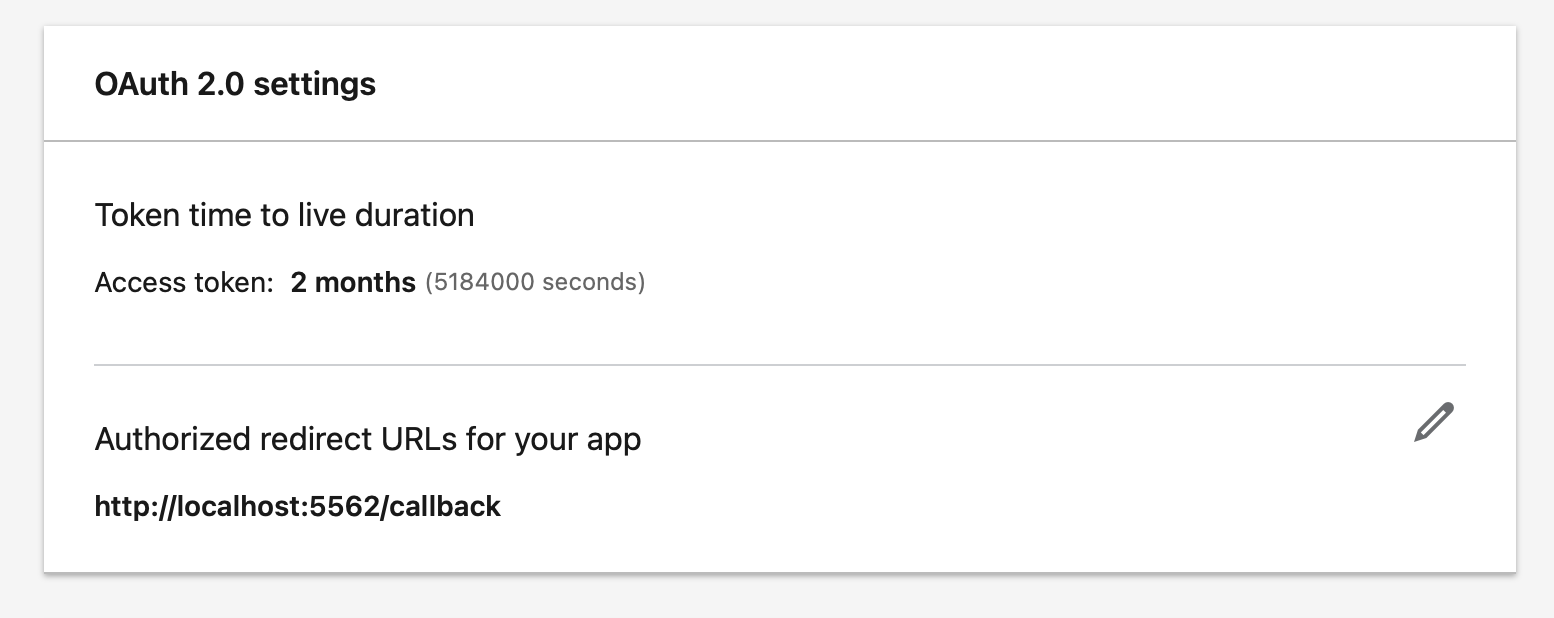
- Add Authorized redirect URL. The Redirect URL must match exactly as:
http://localhost:5558/callback
Step 4: Find Your LinkedIn Ads Account ID
- Go to LinkedIn Campaign Manager
- Select the ad account you want to connect
- Copy the full URL from your browser's address bar and paste the entire URL — AI will extract the account ID automatically and confirm it with you.
The LinkedIn Ads Account ID usually appears in the Campaign Manager URL:
https://www.linkedin.com/campaignmanager/accounts/123456789/campaigns
                                                 ^^^^^^^^^
                                            This is your Ads Account ID
Step 5: Add Ad account ID to your LinkedIn App
- Head back to LinkedIn Developer Portal, go to Products tab
- Tap on "View Ad Accounts"
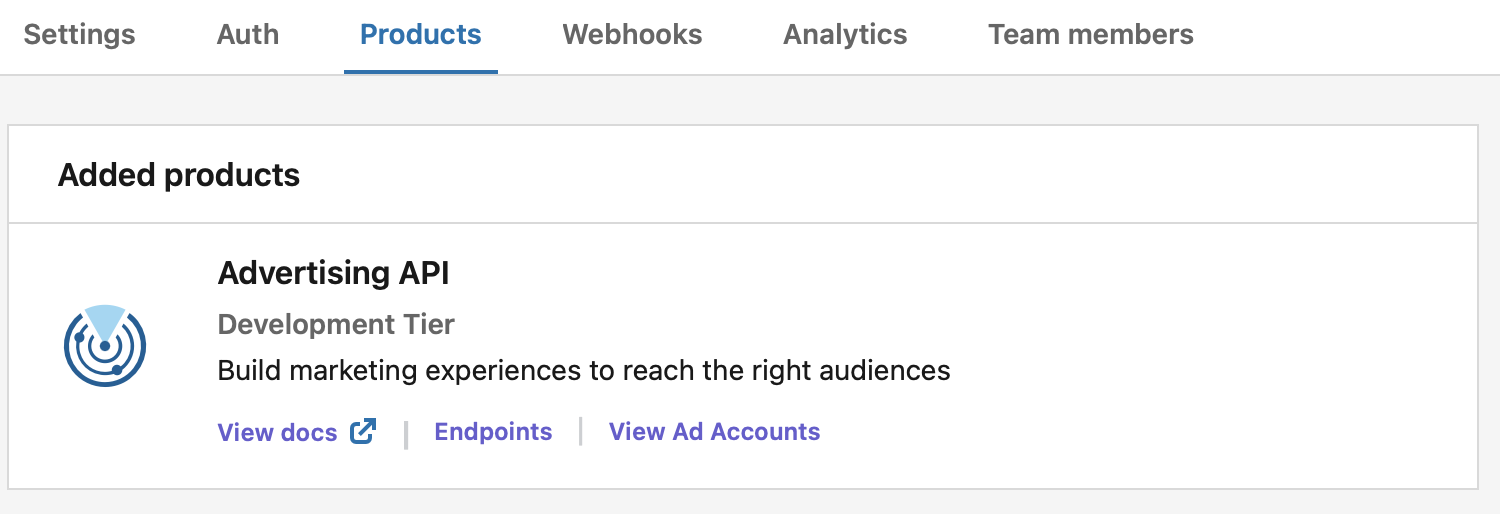
- Tap on "Add Ad Account" and enter the Ad account ID from Step 4.
Step 6: Connect in the Chat
Open the Frevana chat and paste:
- Client ID, Client Secret
- LinkedIn Ads Account ID (or the account URL).
After saving your credentials, a browser window will open for you to sign in to LinkedIn and authorize access. Click Allow, then close the page and return to the chat.
The AI will store the connection locally for this agent team and use it to read LinkedIn Ads performance data when you ask for reports, exports, or optimization recommendations.