Amazon Ads Integration
Description
Welcome! This guide will help you connect your Amazon Ads account to the Amazon Ads agent team in Frevana.
Amazon has two common onboarding paths:
- Direct Advertiser — for one seller, vendor, brand, or business that wants to manage its own Sponsored ads account.
- Partner Network / Manager Account — for an agency, software provider, or partner that manages advertising for multiple advertisers.
The application flow looks different, but the agent team needs the same final credentials either way:
- LWA Client ID
- LWA Client Secret
- Refresh Token
- Region
- Amazon Ads Profile ID
You will set up:
- Amazon Ads API access
- Login with Amazon (LWA) client application
- Amazon Ads API scopes
- Redirect URL for OAuth
- Refresh token authorization
- Amazon Ads profile selection
At the end, the agent team will be able to list profiles, export Sponsored Products data, create reports, and create paused test campaigns.
What You Need Before Starting
You need:
- Admin access to the Amazon Ads account, or admin access to the manager account if you are using Partner Network.
- Access to the Amazon account used to apply for Amazon Ads API access.
- Access to the Amazon Developer Console for Login with Amazon.
Step 1: Request Amazon Ads API Access
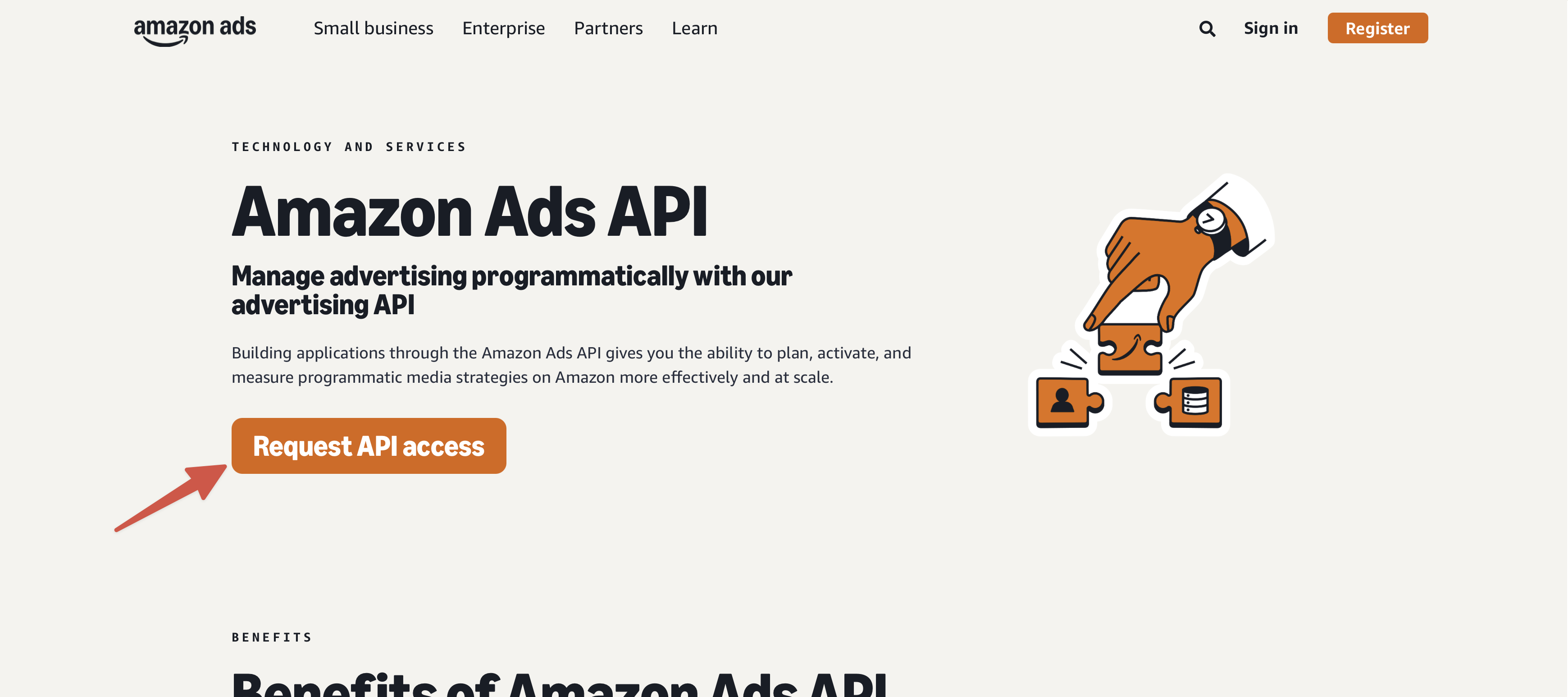
Open the Amazon Ads API sign-up page: https://advertising.amazon.com/API#sign_up, then
- Sign in with your Amazon Ads account
- Tap on Request API Access.
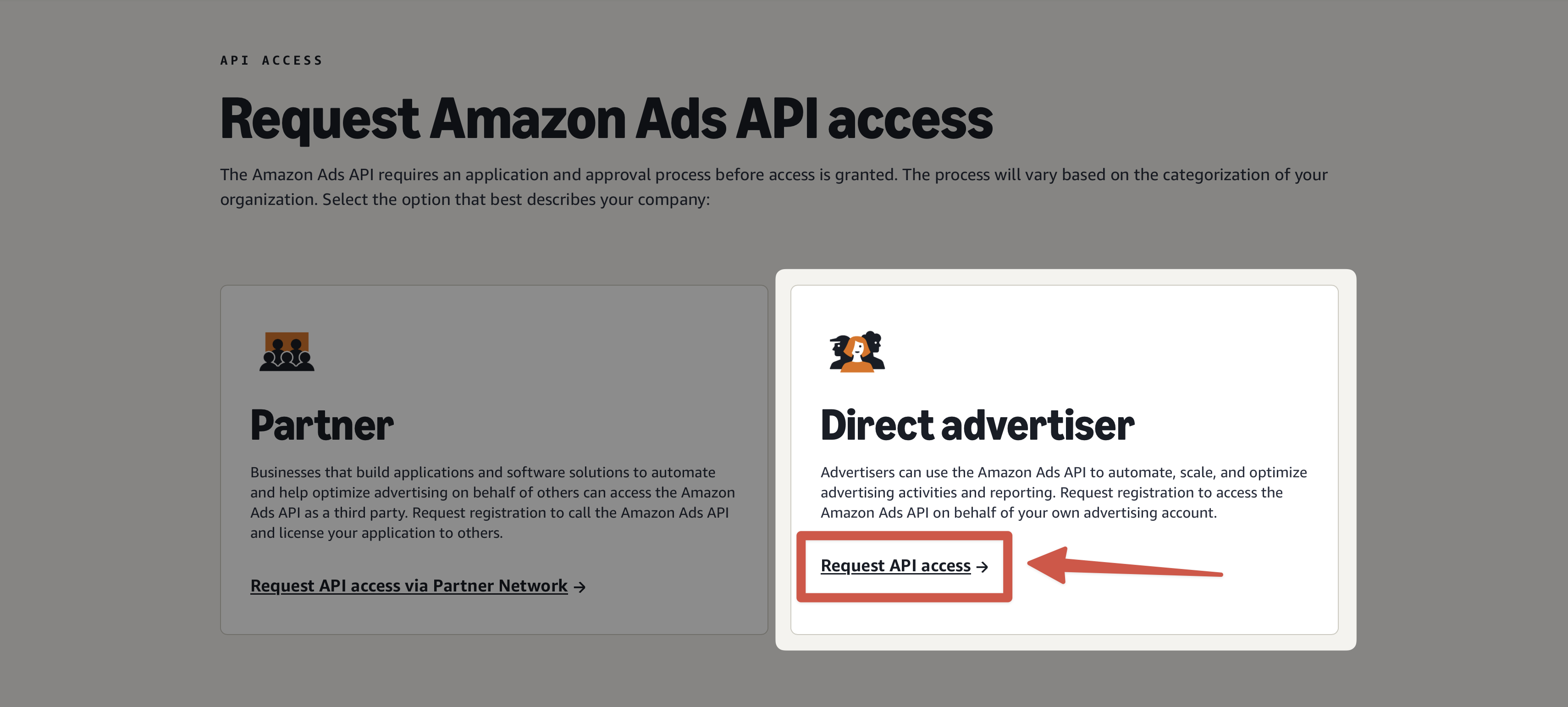
Amazon will ask what type of account you are creating, choose the path that matches your use case:
| Use case | Choose |
|---|---|
| You are connecting one seller, vendor, brand, or business to manage its own Sponsored ads. | Direct Advertiser (recommended) |
| You manage ads for multiple clients, brands, or advertisers, or need DSP access. | Partner Network / Manager Account |
If you’ve already set up a Google Ads agent team, this becomes much easier to understand by comparison.
Amazon Direct advertiser <> Google Ads Account
Amazon Partner account <> Google Ads Manager
For this agent team, we choose Direct Advertiser, as it is enough for most users.
- Tap on the text "Request API access", do not tap on the card.
When selecting data access, choose:
- Advertising — required.
- Data provider — do not select unless you specifically publish audience segment information for advertisers.
If Amazon asks security and third-party questions, answer according to your actual product behavior:
| Question area | Typical answer for direct advertiser/internal use |
|---|---|
| Send or export Amazon Ads data to other services, third parties, or applications | No, if data stays inside your own workflow and is not shared externally. |
| Controls to prevent Amazon Ads data from being exposed to third parties | Yes, if you restrict access and do not share data outside approved systems. |
| Network controls | Yes, if you use normal access controls, firewalls, private credentials, and protected systems. |
| Role or job-duty based access restrictions | Yes, if only authorized users can access Ads data. |
| Encrypt Amazon information in transit | Yes, API calls use HTTPS/TLS. |
| Incident response plan | Yes, if you have a process for security monitoring, detection, response, and reporting. |
Report security incidents involving Amazon information to [email protected] | Yes, if your incident response plan includes Amazon notification. |
| Minimum password requirements | Yes, if user/system accounts require secure passwords or identity provider controls. |
| Credentials stored securely | Yes, if credentials are not committed to public repositories, not hard-coded, and are stored in protected config/secrets storage. |
If Amazon asks for outside parties and there are none, use a short answer like:
We do not share Amazon Ads information with outside parties. Data is used only for the authorized advertiser's reporting and optimization. Credentials are stored securely and data is transmitted over encrypted connections.
Once you've submitted your request, wait for Amazon to review it.
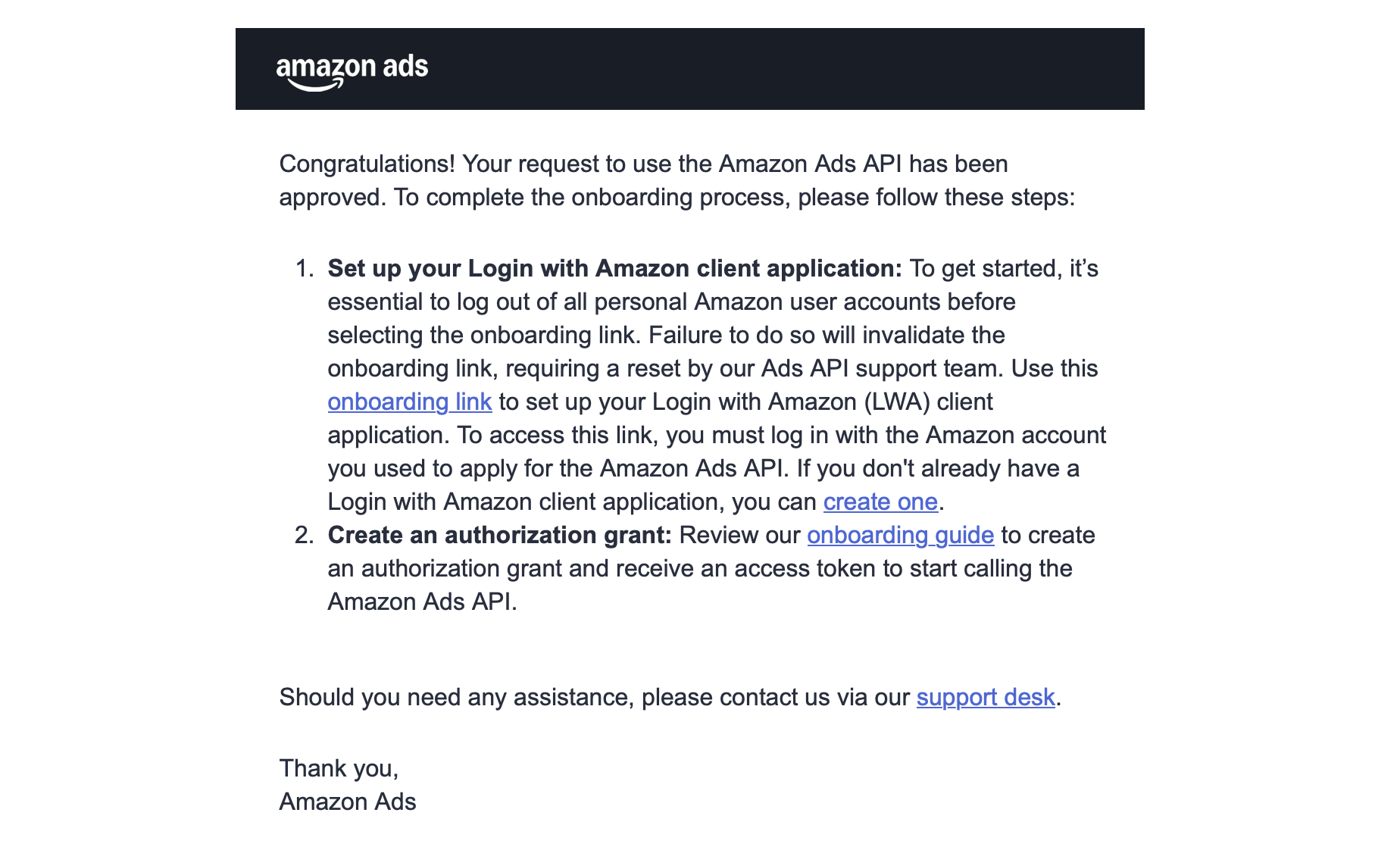
After Amazon approves the request in a few days, you should receive an email or onboarding page that says your request to use the Amazon Ads API has been approved. Approval alone is not the end of setup; you still need to attach the approved Ads API scope to an LWA application.
Step 2: Complete the Amazon Ads API Onboarding
When Amazon approves your request, look for the onboarding link in the approval email.
Before opening any onboarding link:
- Log out of unrelated personal Amazon accounts.
- Use the same Amazon account that applied for Amazon Ads API access.
- If you use multiple Amazon accounts, use a clean browser profile or private window.
Amazon warns that using the wrong account can invalidate the onboarding link and require a reset by Ads API support.
Step 3: Create or Select a Login with Amazon Application
Login with Amazon is Amazon's OAuth system. Amazon Ads API does not use a simple API key. It uses an LWA client application plus a refresh token.
Open the LWA console:
https://developer.amazon.com/loginwithamazon/console/site/lwa/overview.html
Create or select the Security Profile for your app.
For this integration, you can name your app something like:
XXX App
Then collect:
- Client ID
- Client Secret

Step 4: Assign Amazon Ads API Scopes to the LWA Application
Open the "Onboarding link" again inside your email.
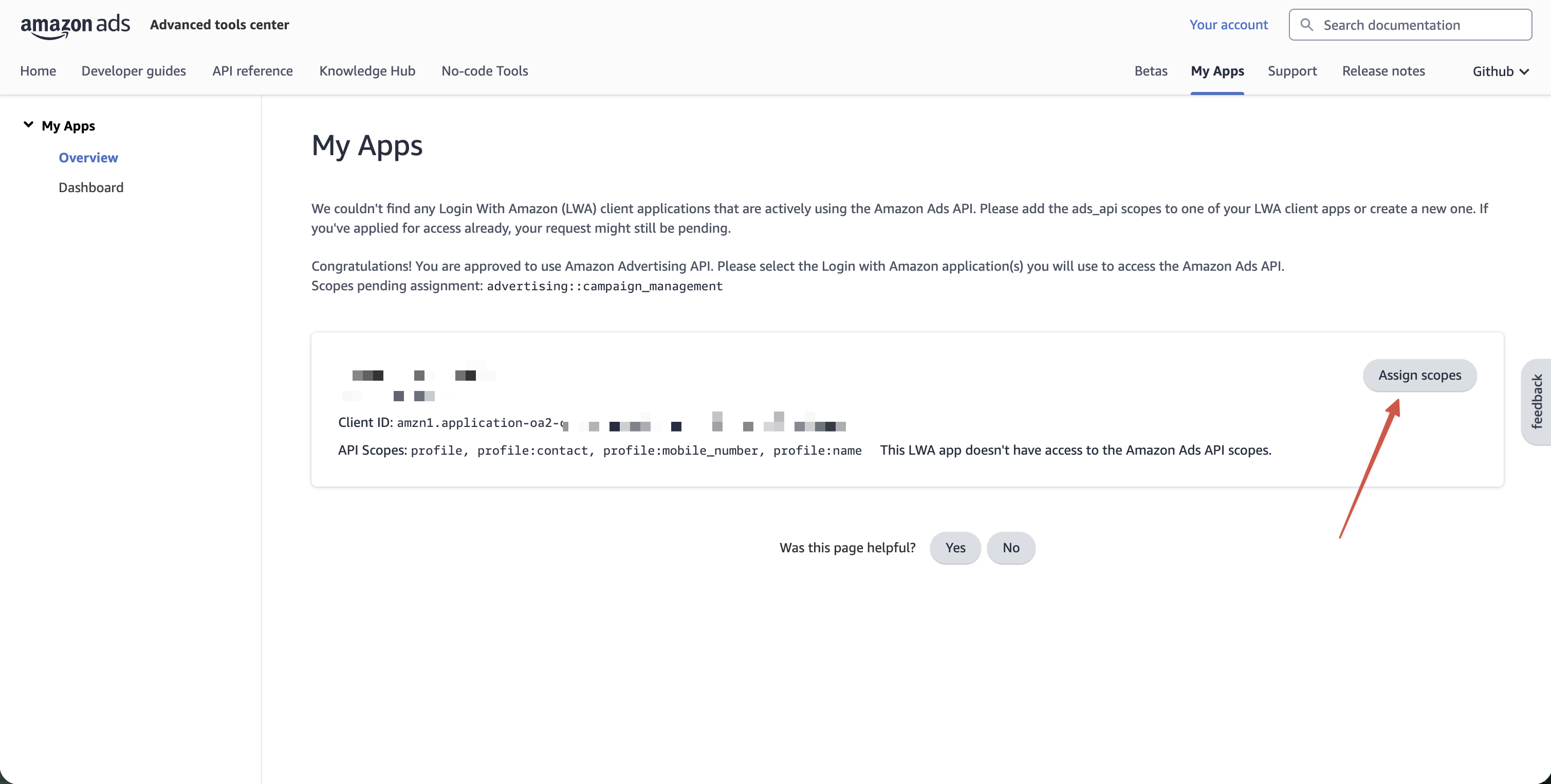
Choose the correct LWA application and assign the approved Amazon Ads API scope.
For the current Amazon Ads onboarding flow, the relevant scope appears as:
advertising::campaign_management
You may also see profile scopes such as:
profile
profile:name
profile:contact
profile:mobile_number
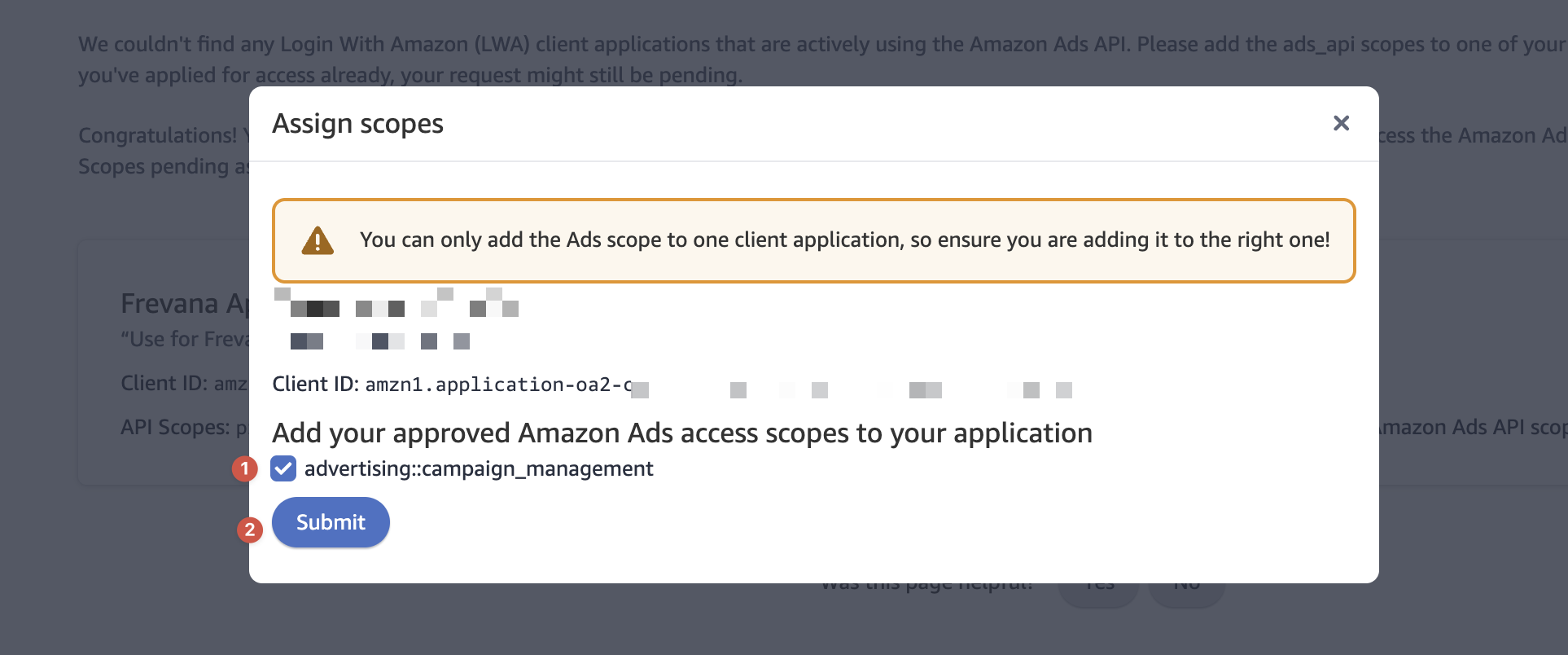
After assigning scopes, the app card should show something like:
API Scopes: profile:contact, profile, profile:name, profile:mobile_number, advertising::campaign_management
If OAuth later fails with:
An unknown scope was requested
then either:
- The wrong scope was requested.
- The scope was not assigned to this exact Client ID.
- Amazon has not finished syncing the scope approval.
- The app is still pending in Amazon Ads onboarding or Partner Network.
Step 5: Finish Direct Advertiser Linking
If you are using the Direct Advertiser path, Amazon may only ask you to create or link the API application. If the LWA application card shows the Ads API scope, continue to the next step.
Step 6: Add the Allowed Return URL
Open the same LWA Security Profile in the LWA Amazon Developer Console.
Hover over the gear icon, then open:
Web Settings -> Allowed Return URLs

Edit Allowed Return URLs and add this exact URL:
http://localhost:5557/callback
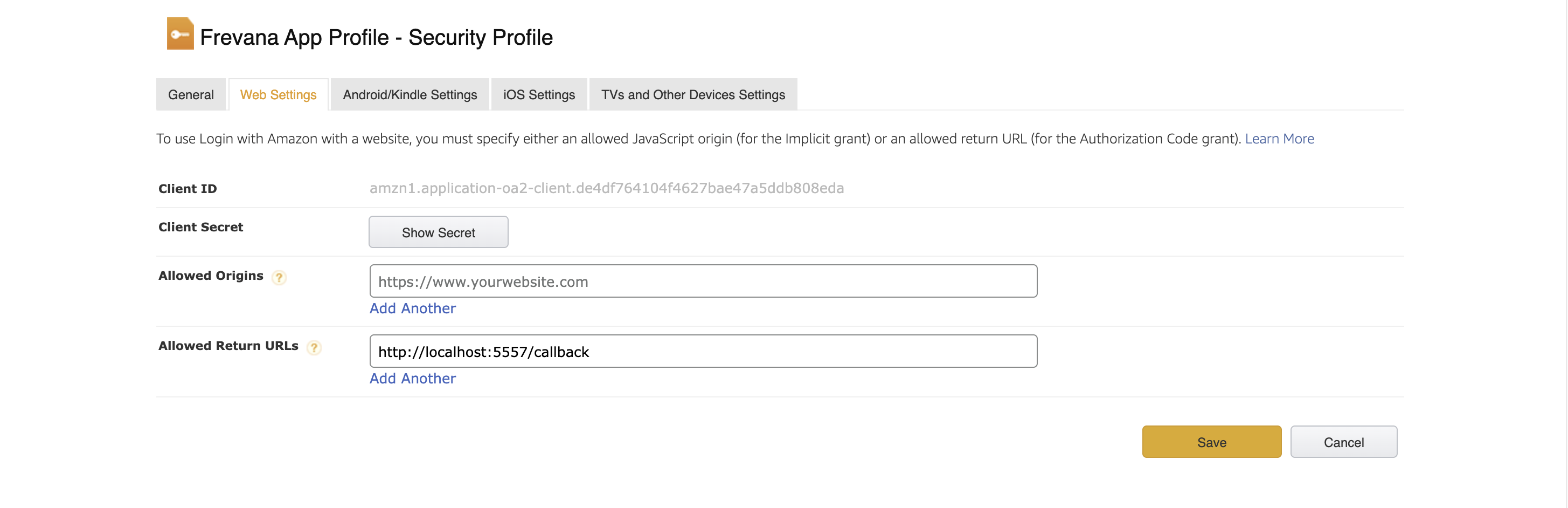
If this step is missing, Amazon will show:
The redirect URI you provided has not been whitelisted for your application.
Step 7: Configure the Agent Team with Client ID and Client Secret
Return to the agent team chat and provide your Login with Amazon app's:
- Client ID
- Client Secret
and your region
- NA (for example)
Your browser will open so you can authorize the app to access your Amazon Ads data. Sign in with your Ads account and complete the authorization.
The agent team may then retrieve your ad profiles. Reply with the profile ID you'd like to use.
Troubleshooting
Unknown scope
Error:
400 Bad Request
An unknown scope was requested
Check:
-
The LWA app has the Amazon Ads scope assigned.
-
The OAuth request is using:
advertising::campaign_management -
You selected the correct LWA Client ID.
-
Amazon finished syncing approval.
Redirect URI not whitelisted
Error:
The redirect URI you provided has not been whitelisted for your application.
Fix:
-
Open LWA Security Profile.
-
Go to Web Settings.
-
Add the exact URL:
http://localhost:5557/callback -
Ask in agent team chat to retry OAuth
Profiles are empty
If --verify returns:
{
  "profiles": [],
  "count": 0
}
then OAuth worked, but no advertiser profile is available for the authorized user and region.
Fix:
- Confirm the user can access an advertiser account in Amazon Ads Console.
- Confirm the advertiser account is in the same region.
- Confirm the user is not limited to a manager account with no attached advertiser profile.
- Try another region if needed.
Required Values Checklist
Before setup is complete, you should have:
-
LWA Client ID
-
LWA Client Secret
-
Region:
NA,EU, orFE -
Allowed Return URL:
http://localhost:5557/callback -
Refresh token saved by
--auth -
Selected Amazon Ads
profile_id
After all six are present, the Amazon Ads Agent Team is ready for data export, reporting, and campaign creation.