Amazon Integration
Overview
Connect your Amazon Seller account to Frevana by registering a private SP-API app. This guide will help you find your LWA Client ID, LWA Client Secret, Refresh Token, and Merchant Token.
Time required: Approximately 5 minutes
Prerequisites
You'll need:
- An Amazon Seller Central account
- Primary User access to that account (sub-accounts can't register apps)
Step 1 · Open the Seller Central Developer Console
Sign in at Amazon Seller Central Developer Console.
Open the Seller Central Developer Console
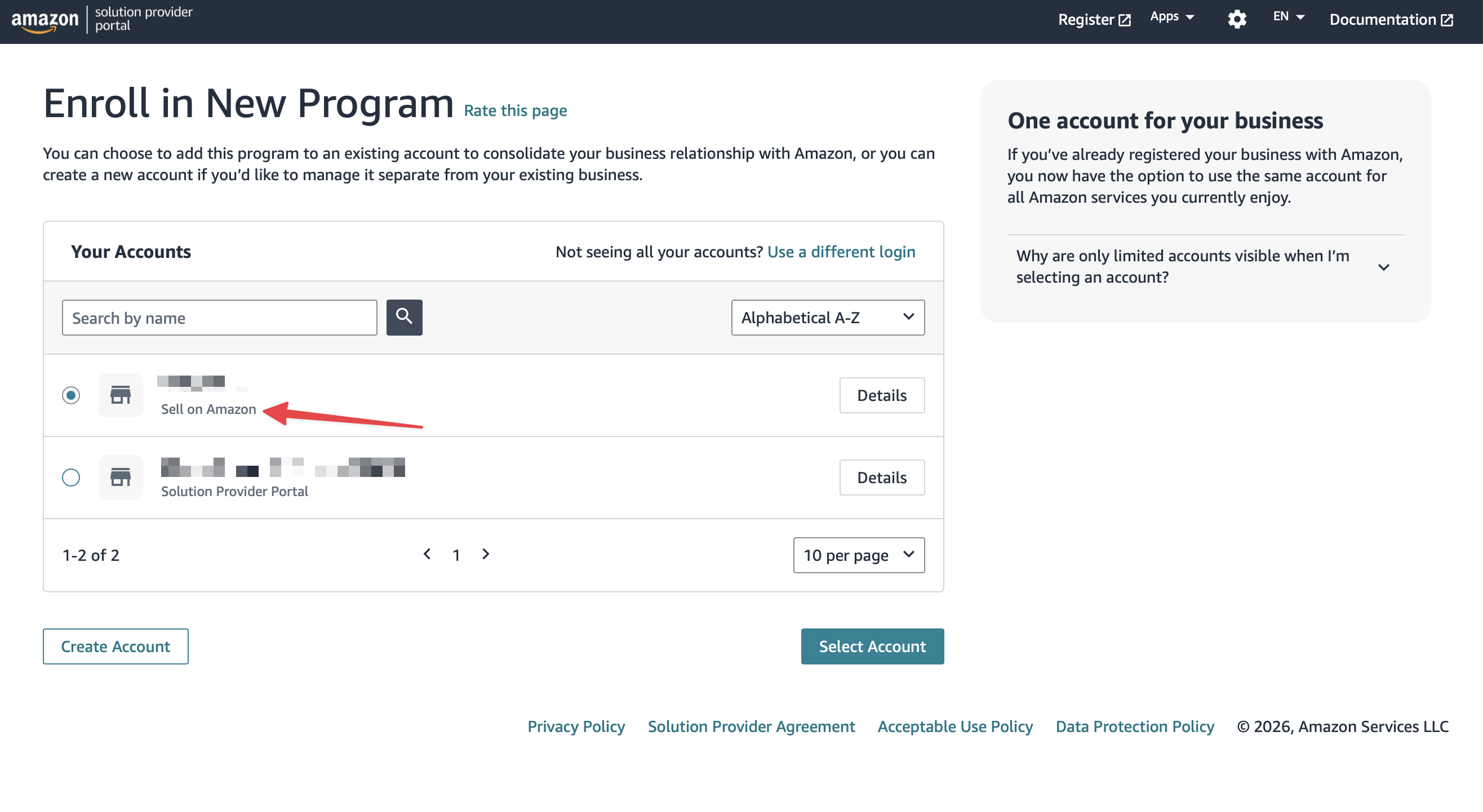
After signing in, you will be redirected in a few seconds, then Amazon will ask which account to enter — select "Sell on Amazon" (we need storefront integration, not Solution Provider).
Step 2 · Authenticate your email (first-time only)
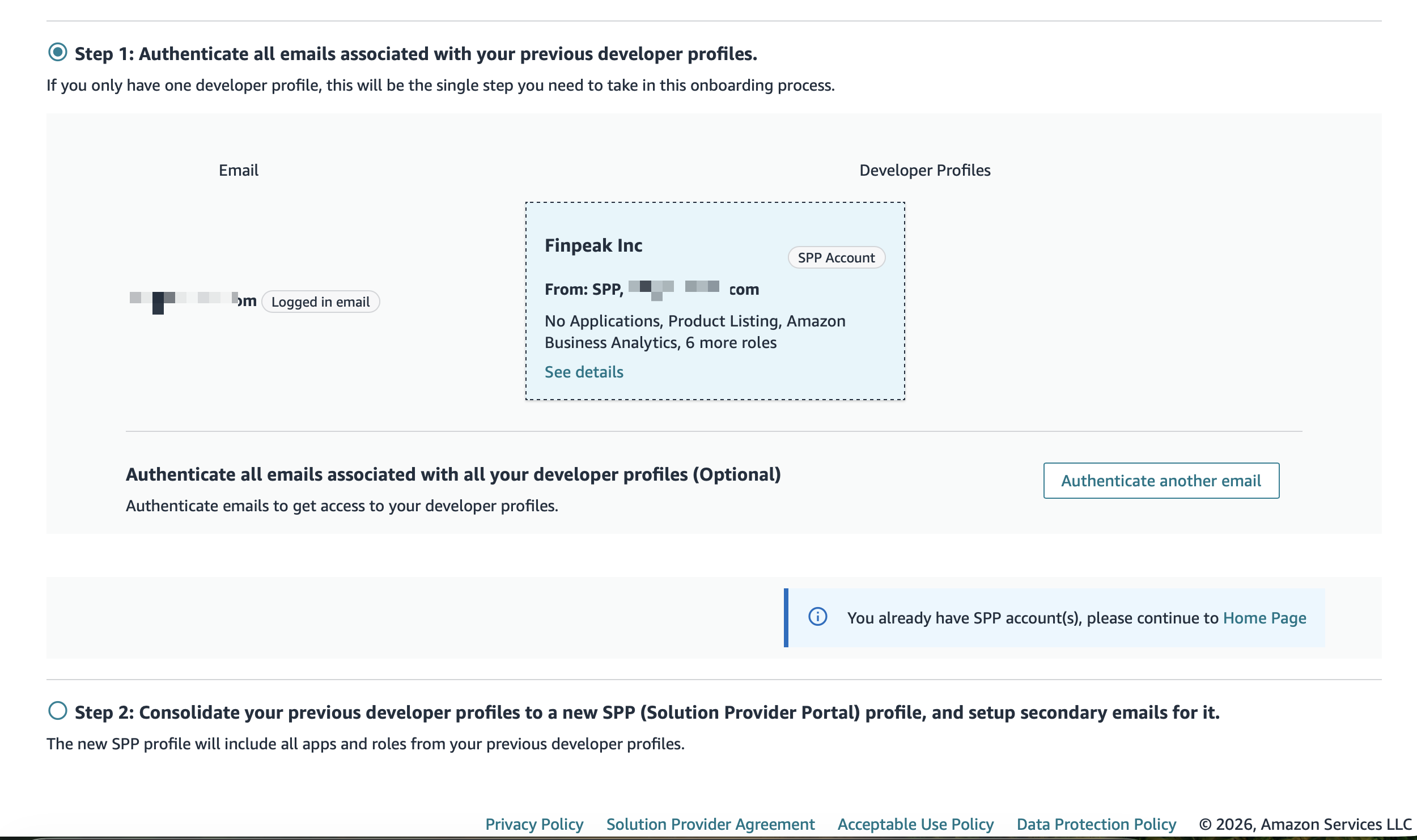
If this is your first time in the Developer Console, Amazon shows a Solution Provider Portal onboarding screen.
Under Step 1: Authenticate all emails associated with your previous developer profiles, confirm your logged-in email is shown under "Developer Profiles". Click through and continue to the Home Page.
If you see the banner "You already have SPP account(s), please continue to Home Page", you're done with onboarding — just click Home Page.
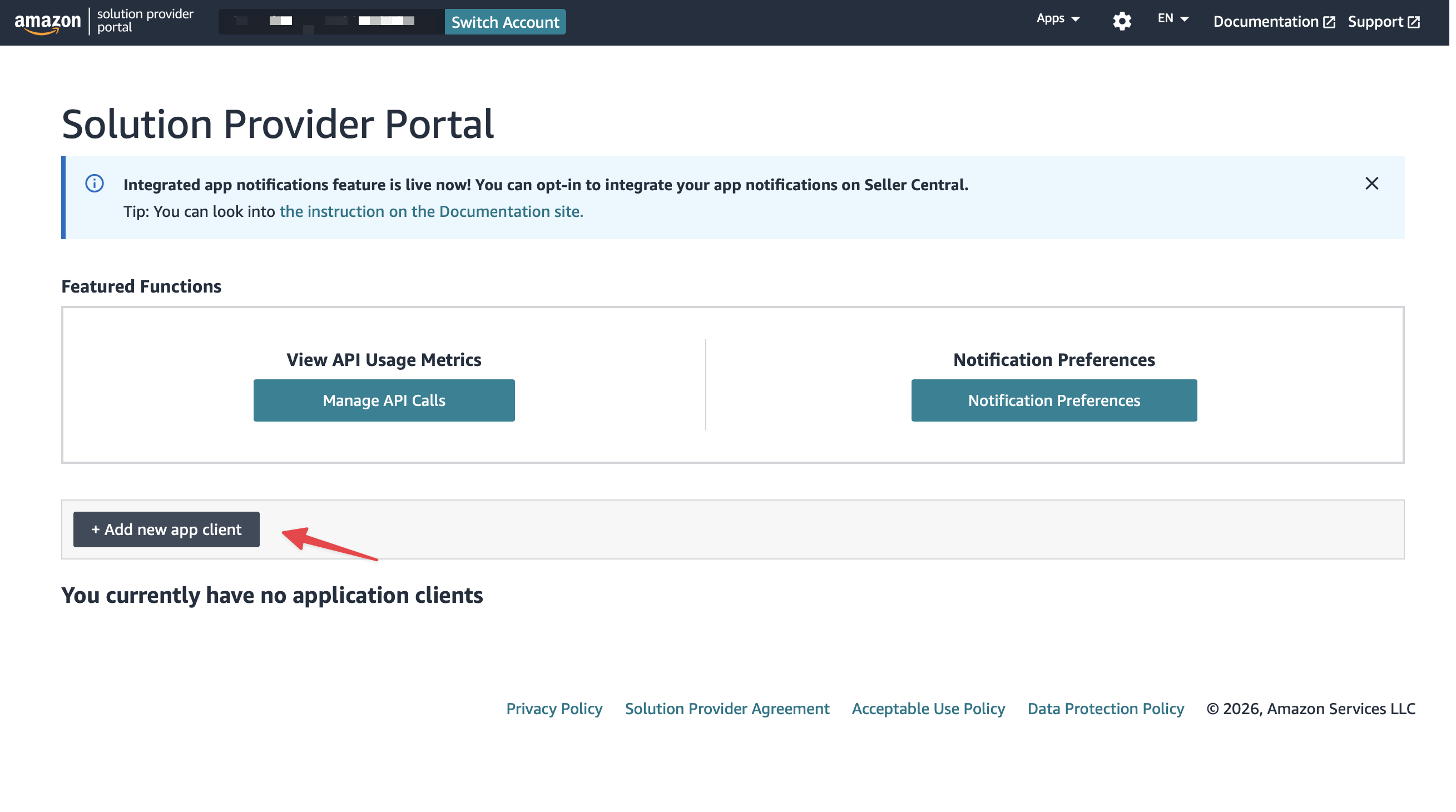
Now you should be on the Solution Provider Portal home page.
Step 3 · Register a new app
On the Solution Provider Portal home page, click + Add new app client.
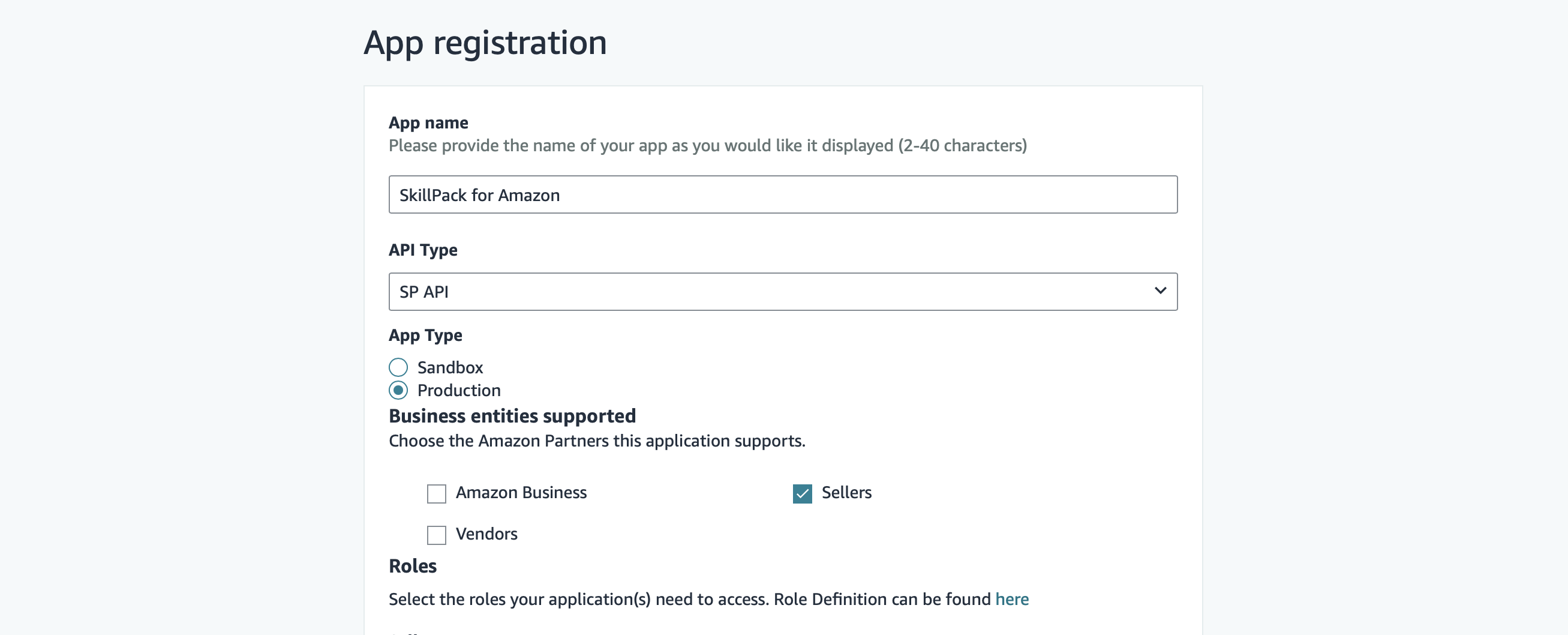
Fill in the App registration form:
| Field | Value |
|---|---|
| App name | Frevana for Amazon (any name, 2–40 chars) |
| API Type | SP API |
| App Type | Production |
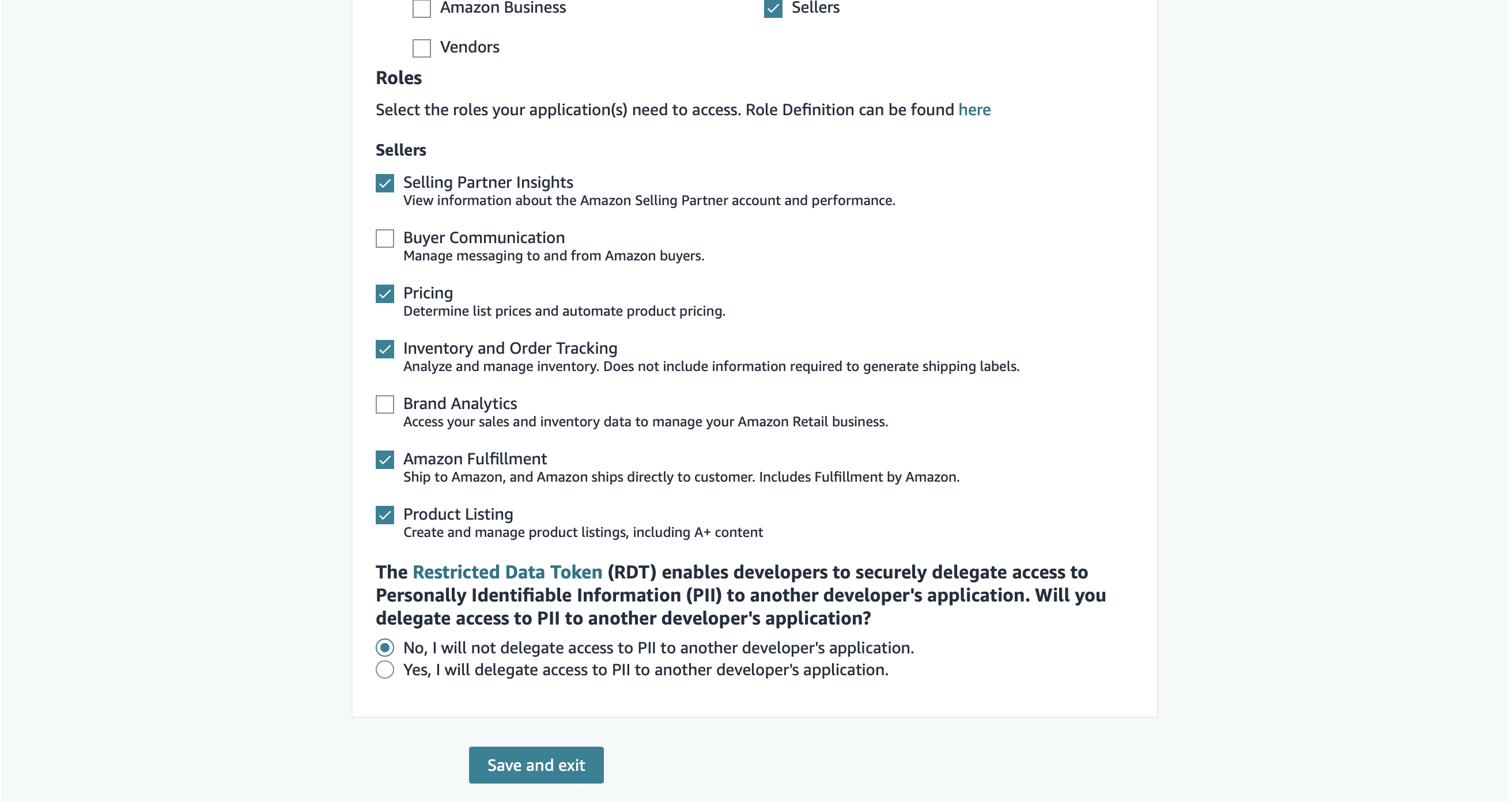
| Business entities supported | ✅ Sellers (leave the others unchecked) |
For Role selection,
Check the following roles — they cover orders, inventory, pricing, and listings:
- ✅ Selling Partner Insights — account info & performance
- ✅ Pricing — list prices & automated pricing
- ✅ Inventory and Order Tracking — orders & inventory analysis
- ✅ Amazon Fulfillment — FBA shipments
- ✅ Product Listing — listing & A+ content management
Leave Buyer Communication and Brand Analytics unchecked unless you specifically need them.
Next, PII delegation
For "Will you delegate access to PII to another developer's application?", select:
- ⦿ No, I will not delegate access to PII to another developer's application.
Click Save and exit.
Step 4 · Copy your LWA credentials
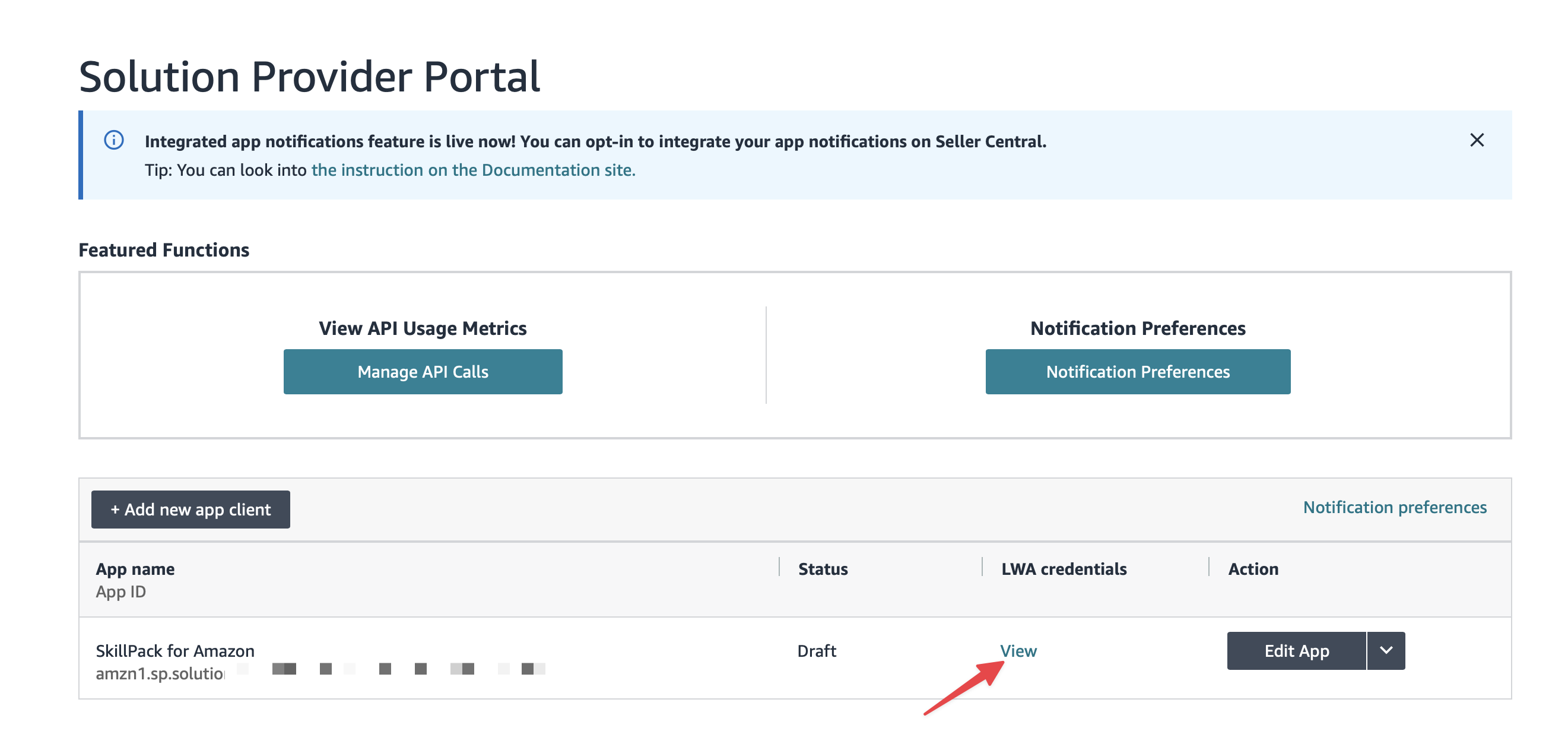
Back on the home page, find your new app in the table and click View in the LWA credentials column.
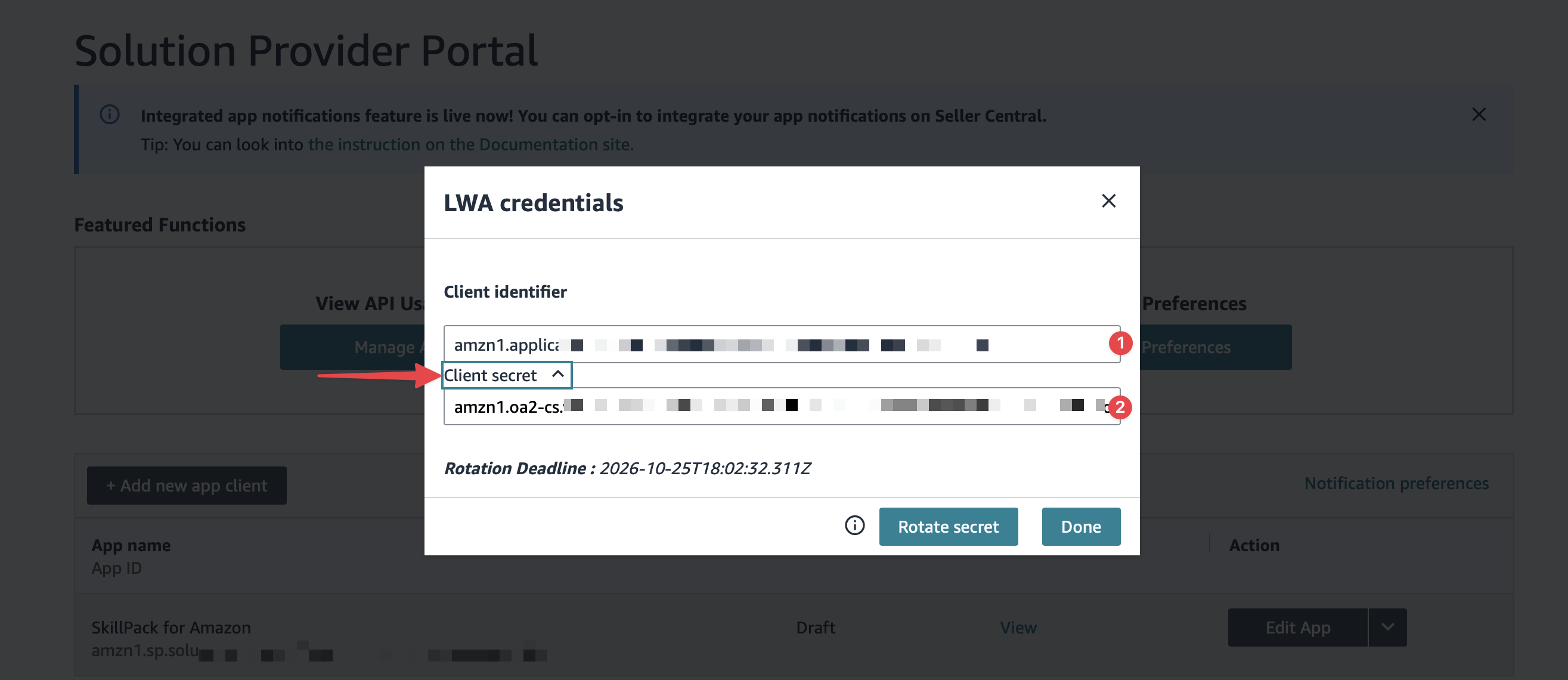
A modal pops up. Copy both values:
- Client identifier (
amzn1.application-oa2-client.…) → this is your LWA Client ID - Click Client secret to expand it (
amzn1.oa2-cs.…) → this is your LWA Client Secret
🔒 The Client Secret has a rotation deadline shown in the modal. Note the date — you'll need to update Frevana with the new secret when it rotates.
Step 5 · Authorize the app and copy the Refresh Token
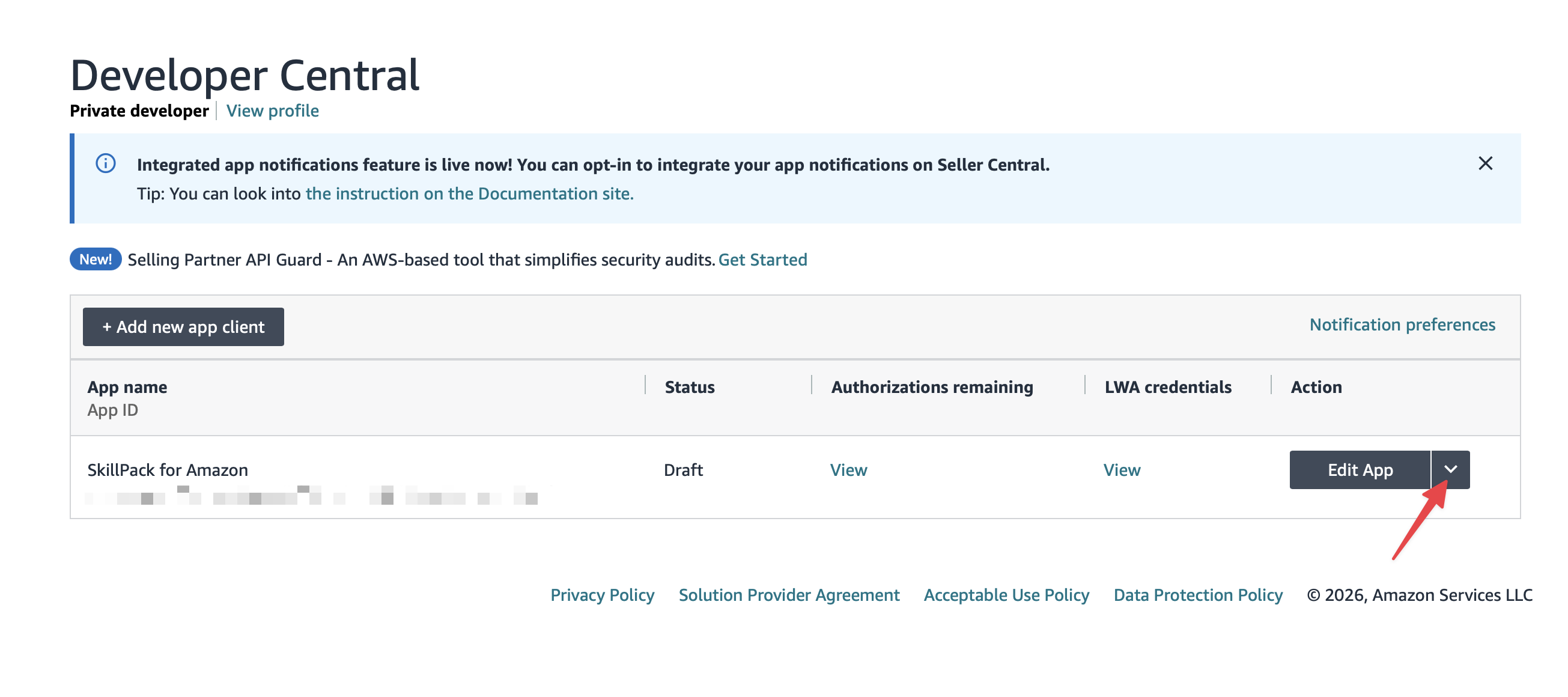
On the app row, click the dropdown next to Edit App and choose Authorize.

On the Manage Authorizations page, find your seller name and click Authorize app for the marketplace group you want (e.g., Mexico, Canada, Brazil, United States for North America).
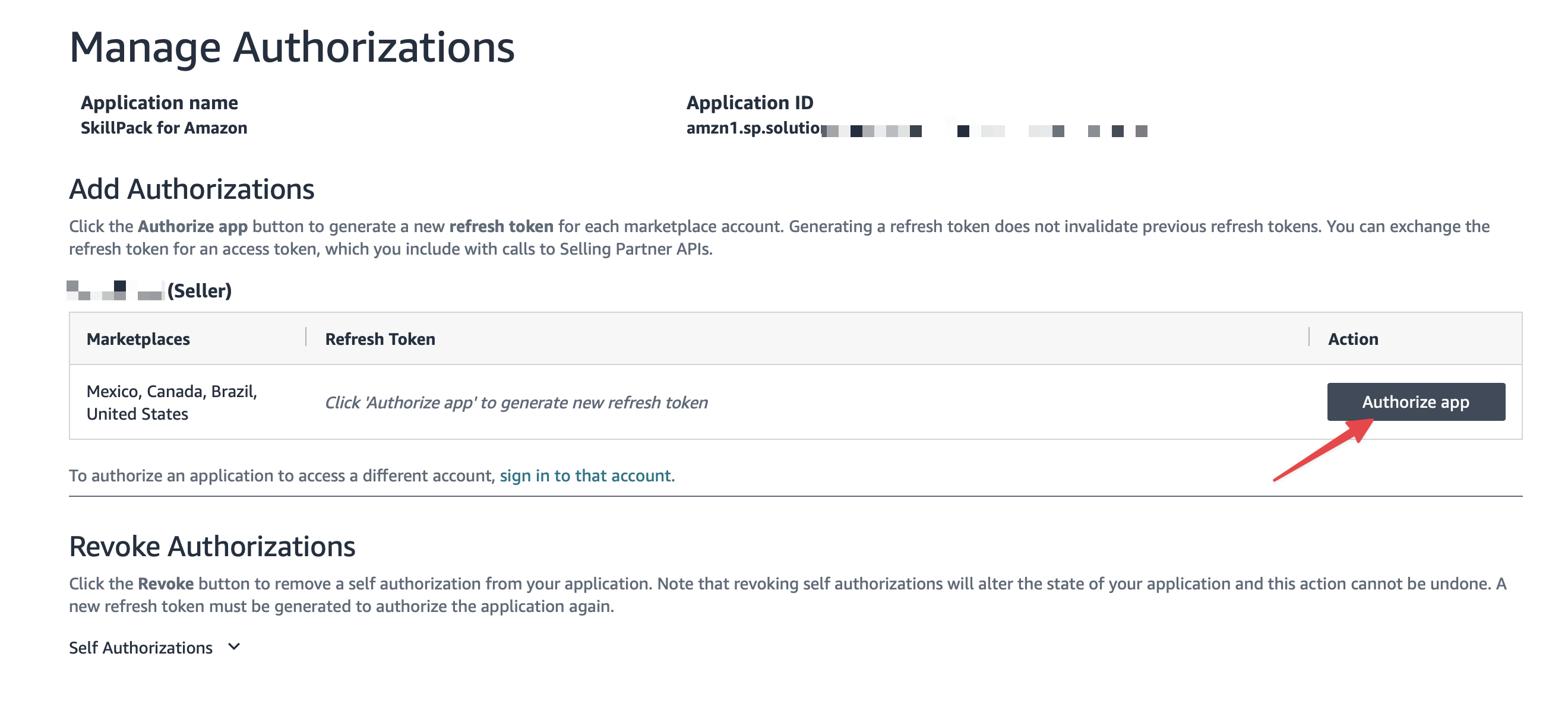
Amazon redirects you through a consent flow and back. The Refresh Token column now shows a token starting with something like Atzr|….
Click Copy next to the token. This is your Refresh Token.
Save this token immediately. Each time you click "Authorize app" again, a new refresh token is generated.
Keep your refresh token private. You may need to authorize the app again if access is revoked or the token stops working.

Step 6 · Copy your Merchant Token (Seller ID)
The merchant token is in your regular Seller Central settings.
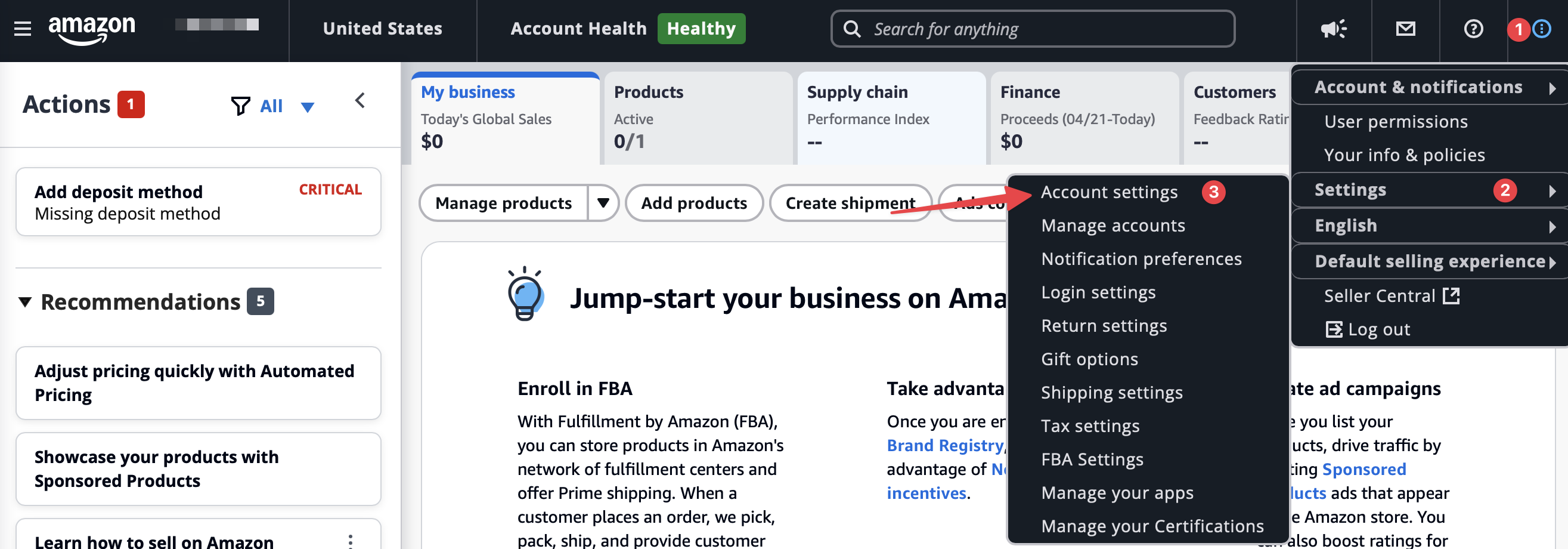
- Go to Seller Central (New UI) → More button (top right) → Settings (gear icon) → Account settings
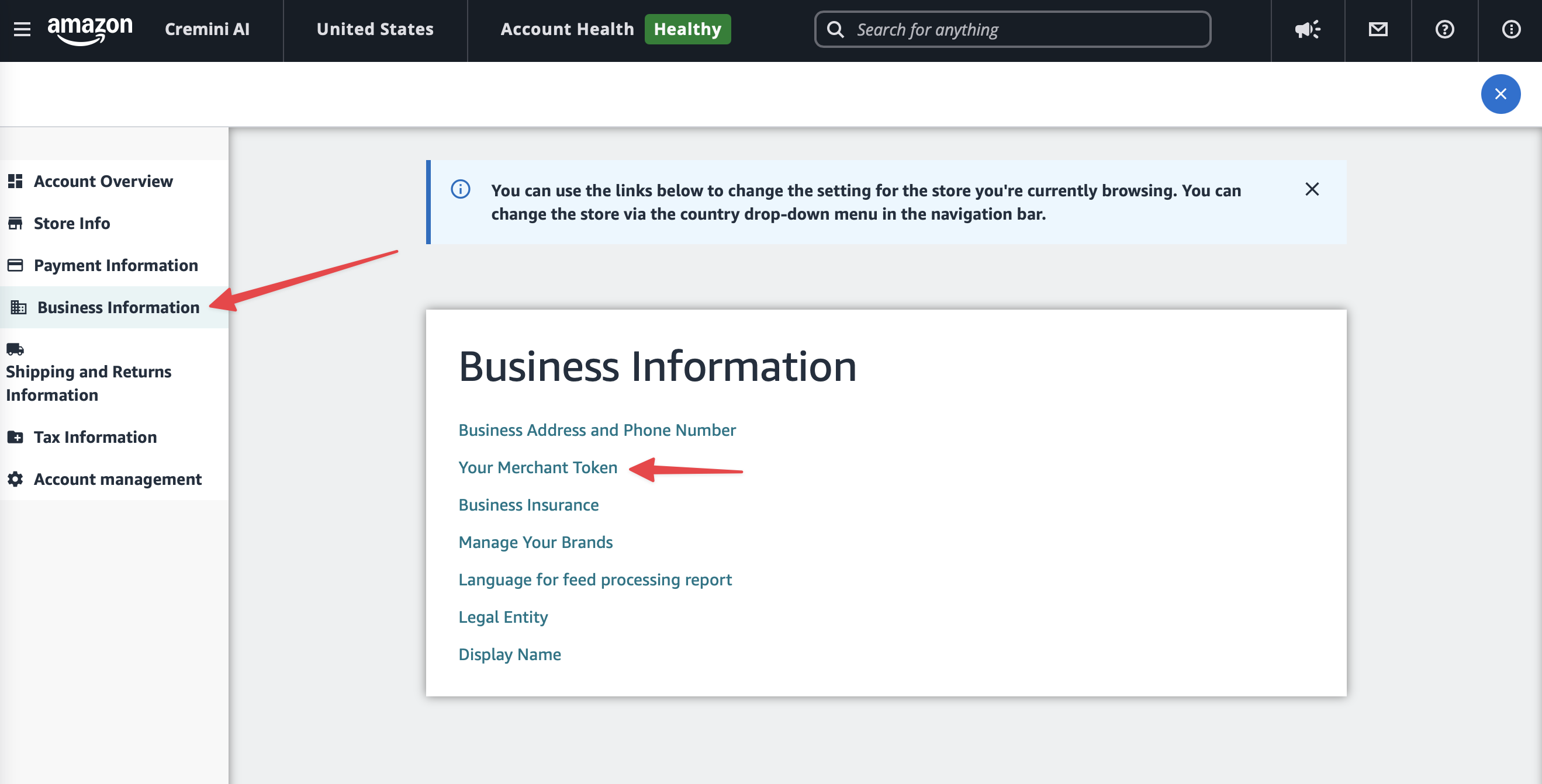
 2. Under Business Information, click Your Merchant Token
 3. You'll see a list of marketplaces grouped by region (Americas / Europe / Far East). Click Copy next to any marketplace in the region you sell in.
💡 Why are there multiple rows? The Merchant Token is tied to your seller account, not to individual marketplaces. Within the same region, all marketplaces share the same token — so for North America, the values shown next to United States, Canada, Mexico, and Brazil are identical. Just copy whichever one matches the marketplace you'll use first; the same token works for the rest of the region.
If you sell across different regions (e.g., both US and UK), each region is a separate seller account with its own Merchant Token. Run through this setup once per region.
Step 7 · Hand the four values to Frevana
Paste these into Frevana chat when prompted:
LWA Client ID:     amzn1.application-oa2-client.xxxxxxxx...
LWA Client Secret: amzn1.oa2-cs.v1.xxxxxxxx...
Refresh Token:     Atzr|IwEBIxxxxxxxx...
Merchant Token:    A1B2C3D4E5F6G7
Frevana will also ask which marketplace you sell on (such as US, CA, UK, DE, or JP). Enter the marketplace you want to connect.
Key Notes
- Credentials are stored locally within each Frevana's isolated
data/amazon-connect/directory — never sent to any third party - Different Agent teams can connect to different Amazon Seller accounts
- Frevana exchanges the refresh token for access tokens as needed; reauthorize if the connection is revoked or stops working.
- You can revoke access anytime at Seller Central → Develop Apps → your app → Authorize → Revoke