Google Ads
Connect Google Ads to Frevana to explore performance, review campaigns, and work with ad copy, keywords, and budgets through conversation.
Before you begin
- Complete Google Connect setup using a Google account with access to the Google Ads account you want to manage.
- Identify the Customer ID of that ad account. It is a 10-digit number, commonly displayed as
xxx-xxx-xxxx. - If you access an ad account through a manager account, have the manager’s Customer ID (also called the MCC ID) available.
:::important Google Ads API update
Google sunset developer tokens on September 9, 2026. API access levels are now associated with the Google Cloud project used for your OAuth credentials. See Google’s developer token sunset guide.
The original Frevana workflow described in this guide asks for a Developer Token. If your Agent team still asks for one, check with the Frevana team about compatibility with Google’s current setup; do not assume a token is still required by Google or invent a value.
:::
Enable the Google Ads API
- In the Google Cloud project used for Google Connect, enable the Google Ads API.
- Open your project’s Google Ads API overview and check its access level.
- Follow Google’s instructions to request the access level you need. Test access is limited to test accounts; Explorer, Basic, and Standard access can support production accounts, subject to Google’s limits and review. Some functionality, including keyword planning, requires a higher access level.
For details, see Google’s API access levels and permissible use.
Use a manager account, if needed
A Google Ads manager account—also called an MCC—lets you manage linked ad accounts. If you already have the access you need, you can continue to Connect in Frevana.
To create a manager account and link an existing ad account:
-
Visit Google Ads manager accounts, sign in, and select Create a manager account.
-
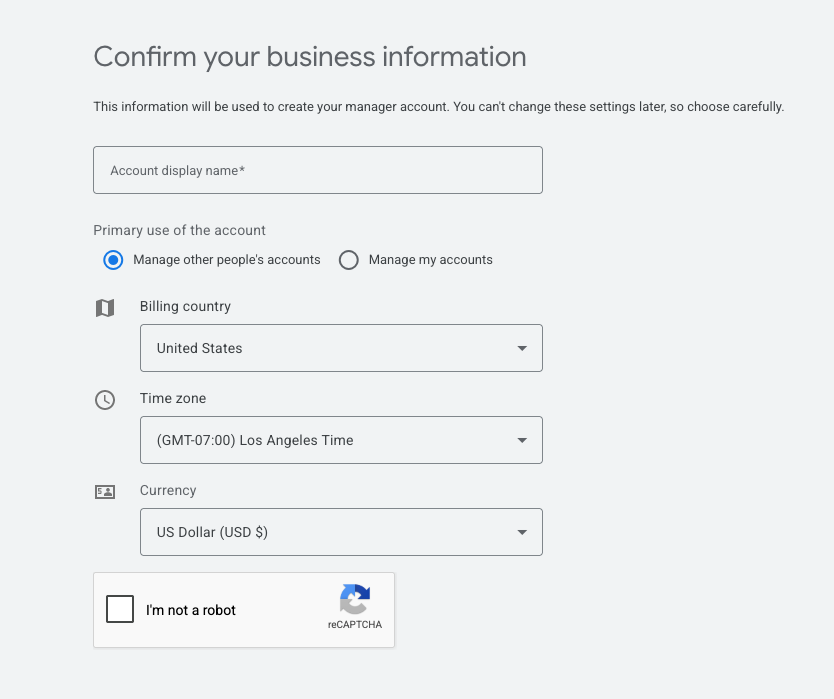
Enter a recognizable account name and choose the appropriate account-management, country, time-zone, and currency settings. Submit the form and note the manager account’s 10-digit ID.
-
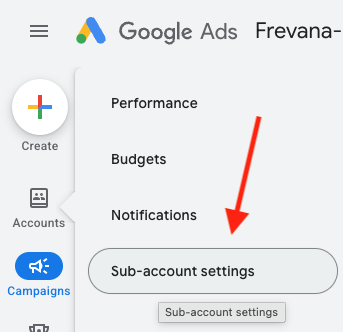
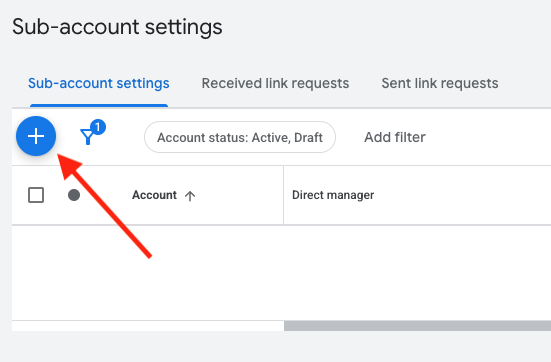
In the manager account, go to Accounts > Sub-account settings.
-
Select the + button and choose Link existing account.
-
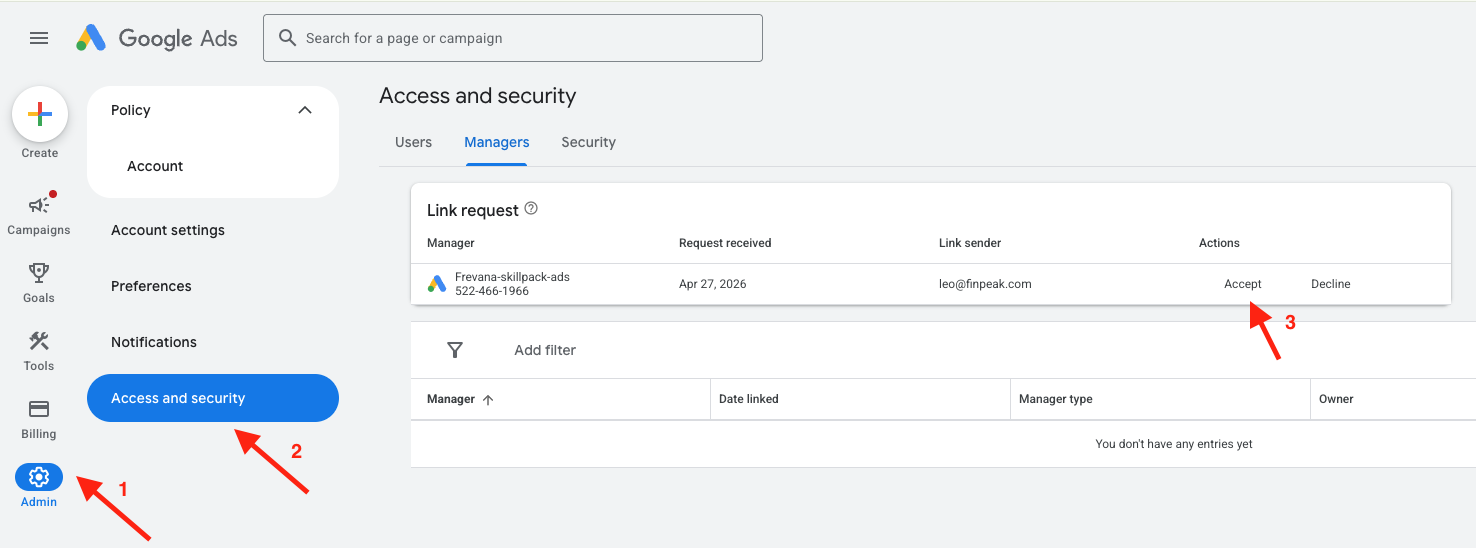
Enter the Customer ID of the ad account you want to manage and send the request. In that ad account, open Admin > Access and security > Managers and accept the invitation.
Connect in Frevana
Return to your Agent team’s chat and follow the prompts to identify the ad account. Use the Customer ID of the account whose ads you want to manage—not the manager account’s ID. When accessing an account through a manager, provide the MCC ID if prompted.
Google Ads actions can affect live campaigns and spending. Review the account, campaign status, budgets, and proposed changes carefully before approving or applying them.
What you can do
| Area | Examples |
|---|---|
| Campaigns | Review, create, pause, or resume campaigns. |
| Ad copy | Draft and edit text ads and responsive search ads. |
| Keywords | Review and manage keywords and their performance. |
| Budgets | Review or adjust daily budgets. |
| Reporting | Explore metrics, compare periods, and export data. |
| Bidding | Review and update bid strategies. |
Available actions depend on your account access, Google Cloud project access level, and the permissions you grant.
Try asking
- “How did my campaigns perform last week?”
- “Create a search campaign for winter boots.”
- “Write three ad variations for my yoga studio.”
- “Add ‘organic coffee beans’ as a keyword to my Coffee campaign.”
- “Export last month’s campaign performance as a spreadsheet.”
- “Pause all active campaigns.”
Troubleshooting
“Customer ID is invalid”
Check that the ID contains 10 digits and belongs to the ad account you want to manage. If prompted, enter it without dashes or spaces. Use the manager ID separately when a manager or MCC ID is requested.
“Authorization error” or “Access denied”
- Confirm that your connected Google account has access to the ad account.
- If you use a manager account, check that the ad account is linked and that you provided the appropriate manager ID.
- Check the Google Ads API access level of the Cloud project that owns your OAuth credentials. A project with Test access can access only test accounts.
- Review Google’s developer token sunset guide for migration notes and known authorization issues.
Older Developer Token or API Center instructions
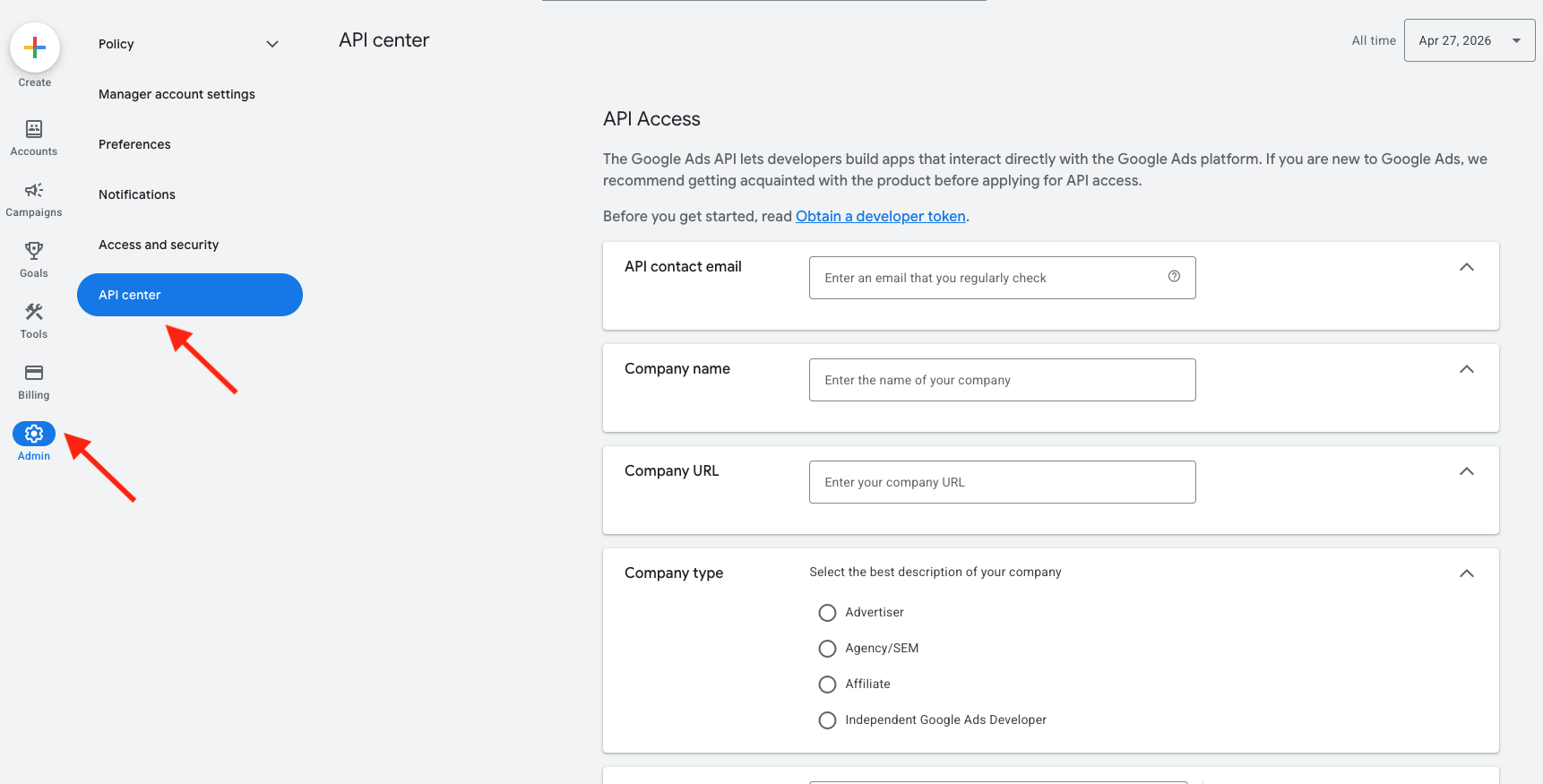
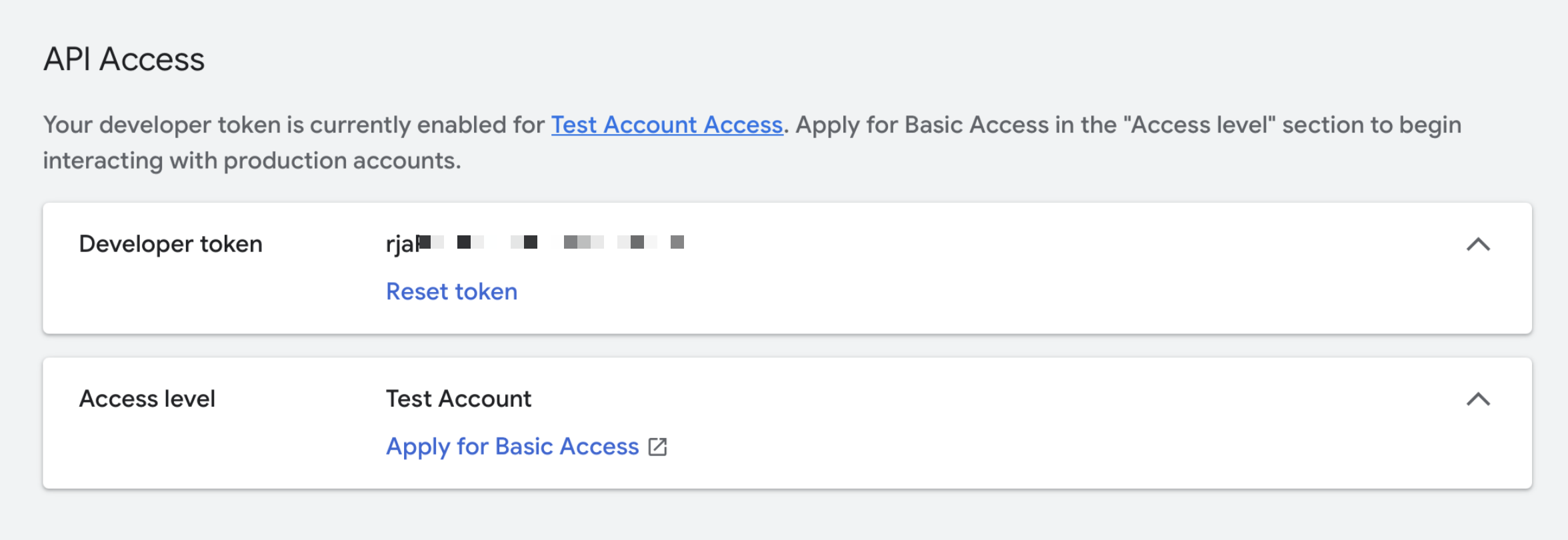
Some older Frevana setups and screenshots refer to the Google Ads manager account’s API Center and Developer Token. Google has deprecated that workflow for managing API access; use the Cloud project’s Google Ads API overview instead. If Frevana still requires a token, contact the Frevana team to confirm the supported setup.
The following screenshots are included for historical reference and may no longer match Google’s current interface: