SendGrid Integration
Connect SendGrid to Frevana for email delivery by creating a dedicated, restricted API key.
Before you begin
You'll need:
- A SendGrid account and access to its dashboard
- A verified sender
- Permission to manage API keys
Frevana needs an API key that starts with SG. and has the mail.send permission enabled.
Step 1: Open API key settings
Open SendGrid API Keys, or select Settings → API Keys in the SendGrid dashboard.
Step 2: Create a restricted API key
Select Create API Key and enter a recognizable name, such as Frevana Mail Sending. Choose Custom Access so you can limit the key's permissions.
Step 3: Select permissions
Enable the permissions needed for your workflow:
mail.send: Full Access for sending email- Email Activity: Read Access for email activity
stats.read: Read Access for statisticsmail_settings.read: optional, if access to mail settings is needed
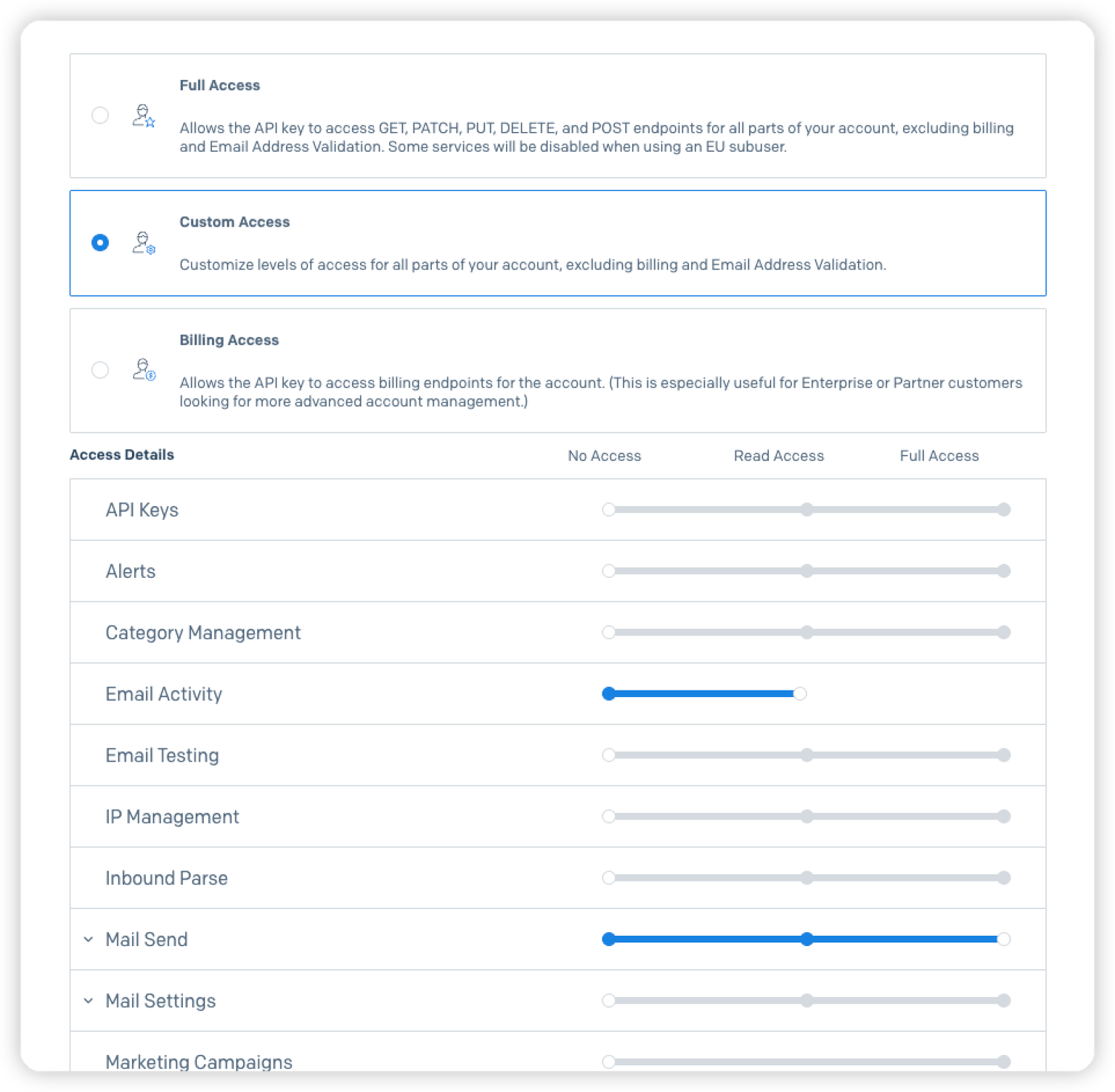
Grant only the access you need. If a request returns 403 Forbidden, check the key's permissions first.
Step 4: Generate and copy the key
Select Create & View. SendGrid will generate a key that looks like this:
SG.xxxxxxxx.yyyyyyyyyyyyyyyyyyyyy
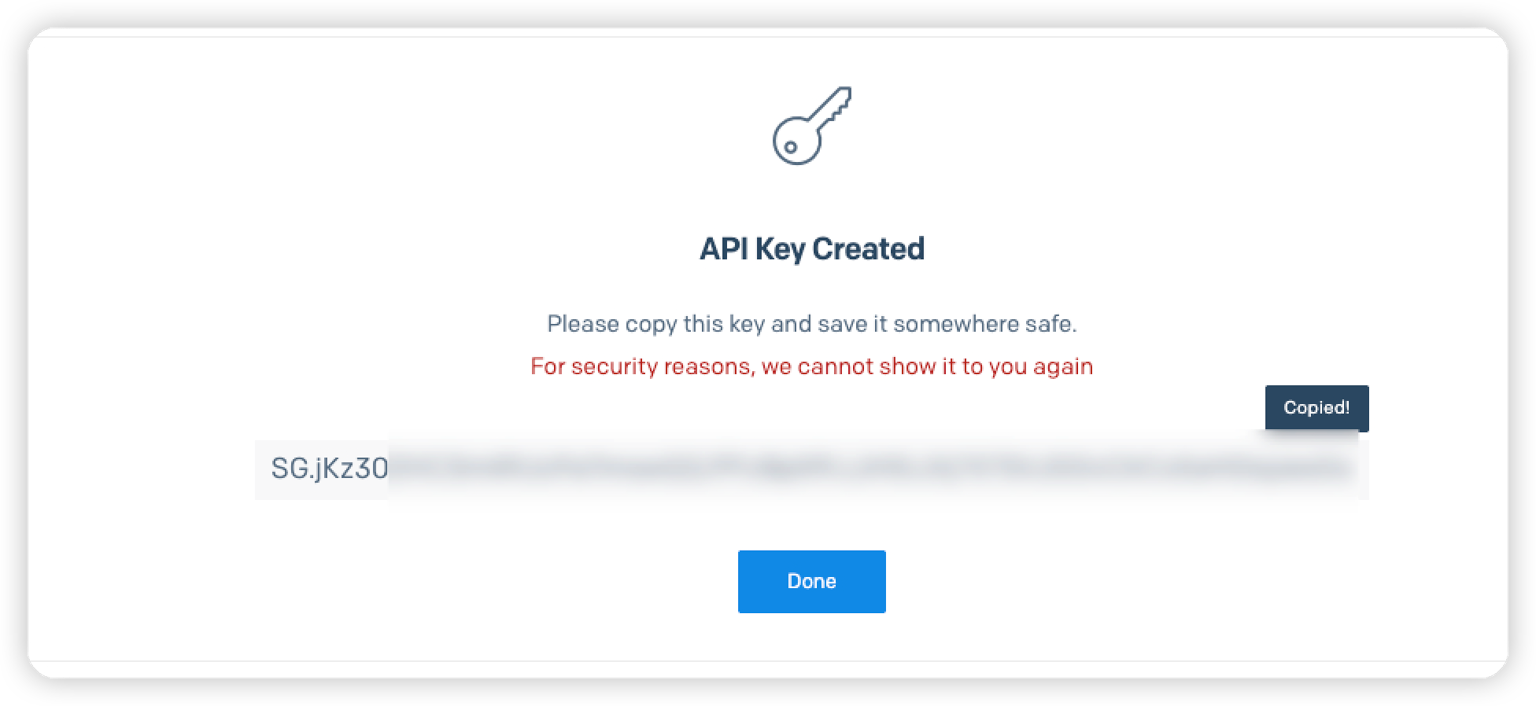
SendGrid shows the key only once. Copy and store it securely before leaving the page, and treat it like a password. Don't share it in public messages, email, or screenshots.
Step 5: Add the key to Frevana
Provide the key in Frevana agent chat when prompted, or make it available as an environment variable. Use the complete key, including the SG. prefix, without extra spaces or line breaks.
macOS / Linux
export SENDGRID_API_KEY="SG.xxxxxxxx.yyyyyyyyyyyyyyyyyyyyy"
Windows PowerShell
setx SENDGRID_API_KEY "SG.xxxxxxxx.yyyyyyyyyyyyyyyyyyyyy"
Replace the example with your own key. The export command applies to the current shell and processes started from it. On Windows, setx applies to new processes, not the current PowerShell session. Make sure Frevana is launched with access to the variable; you may need to restart it.
Troubleshooting
403 Forbidden
Check that the key has the required permissions, including mail.send, and that you copied the complete value.
401 Unauthorized
Make sure the key starts with SG. and hasn't been deleted or rotated.
The key is missing
SendGrid only displays a new key once. If you didn't save it, create a new key and update the value used by Frevana.
Ready to connect
Once your key is available to Frevana and your sender is verified, continue the SendGrid setup.