Klaviyo Integration
Connect Klaviyo to Frevana with a private API key. We'll walk through creating a dedicated key and selecting the permissions for your workflow.
Before you begin
You'll need access to the Klaviyo account you want to connect and permission to manage its API keys.
Step 1: Open API key settings
Sign in to the right account and open Klaviyo API Keys. You can also find this page under Settings → Account → API Keys.
Step 2: Create a private API key
Select Create Private API Key and choose a recognizable name, such as Frevana Integration.
Choose Custom Key and select the API scopes needed by your Frevana workflow. The original setup calls for full access to these resources:
- Campaigns
- Segments
- Tags
- Templates
- Lists
- Profiles
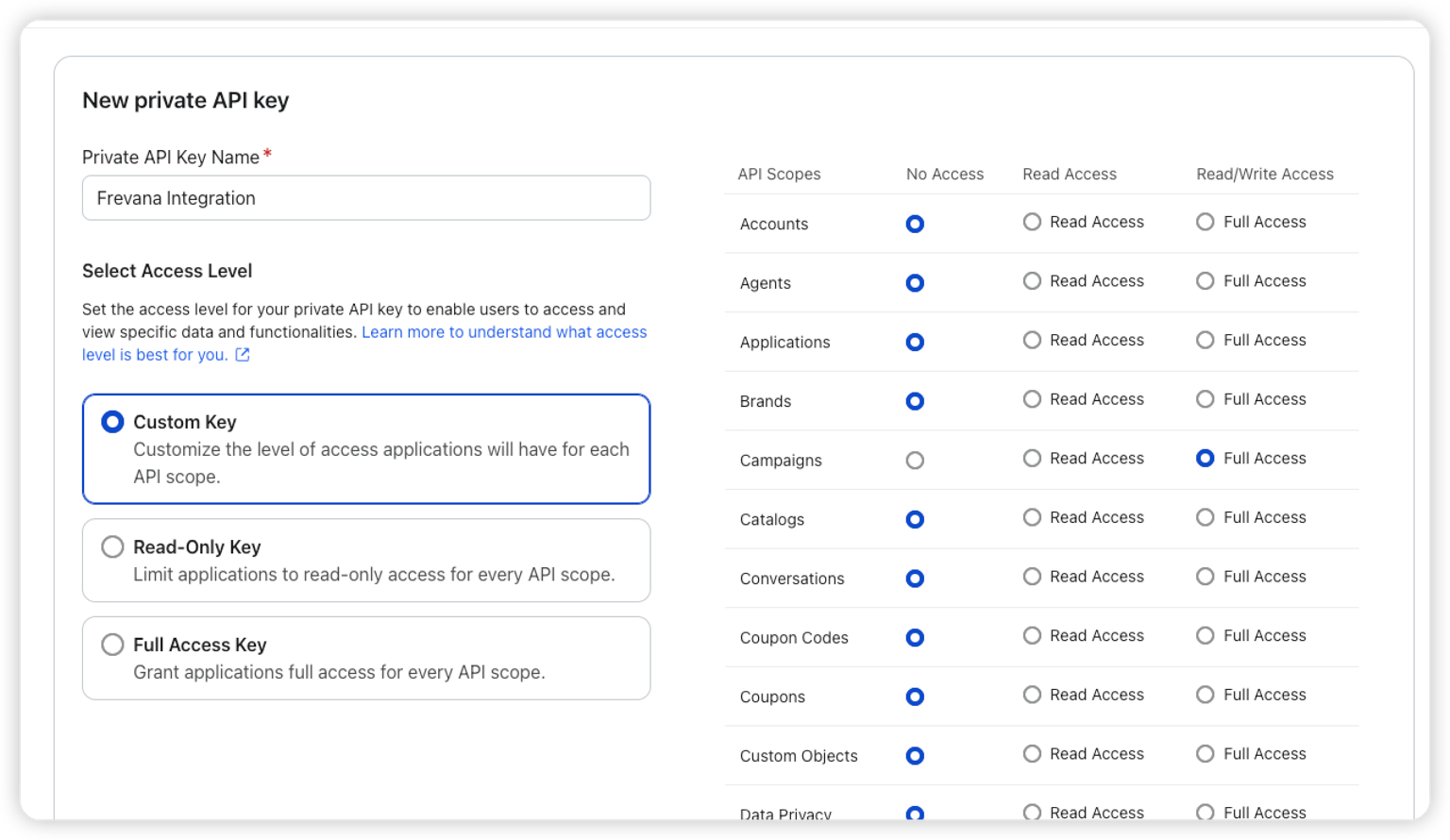
Full access can allow changes as well as reads. Review each permission and grant only the access your workflow needs. Depending on the resources you use, you may also need permissions for other resources, such as events. A dedicated key makes it easier to review and rotate access later.
Step 3: Generate and copy the key
Select Create to generate your private API key.
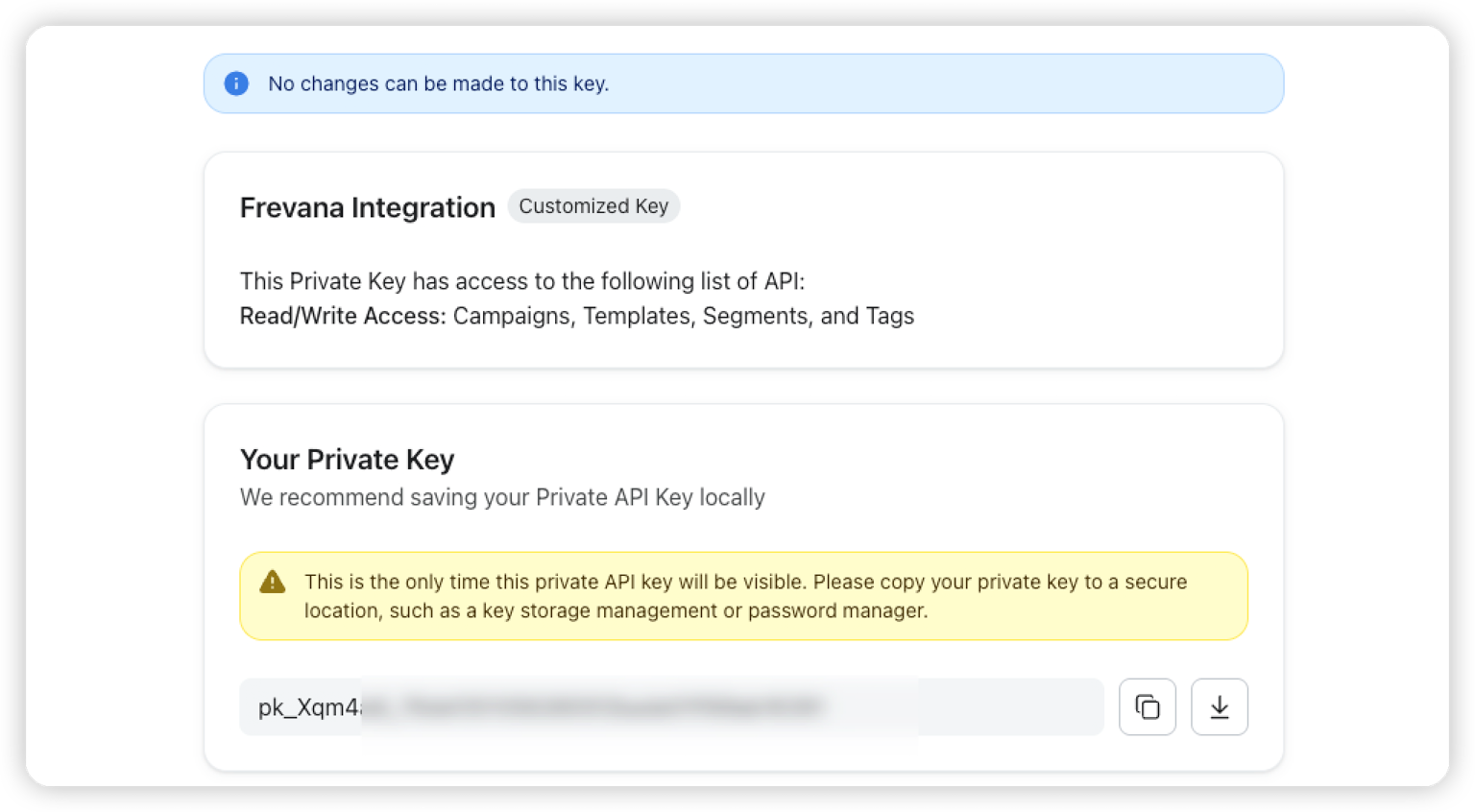
Copy the complete key promptly and store it in a secure password manager or secret store.
Treat your private API key like a password. Don't share it in public messages, email, or screenshots.
Step 4: Make the key available
To set the key as an environment variable, replace the placeholder with the complete private key. Make sure it contains no extra spaces or line breaks.
macOS / Linux
export KLAVIYO_API_KEY="your_klaviyo_private_api_key"
Windows PowerShell
setx KLAVIYO_API_KEY "your_klaviyo_private_api_key"
The export command applies to the current shell and processes started from it. On Windows, setx applies to new processes, not the current PowerShell session. Make sure Frevana is launched with access to the variable; you may need to restart it.
Troubleshooting
401 Unauthorized
Check that you copied the complete key, that it is still active, and that you're using a private API key rather than a public identifier.
403 Forbidden
Check that the key belongs to the intended Klaviyo account and has the permissions needed for the resources you're trying to access. If the key's permissions can't be changed, create a new key with the necessary access and update Frevana's configuration.
Can't find the API key page
Make sure you're signed in to the correct account, have opened Settings → Account → API Keys, and have permission to manage API keys.
Ready to connect
Once the key is available to Frevana, continue the Klaviyo integration setup.