Slack Webhook Integration
Use a Slack Incoming Webhook with Frevana to send notifications directly to a channel in your workspace. This guide walks you through creating a webhook and making its URL available to Frevana.
Before you begin
You’ll need:
- A Slack workspace and permission to create or install Slack apps. Depending on your workspace settings, an administrator may need to approve the app.
- A Slack channel where you want to receive notifications.
Create a Slack app
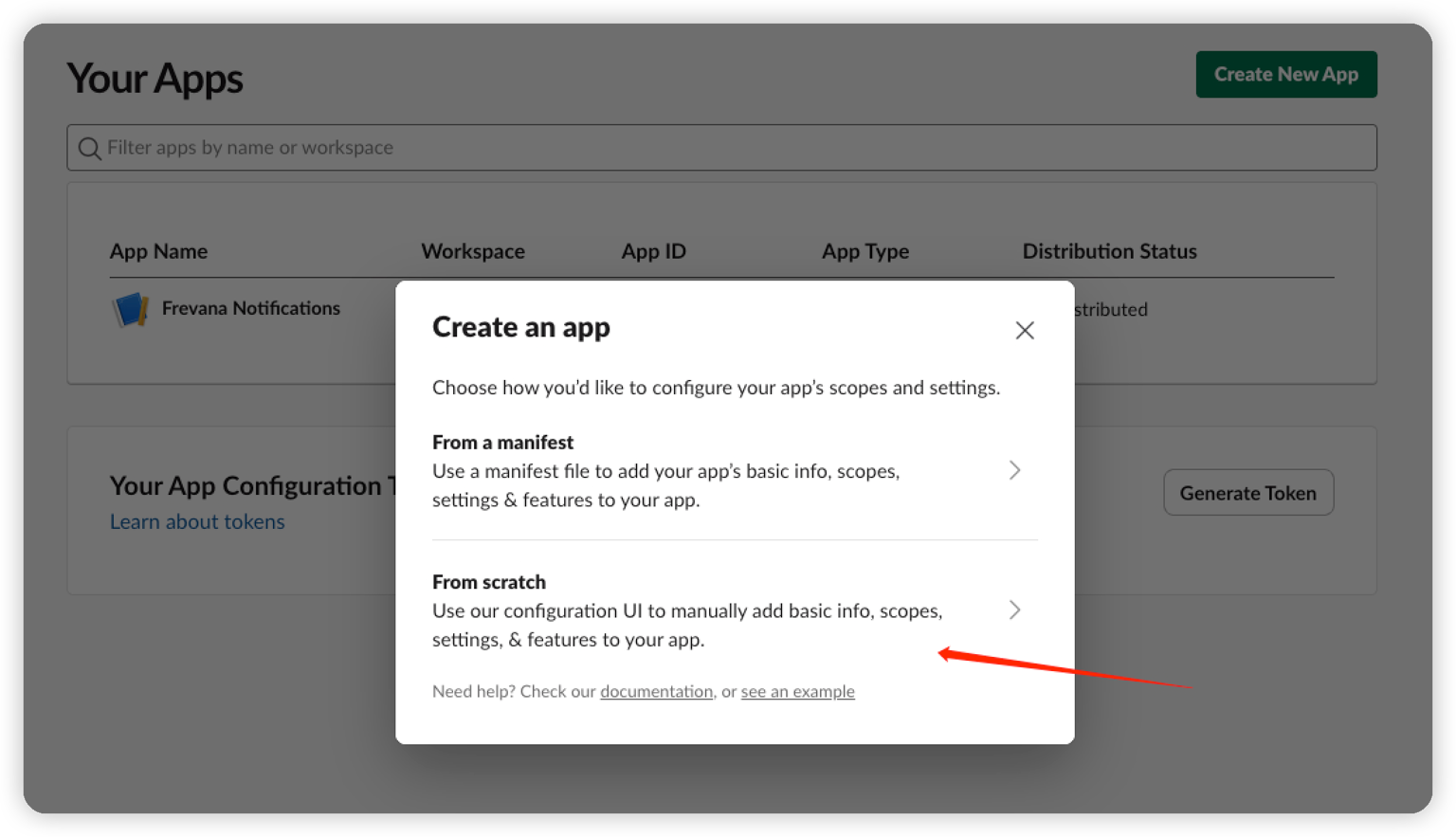
- Open Slack API: Your Apps and select Create New App.
- Choose From scratch.
- Give the app a recognizable name, such as Frevana Notifications, and select the workspace where you want to receive notifications. Then create the app.
Enable incoming webhooks
In your app’s settings, select Incoming Webhooks, then turn on Activate Incoming Webhooks.
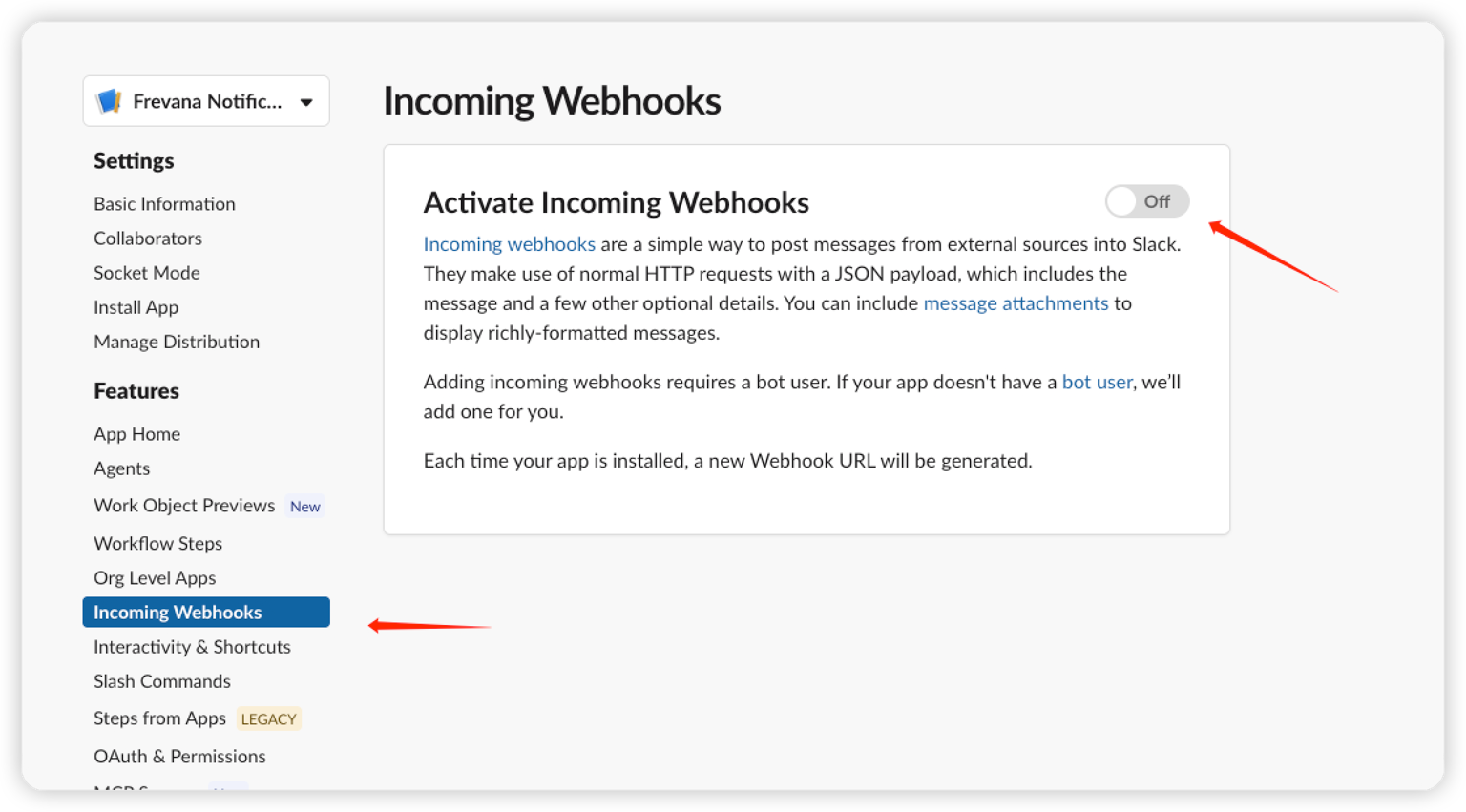
Each incoming webhook is associated with one authorized Slack channel. Create another webhook if you want to send notifications to a different channel.
Add a webhook to your workspace
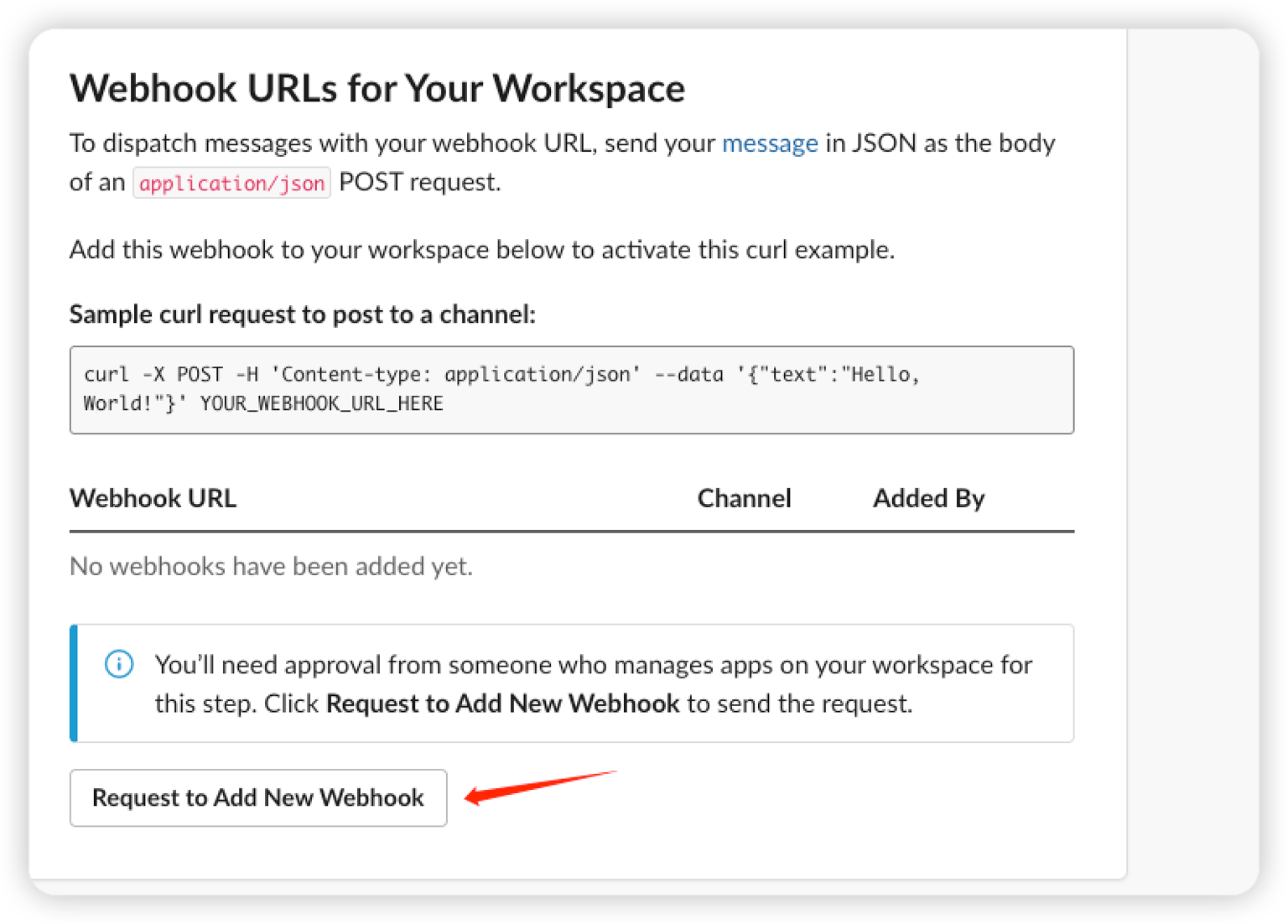
- Select Add New Webhook to Workspace. If your workspace requires approval, you may see Request to Add New Webhook instead; submit the request and wait for approval.
- Choose the channel that should receive Frevana notifications.
- Select Allow to authorize the app.
Copy your webhook URL
Slack will generate a URL that starts with https://hooks.slack.com/services/. Copy the full URL; it will look similar to this example:
https://hooks.slack.com/services/T00000000/B00000000/XXXXXXXXXXXXXXXXXXXXXXXX
Keep your webhook URL private, just like a password. Anyone who has it can post messages to the connected channel. If it is exposed, revoke it in Slack and create a new one.
Make the URL available to Frevana
Save the full URL as an environment variable named SLACK_WEBHOOK_URL. Replace the example below with the URL you copied from Slack.
macOS / Linux
export SLACK_WEBHOOK_URL="https://hooks.slack.com/services/T00000000/B00000000/XXXXXXXXXXXXXXXXXXXXXXXX"
The export command applies to the current shell session and processes started from it.
Windows PowerShell
setx SLACK_WEBHOOK_URL "https://hooks.slack.com/services/T00000000/B00000000/XXXXXXXXXXXXXXXXXXXXXXXX"
setx makes the value available to future processes, not the current PowerShell session. Make sure the process running Frevana can access the variable, and restart it if needed.
Once the URL is available to Frevana, your configured workflow or action can send notifications to the connected Slack channel.
Troubleshooting
No message appears in Slack
- Check that you copied the complete webhook URL and that the connected channel still exists.
- Confirm that
SLACK_WEBHOOK_URLis available to the process running Frevana. - Make sure the Frevana workflow or action was triggered successfully.
An invalid_payload or other request error appears
- Check that the webhook URL is valid, has no extra characters, and has not been revoked.
- If Slack reports
invalid_payload, check the message payload sent by the workflow or action.
The webhook URL was exposed
Revoke the compromised webhook in Slack, create a new one, and replace the old SLACK_WEBHOOK_URL value wherever Frevana reads it.