Connect Feishu or Lark to Frevana
Connect a Feishu or Lark app to Frevana using its App ID and App Secret. You can use the quick setup links below or configure the app manually.
Quick setup
Choose the platform that matches your workspace and follow its setup flow:
Once you have your App ID and App Secret, continue to Connect the app in Frevana. You can also watch the video guide for help.
Set up an app step by step
The following walkthrough uses the Feishu Developer Console. Labels may differ in Lark.
1. Create a custom app and find its credentials
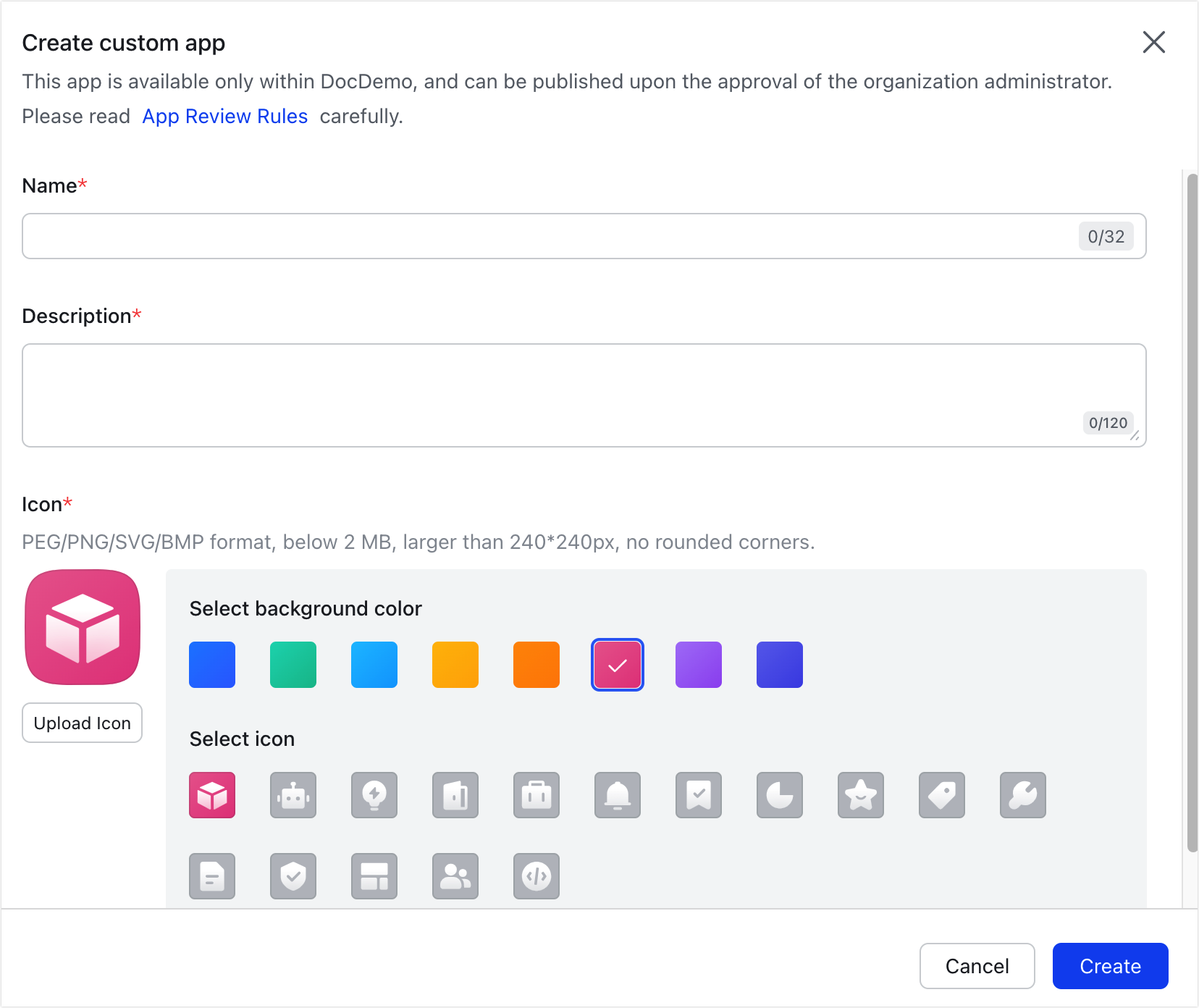
- Sign in to the Feishu Developer Console and create a custom app.
- Open Basic Info > Credential & Basic Info and copy the app’s App ID and App Secret.

Keep your App Secret private, just like a password. If it is exposed, replace it through your developer console and update the value in Frevana.
2. Add the bot capability
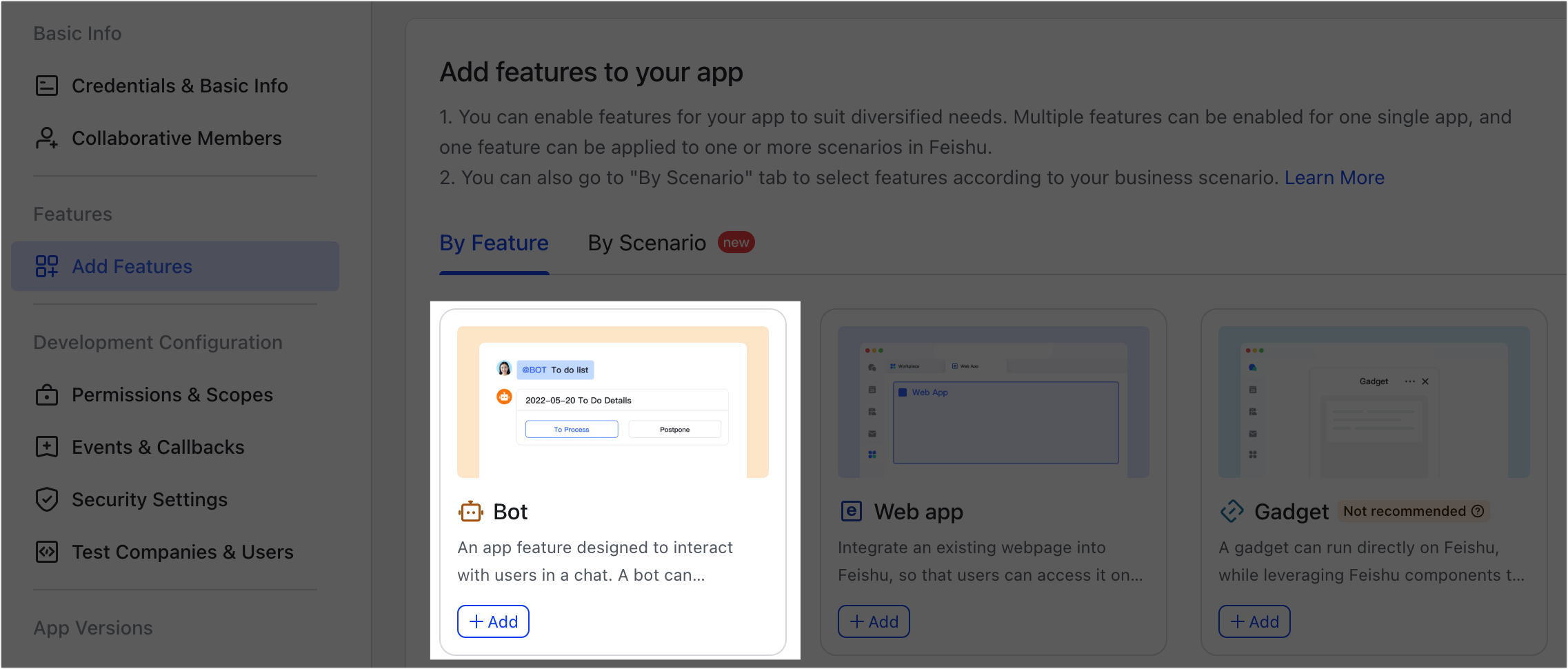
In the Developer Console, go to Features > Add Features and add the Bot capability. This enables the app to send and receive messages.
3. Enable app permissions
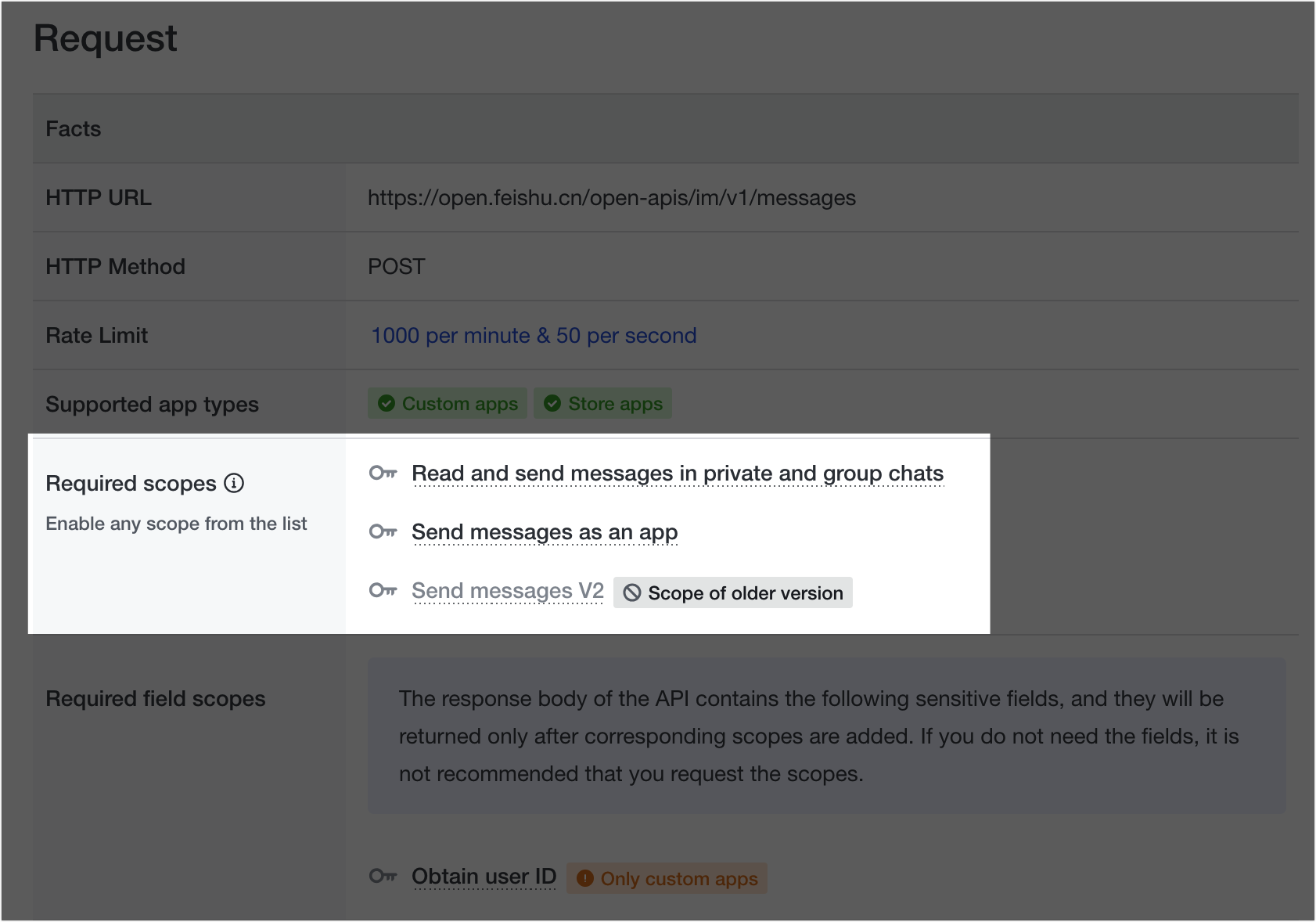
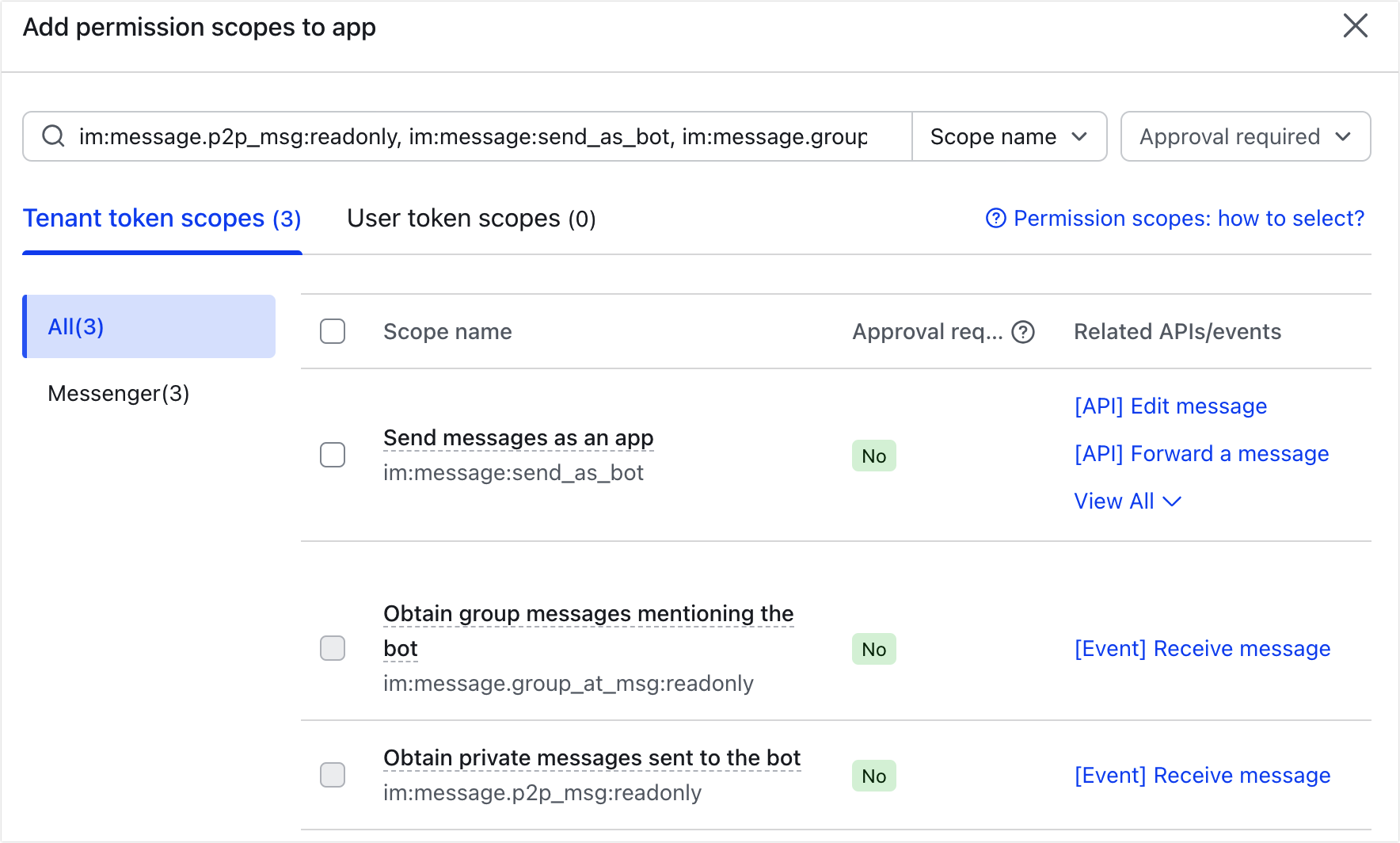
Go to Development Configuration > Permissions & Scopes and enable these app identity permissions:
im:message.p2p_msg:readonly— receive private messages sent to the bot.im:message:send_as_bot— send messages as the app.im:message.group_at_msg:readonly— receive group messages that mention the bot.
You can review the Send Message, Reply Message, and Receive Message documentation for more details about the required permissions.
4. Subscribe to message events
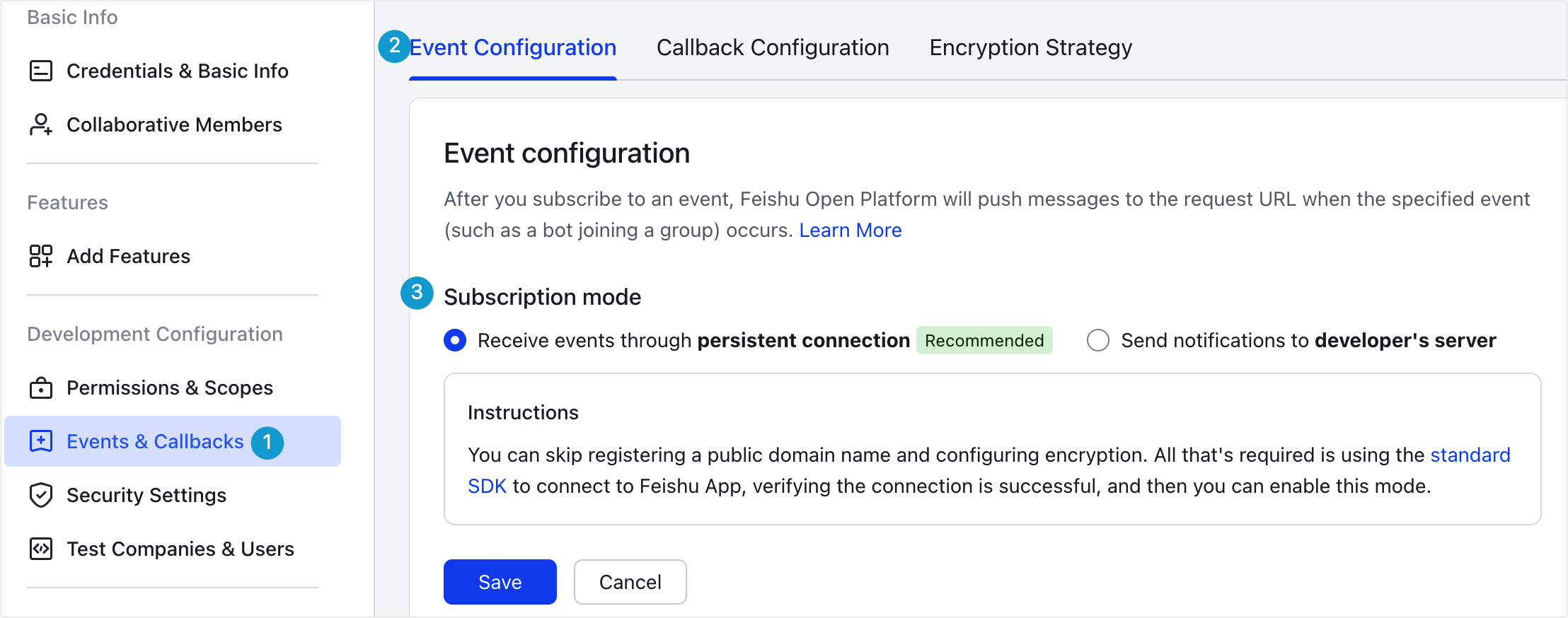
- Go to Development Configuration > Event & Callback > Event Configuration and edit the Subscription Method.
- Choose Receive events through persistent connection, then select Save. Feishu requires a persistent connection to be established before you can save this method; follow its connection setup instructions first.
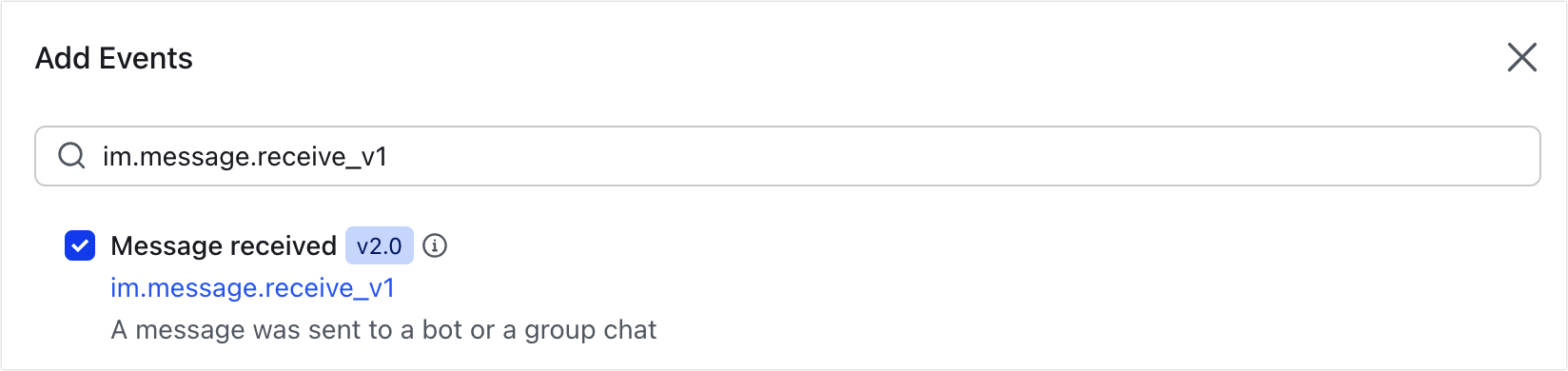
- Under Events added, select Add Events and add Message received (
im.message.receive_v1).
5. Publish the app
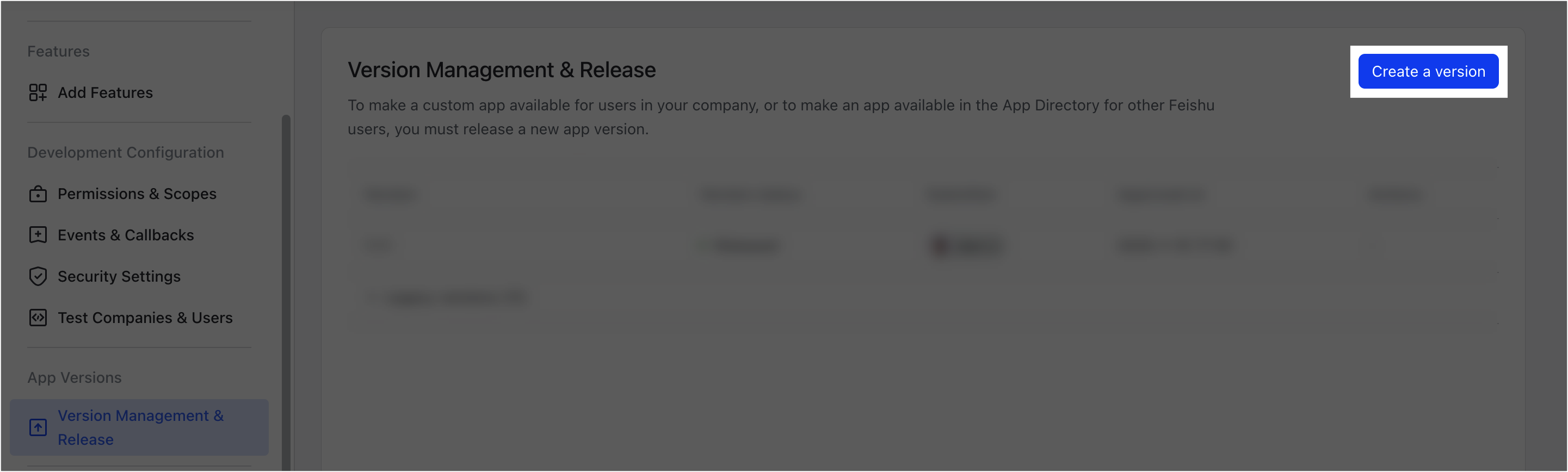
Go to App Versions > Version Management & Release, select Create a version, and complete the version details. Publish the app so its permissions and settings can take effect. Your workspace may require an administrator to review the release.
For more information, see Feishu’s custom app publishing guide.
Connect the app in Frevana
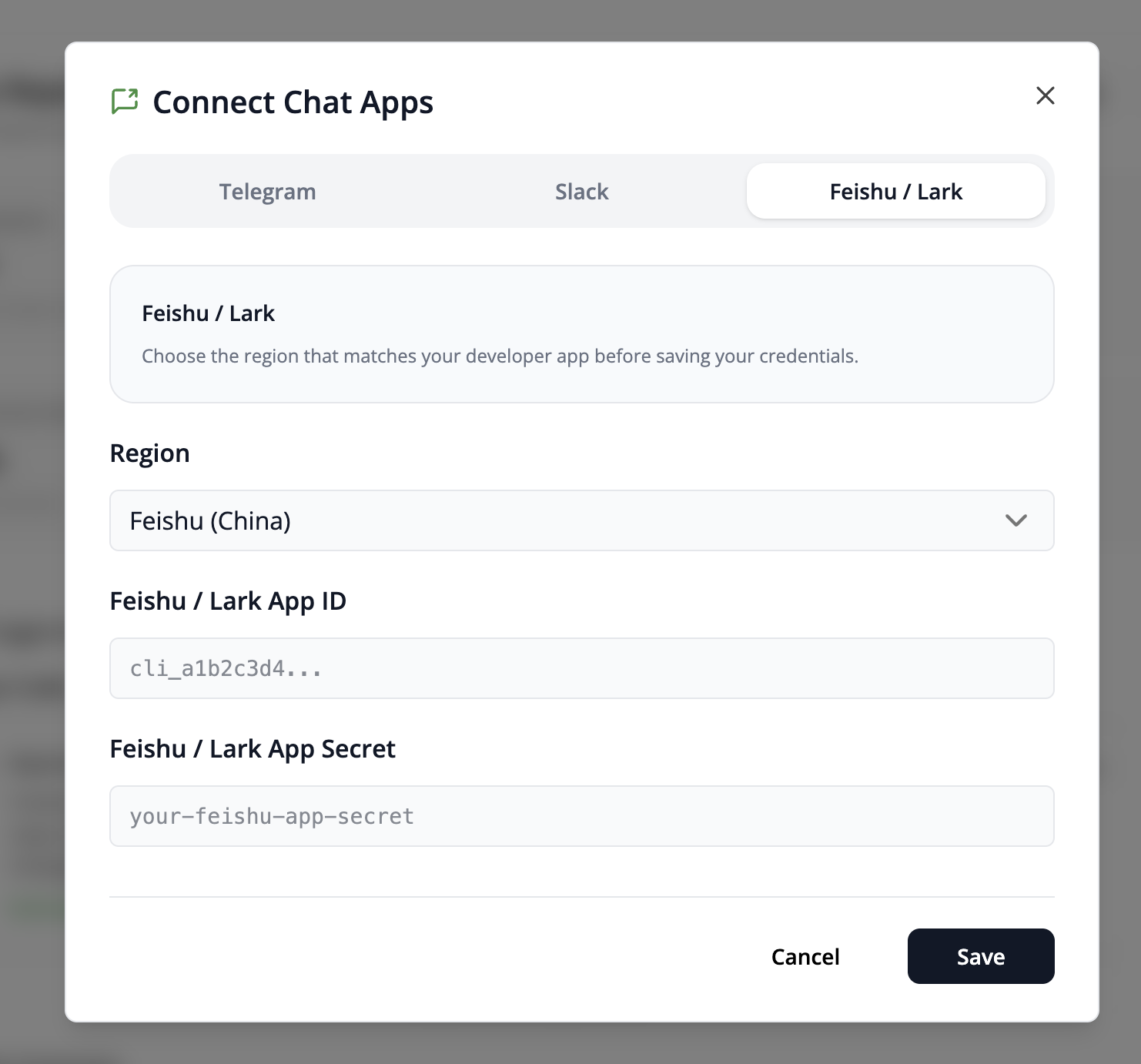
- In your Frevana Agent team, select Connect Chat Apps and choose Feishu / Lark.
- Select the region that matches your developer app.
- Enter the App ID and App Secret, then select Save.