Connect Slack to Frevana
Connect your Slack workspace to Frevana so your agent can work in the channels and direct messages you choose. You will need a Slack Bot Token and App Token to complete the connection.
Keep both tokens private. Treat them like passwords and store them only in a secure location.
Set up Slack with an app manifest
Using an app manifest is the fastest way to configure the Slack permissions Frevana needs.
-
Go to Slack API: Your Apps and select Create New App.
-
Choose From a manifest.
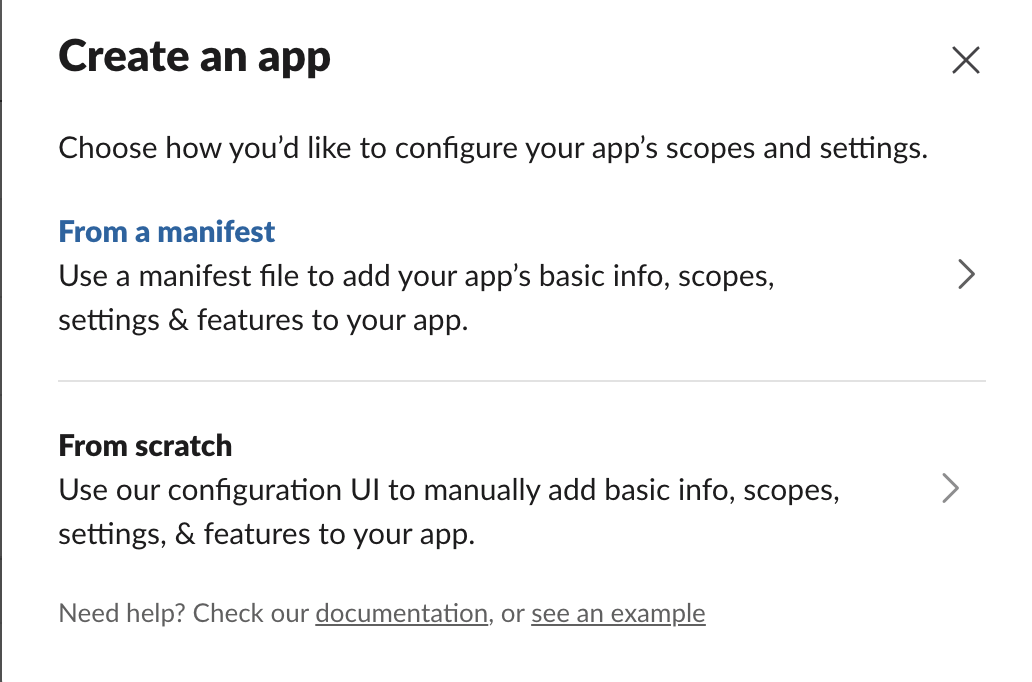
-
Choose the workspace you want to connect. Before pasting the manifest below, update the App Name, App Description, and Bot Name values to suit your team. Then paste the manifest and create the app.
{"display_information": {"name": "App Name","description": "App Description","background_color": "#6a7aab"},"features": {"bot_user": {"display_name": "Bot Name","always_online": true}},"oauth_config": {"scopes": {"bot": ["users:read","reactions:write","app_mentions:read","channels:history","channels:read","chat:write","files:read","files:write","groups:history","groups:read","im:history","im:read","im:write"]},"pkce_enabled": false},"settings": {"event_subscriptions": {"bot_events": ["app_mention","message.channels","message.groups","message.im"]},"interactivity": {"is_enabled": true},"org_deploy_enabled": false,"socket_mode_enabled": true,"token_rotation_enabled": false}} -
Create an App Token:
- Go to Settings > Basic Information > App-Level Tokens.
- Select Generate Token and Scopes, then add the
connections:writescope. - Copy the generated token. This is your App Token.
-
Enable direct messages for the app. Go to Features > App Home, then under Show Tabs, enable Messages Tab and allow users to send messages and slash commands from the Messages tab.
-
Install the app. Go to Settings > Install App, install it to your workspace, and copy the Bot User OAuth Token. This is your Bot Token.
-
Add the app to every channel where you want it to work. The app can access messages only in channels it has joined.
-
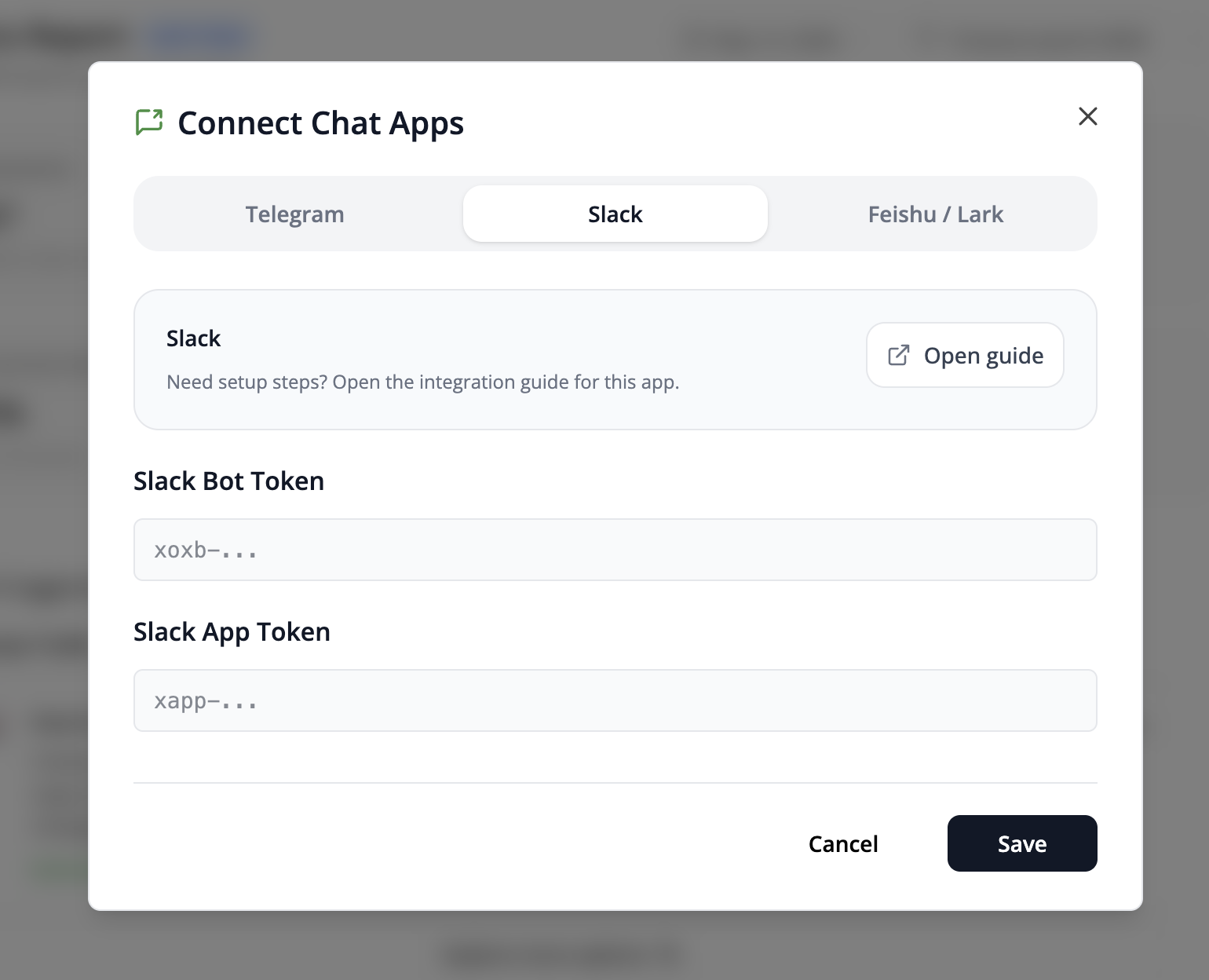
In Frevana, select Connect Chat Apps, enter your Bot Token and App Token, then select Save.
Set up Slack from scratch
Prefer to configure each setting yourself? Follow this path instead.
-
Go to Slack API: Your Apps, select Create New App, and choose From scratch.
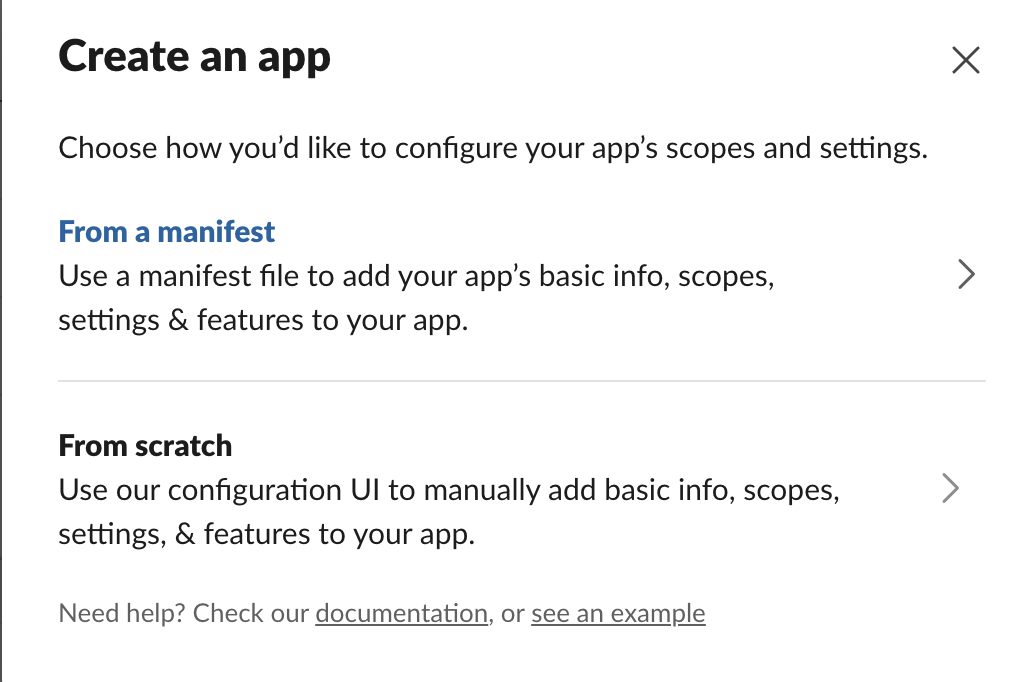
-
Enable Socket Mode: go to Settings > Socket Mode and turn it on.
-
Create an App Token under Settings > Basic Information > App-Level Tokens. Add the
connections:writescope, then copy the token. -
Under Features > OAuth & Permissions, add these Bot Token Scopes:
app_mentions:readreactions:writechannels:historychannels:readchat:writefiles:readfiles:writegroups:historygroups:readim:historyim:readim:writeusers:read
-
Under Features > Event Subscriptions, subscribe to these bot events:
app_mentionmessage.channelsmessage.groupsmessage.im
-
Enable direct messages. Under Features > App Home > Show Tabs, enable Messages Tab and allow users to send messages and slash commands from the Messages tab.
-
Install the app to your workspace and copy its Bot User OAuth Token. This is your Bot Token.
-
Add the app to the channels where you want it to operate, then connect it in Frevana with the Bot Token and App Token.