WordPress Integration
Connect your WordPress site to Frevana to publish content without copying it over manually. You'll create a dedicated Application Password and enter your site's connection details in Frevana.
Before you begin
Make sure you have:
- WordPress 5.6 or later
- A site accessible over HTTPS (recommended)
- A WordPress account with permission to create Application Passwords and publish content
Step 1: Open WordPress admin
Sign in to your WordPress dashboard at your admin URL, for example:
https://your-domain.com/wp-admin
Use this address to sign in to WordPress, but don't enter it as the Site URL in Frevana. You'll find the correct Site URL in Step 4.
Step 2: Open your profile
In the WordPress sidebar, select Users → Profile. You can also select your username to open your profile.
Step 3: Create an Application Password
Scroll to Application Passwords. Under New Application Password Name, enter a recognizable name, such as Frevana Publisher, and select Add Application Password.
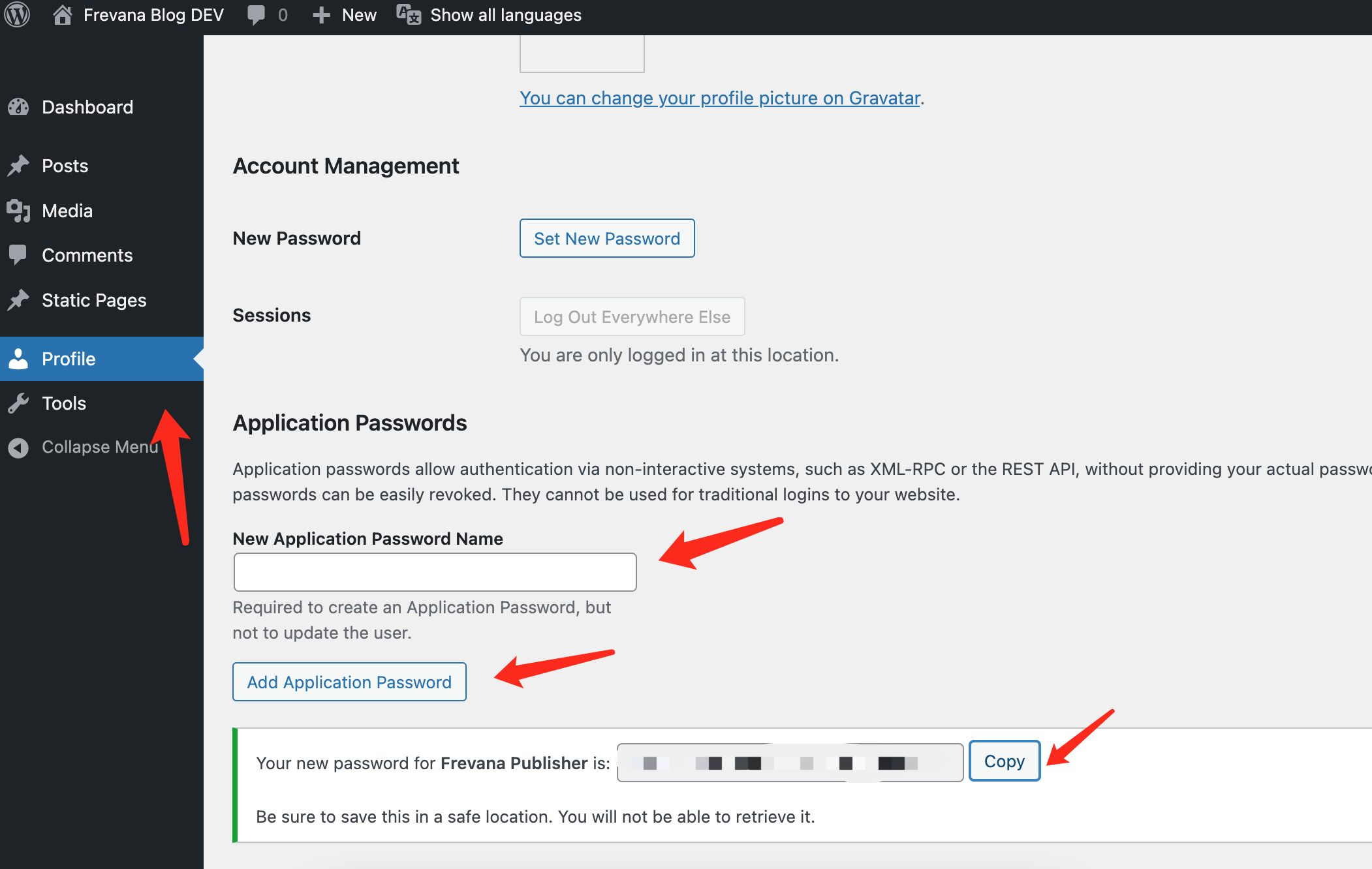
WordPress will generate a password similar to this example:
abcd EFGH 1234 ijkl MNOP 5678
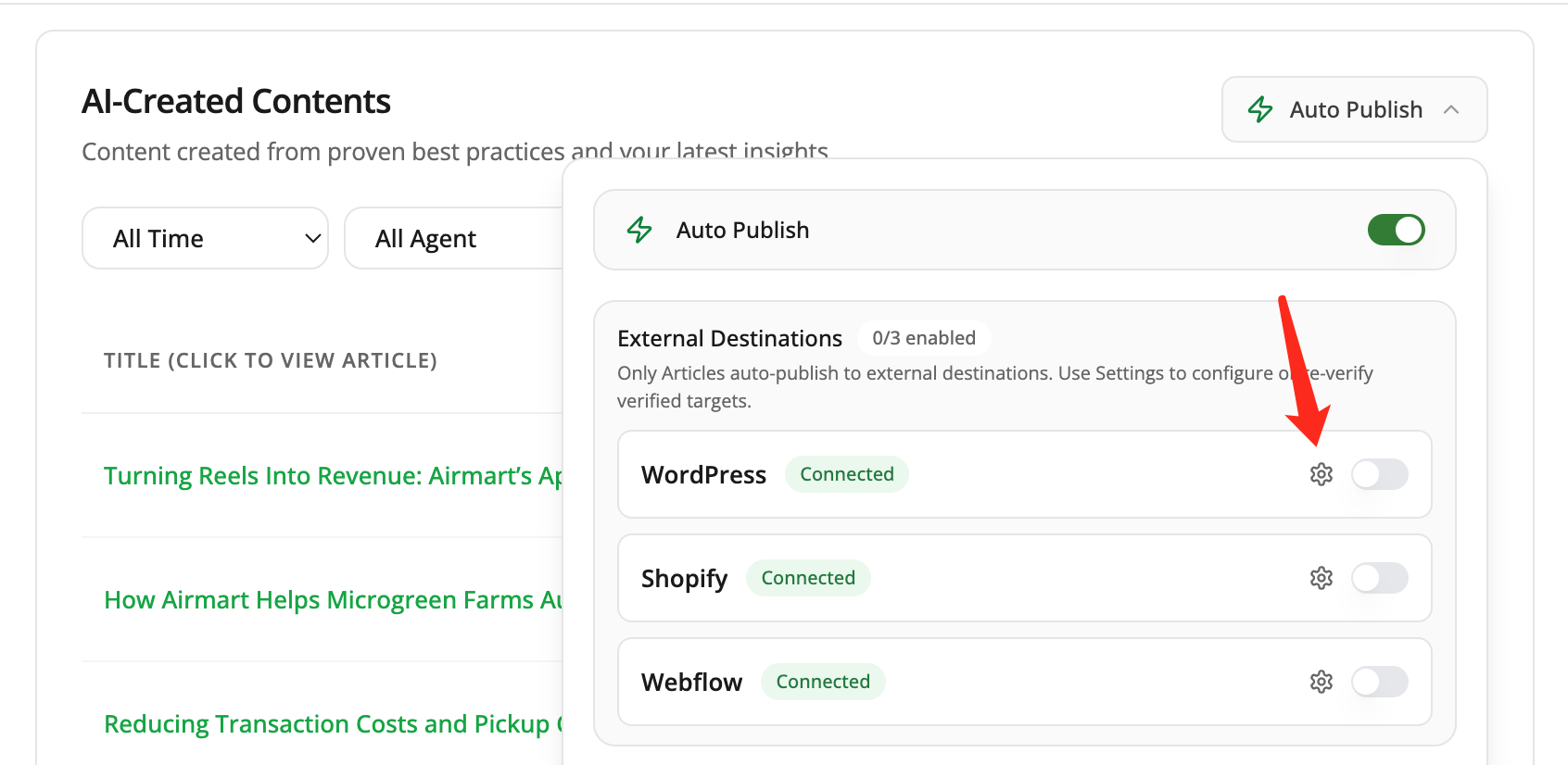
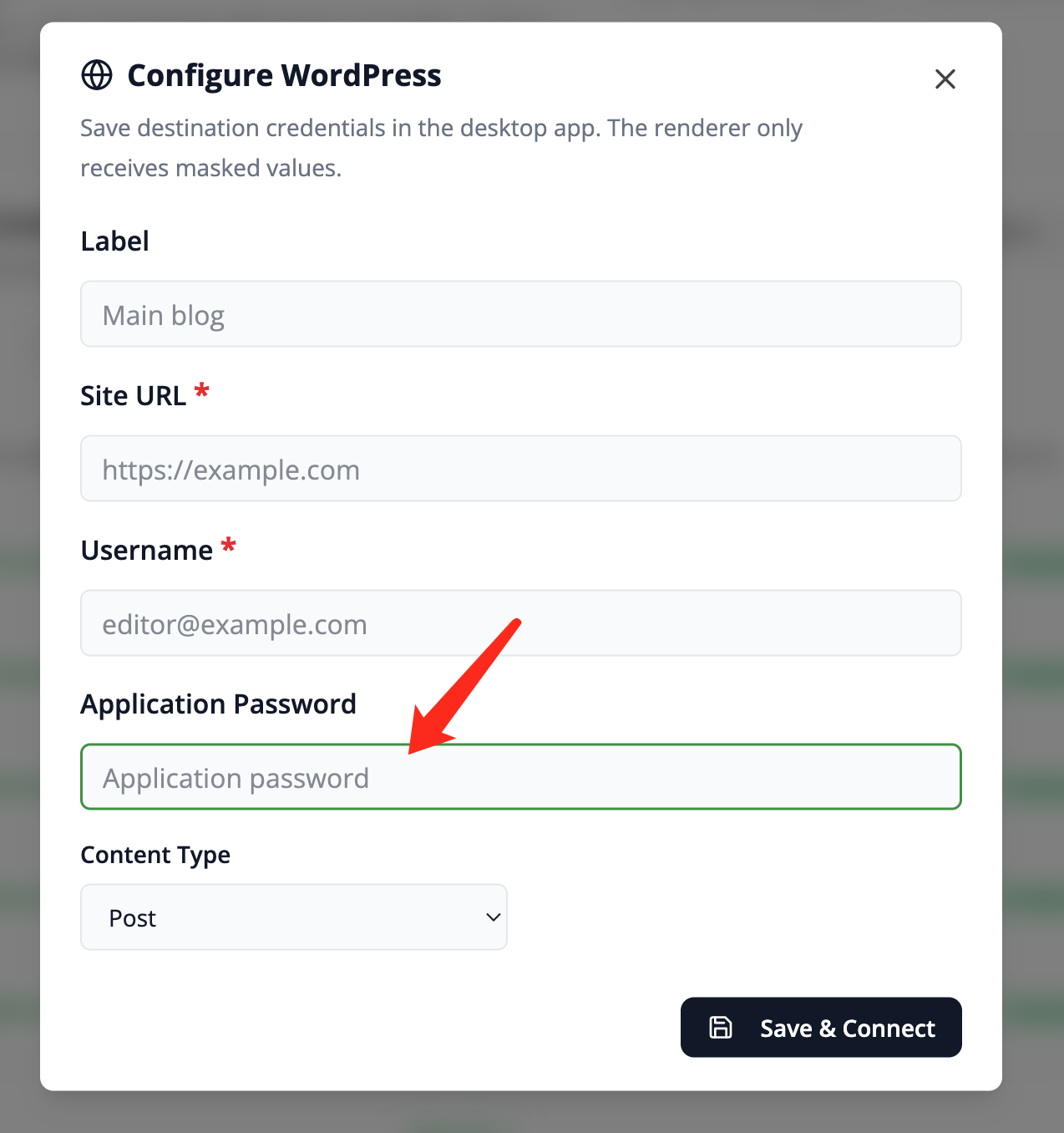
Copy the password and enter it in the corresponding field in Frevana.
WordPress shows the password only once. Copy it before leaving the page, keep it private, and use it only in the intended Frevana connection settings.
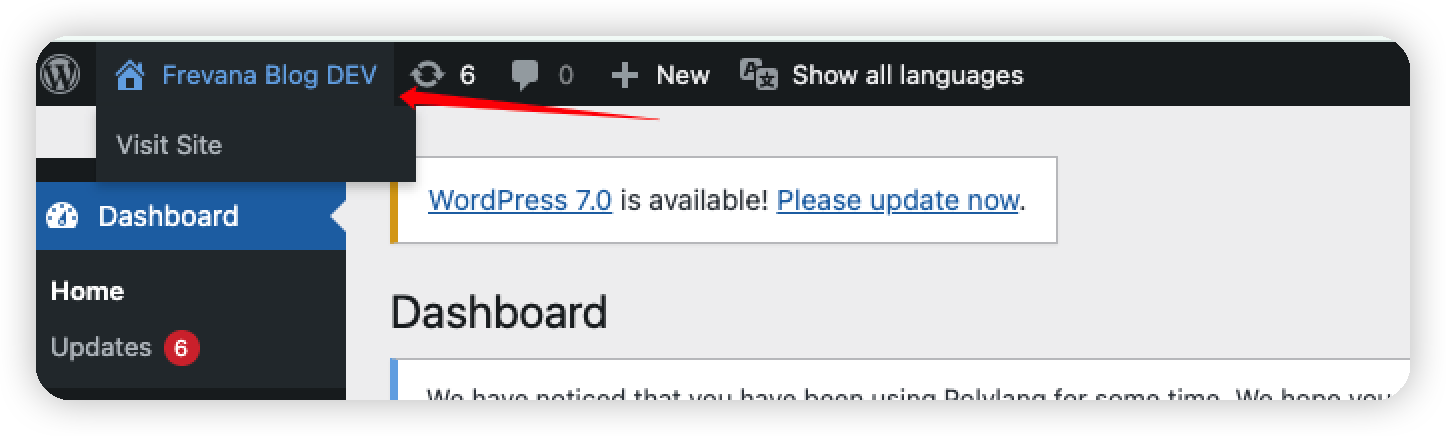
Step 4: Find your Site URL
Use your public WordPress site address as the Site URL, for example:
https://your-domain.com
Don't include /wp-admin. You can also find the Site URL in your WordPress settings.
Step 5: Complete the connection in Frevana
In the WordPress integration settings, enter:
| Field | What to enter |
|---|---|
| Site URL | Your WordPress site address, such as https://your-domain.com |
| Username | Your WordPress login username |
| Application Password | The password you generated in Step 3 |
Use the Application Password—not your main WordPress account password. Once connected, Frevana can publish content to your site.
Troubleshooting
Authentication failed
Check that your username is correct, that you copied the entire Application Password, and that the password hasn't been revoked in WordPress.
Can't create an Application Password
Check that WordPress is version 5.6 or later, your account has the necessary permissions, and a security plugin hasn't disabled Application Passwords.
Connection error
Confirm that your site is publicly accessible, its REST API isn't blocked, and HTTPS is configured correctly.